# How to access
1. In the upper right corner, click on the icon with a doll representing the user, as illustrated below:
2. The System will display a screen with a menu of features:
3. When clicking on the "**Tickets**" option, the system will direct you to the Tickets platform where you can view open Tickets, in addition to opening new Tickets:
4. By clicking on the "**+ New ticket**" button, the system will direct you to the new ticket opening screen, where the following information must be provided:
* **Category**: Select one of the following options:
* **Question**: If you have any doubts regarding the platform or wish to request data reprocessing.
* **Improvement**: If you have a suggestion to enhance an existing feature on the platform.
* **Issue/Problem**: To report a problem or a bug identified within the platform.
* **New Feature**: To suggest a functionality that does not yet exist on the platform.
* **Product**: Specify which product the new request refers to.
* **Feature**: After selecting the product, the system will enable specific feature options related to that product so you can pinpoint exactly what needs attention.
* **Context**: Inform the context being used for this request (e.g., AWS, Azure, GCP, etc.).
* **Summary**: Provide a brief title for your request. (e.g., "How do I create a custom field?")
* **Description**: Provide a detailed explanation of your request, including your needs, the scope, or what exactly is happening. The more details you provide, the faster our team can understand and address your request.
*Example: "I need a field that shows my cost per business area. I already have the 'Company' boost configured. How can I create this field?"*
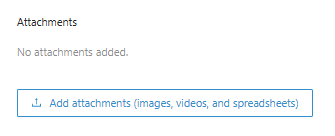
* **Attachment**: If you have any files you would like to present regarding the request, such as a screenshot of an identified issue, please feel free to attach them. This makes it much easier for our team to understand how we can help you.
5. Finally, when clicking on the "**Create Ticket**" button, the system will open a new Ticket and direct it to the team responsible for support.
6. When you finish opening a ticket, the system will return to the main screen where you can search for an existing ticket:
* **Search tickets**: The system allows you to search by ticket name
* **Filter by Category or Status**: It is possible to search by ticket category or execution status.
7. When you find the desired ticket, the system allows you to view more details by clicking on the ticket.
8. The system will direct you to the Ticket monitoring screen, where you can view the comment history.
9. On this screen, the system also allows you to view information related to the ticket, such as:
* **Reporter**: Person responsible for opening the Ticket
* **Context**: Context being applied to the service
* **Product**: Product of the platform that you want to support
* **Functionality**: Functionality related to the product that you want to support
* **Created at**: Date the Ticket was opened
* **Updated at**: Date the Ticket was last updated