# Exchange configuration already registered

**Configuration step by step:**

1. On the Billing Connector main screen, select the **Dollar** icon "![](https://1687673077-files.gitbook.io/~/files/v0/b/gitbook-x-prod.appspot.com/o/spaces%2FZ9sinLUl52lDK1vg6b8g%2Fuploads%2FnLw4h3yiqOL5z619C6lk%2Fimage.png?alt=media\&token=034bf22c-7426-42dd-b11a-0cfe3585f5d8)" in the desired Billing.

<figure><img src="https://1687673077-files.gitbook.io/~/files/v0/b/gitbook-x-prod.appspot.com/o/spaces%2FZ9sinLUl52lDK1vg6b8g%2Fuploads%2FdHsnUbh5f2Zn4XDHNCvW%2Fimage.png?alt=media&#x26;token=16901c2c-731a-47fd-8e66-f17e36e3ee55" alt=""><figcaption></figcaption></figure>

2. In the second configuration, the system will display the Exchange screen with the registered configuration, allowing you to register a "**New competency**".

<figure><img src="https://1687673077-files.gitbook.io/~/files/v0/b/gitbook-x-prod.appspot.com/o/spaces%2FZ9sinLUl52lDK1vg6b8g%2Fuploads%2FyMf6B8Ei8WurJiXXBVmP%2Fimage.png?alt=media&#x26;token=f27cbd33-b49a-4c43-8010-1219e9affe1c" alt=""><figcaption></figcaption></figure>

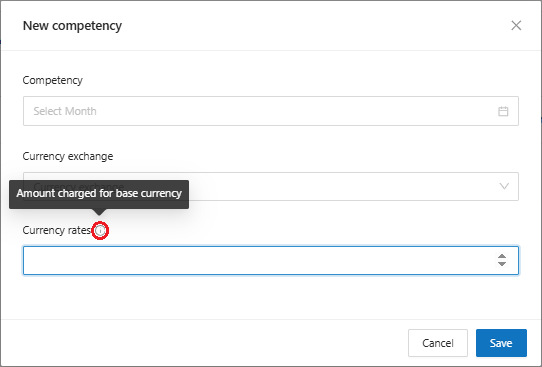
3. When clicking on the "**New Competency**" button, the system will display a registration screen for the new competency.

<figure><img src="https://1687673077-files.gitbook.io/~/files/v0/b/gitbook-x-prod.appspot.com/o/spaces%2FZ9sinLUl52lDK1vg6b8g%2Fuploads%2Fg00Ia8qarlvRDvgfW3CS%2Fimage.png?alt=media&#x26;token=5b592dff-9e50-484f-a968-cf61a9799429" alt=""><figcaption></figcaption></figure>

* **Competency**: Enter the month of competence that will be applied.

<figure><img src="https://1687673077-files.gitbook.io/~/files/v0/b/gitbook-x-prod.appspot.com/o/spaces%2FZ9sinLUl52lDK1vg6b8g%2Fuploads%2F8AyebNYgQN085nMAuAEZ%2Fimage.png?alt=media&#x26;token=ab0d3e86-eaf3-4b61-82b9-443e4df2cb5a" alt=""><figcaption></figcaption></figure>

* **Currency exchange**: select the conversion currency that will be used for the month of competence informed.

<figure><img src="https://1687673077-files.gitbook.io/~/files/v0/b/gitbook-x-prod.appspot.com/o/spaces%2FZ9sinLUl52lDK1vg6b8g%2Fuploads%2FL7KQrJPcqMntGb1afexC%2Fimage.png?alt=media&#x26;token=189724de-bd0c-4db1-b989-e20c2e1ea2b1" alt=""><figcaption></figcaption></figure>

* **Currency rates**: Enter the conversion value for the selected currency.&#x20;

<figure><img src="https://1687673077-files.gitbook.io/~/files/v0/b/gitbook-x-prod.appspot.com/o/spaces%2FZ9sinLUl52lDK1vg6b8g%2Fuploads%2F7WcK6qrurYRrZYOyHLty%2Fimage.png?alt=media&#x26;token=07d1b8c2-56ba-48c1-b21a-fad4f2d55c86" alt=""><figcaption></figcaption></figure>

{% hint style="info" %}
By clicking on the "![](https://1687673077-files.gitbook.io/~/files/v0/b/gitbook-x-prod.appspot.com/o/spaces%2FZ9sinLUl52lDK1vg6b8g%2Fuploads%2FT411pWyQZvSoWnCXDa1W%2Fimage.png?alt=media\&token=664de71a-0989-4f76-b980-d239209c9ed2)" icon, you can have a brief description of the field.
{% endhint %}

4. When you click **Save**, the system will store the data and return to the main Exchange screen.
5. **Actions:** On the main screen, the system allows you to edit the data relating to the desired competence by clicking on the "![](https://1687673077-files.gitbook.io/~/files/v0/b/gitbook-x-prod.appspot.com/o/spaces%2FZ9sinLUl52lDK1vg6b8g%2Fuploads%2FLRrjxZjaJYxtRgzjNvNK%2Fimage.png?alt=media\&token=64f1414e-1435-44eb-ac80-3fe4944cada7)" button.

<figure><img src="https://1687673077-files.gitbook.io/~/files/v0/b/gitbook-x-prod.appspot.com/o/spaces%2FZ9sinLUl52lDK1vg6b8g%2Fuploads%2FW3IGOFWR4tncmUvLWjhj%2Fimage.png?alt=media&#x26;token=df28fb89-49c7-421f-b8ec-bc61ec575c10" alt=""><figcaption></figcaption></figure>

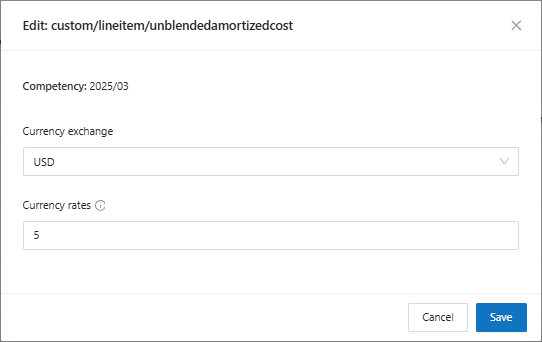
6. When clicking on the "**Edit**" button, the system will display the editing screen for the selected competency, allowing you to change the following information:

* **Currency exchange**: Enter the new conversion currency for the selected competency
* **Currency rates**: Enter the new exchange rate for the selected conversion currency.

<figure><img src="https://1687673077-files.gitbook.io/~/files/v0/b/gitbook-x-prod.appspot.com/o/spaces%2FZ9sinLUl52lDK1vg6b8g%2Fuploads%2FRuFnf1YRDDlh1BgVtRLg%2Fimage.png?alt=media&#x26;token=0a742803-a014-4495-a29b-7eb2b4da0edd" alt=""><figcaption></figcaption></figure>