# Grouped Billing Connectors

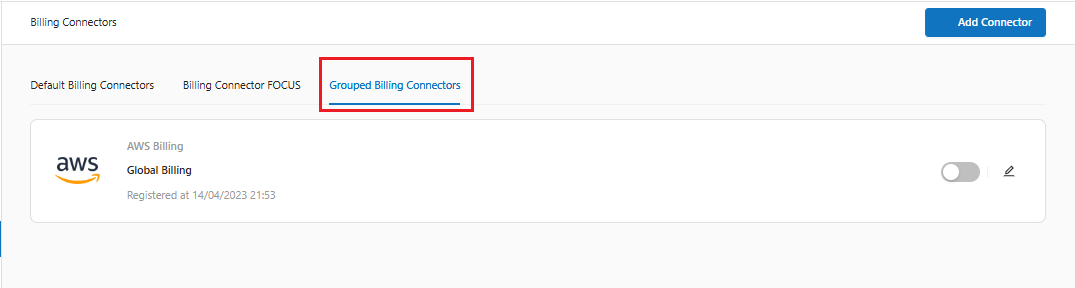
1. On the Billing Connector main screen, in the "**Grouped Billing Connectors**" tab:

<figure><img src="https://1687673077-files.gitbook.io/~/files/v0/b/gitbook-x-prod.appspot.com/o/spaces%2FZ9sinLUl52lDK1vg6b8g%2Fuploads%2FHDRjj1liJVA9QtRcjKcs%2Fimage.png?alt=media&#x26;token=c86df62d-c9cc-425b-8b57-06af383bbce6" alt=""><figcaption></figcaption></figure>

2. The system allows you to add a new Grouped Billing connector by clicking on the "**Add Connector**" option:

<figure><img src="https://1687673077-files.gitbook.io/~/files/v0/b/gitbook-x-prod.appspot.com/o/spaces%2FZ9sinLUl52lDK1vg6b8g%2Fuploads%2FFQu1R1TzEAunw47BV3Ah%2Fimage.png?alt=media&#x26;token=ba62adfb-656b-4985-9df3-0d085885ed63" alt=""><figcaption></figcaption></figure>

3. The system will display the screen to add a new **Grouped Billing** connector, where you will need to provide the following information:

* **Proprieties**:
  * Cloud Provider: Select a cost source from the available options (AWS, Azure, GCP, OCI, and IBM)
  * Grouped Billing Identification: Enter a name to identify the grouped billing.

<figure><img src="https://1687673077-files.gitbook.io/~/files/v0/b/gitbook-x-prod.appspot.com/o/spaces%2FZ9sinLUl52lDK1vg6b8g%2Fuploads%2FMoMffvVQCcxrsJJZfT3J%2Fimage.png?alt=media&#x26;token=71f40a4a-0a28-4d75-b7a9-533542956d79" alt=""><figcaption></figcaption></figure>

* **Connectors**:
  * Business: Select a business from the available options
  * Billing Connector: Enter the billing connector options that will be used for the selected business

<figure><img src="https://1687673077-files.gitbook.io/~/files/v0/b/gitbook-x-prod.appspot.com/o/spaces%2FZ9sinLUl52lDK1vg6b8g%2Fuploads%2FGSAcKhFcOyBWaR6GYeoH%2Fimage.png?alt=media&#x26;token=bbb765b2-60a6-473f-ab55-78d5eec9ef25" alt=""><figcaption></figcaption></figure>

{% hint style="info" %}
The system allows you to add more than one company by clicking on the **Add business** option.
{% endhint %}

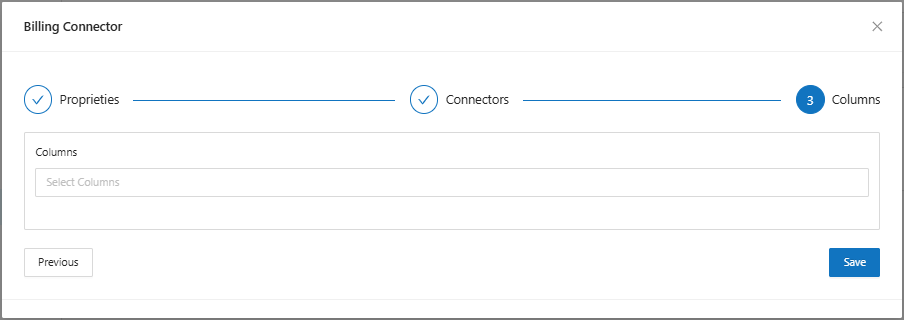
* **Columns:**
  * Columns: Select the billing fields that will be used for the cloud provider.

<figure><img src="https://1687673077-files.gitbook.io/~/files/v0/b/gitbook-x-prod.appspot.com/o/spaces%2FZ9sinLUl52lDK1vg6b8g%2Fuploads%2FYguI6zS1rAMakqnmBPS3%2Fimage.png?alt=media&#x26;token=b4945c1e-cc24-4646-88f0-26bf28c20746" alt=""><figcaption></figcaption></figure>

4. Finally, click the **save** button so that the Grouped Billing Connector is created.