# Cloud Synchronizer

### What is the Cloud Synchronizer feature:

A feature developed by Pier Cloud that allows synchronization with the customer's billing data, for all cloud providers, in addition to automatically synchronizing all subscriptions with the customer's Cloud accounts, only for AWS and Azure.

### **How to perform synchronization:**

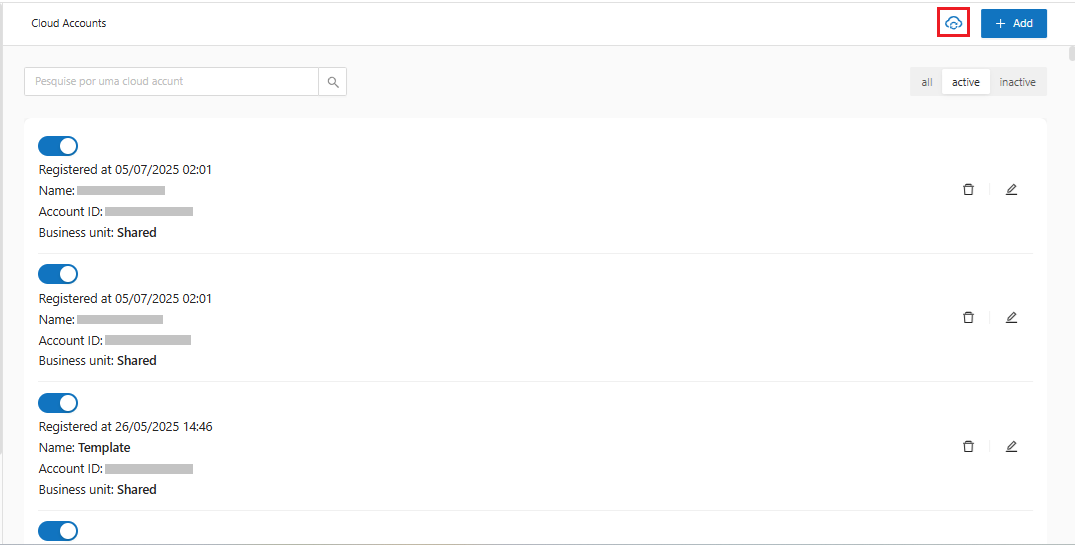
1. By clicking the "![](https://1687673077-files.gitbook.io/~/files/v0/b/gitbook-x-prod.appspot.com/o/spaces%2FZ9sinLUl52lDK1vg6b8g%2Fuploads%2FClhKyyUkGYUcePdcwN2w%2Fimage.png?alt=media\&token=a88c4640-9d22-4f58-afb1-acc848c9bf40)" icon, the system allows you to synchronize cloud accounts or subscriptions.

<figure><img src="https://1687673077-files.gitbook.io/~/files/v0/b/gitbook-x-prod.appspot.com/o/spaces%2FZ9sinLUl52lDK1vg6b8g%2Fuploads%2Fs1Wrp62OcNswhHn2sL8A%2Fimage.png?alt=media&#x26;token=0dd199cd-d079-40e0-b3a7-eb4ebae29ef8" alt=""><figcaption></figcaption></figure>

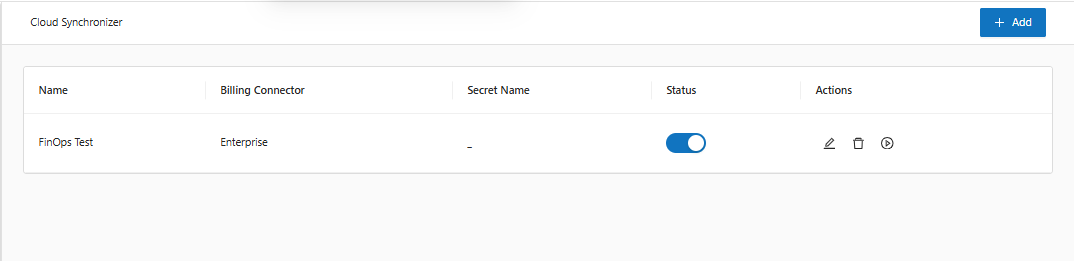
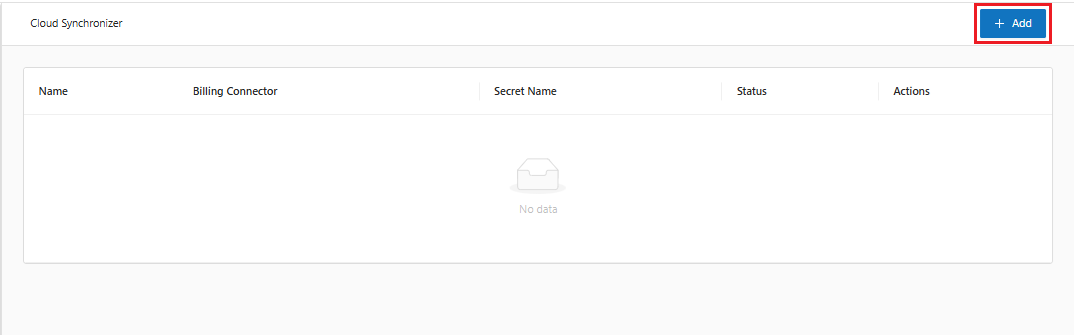
2. On the main screen, the system allows you to view registered synchronizations and add new Cloud synchronizations by clicking the "**Add**" button:

<figure><img src="https://1687673077-files.gitbook.io/~/files/v0/b/gitbook-x-prod.appspot.com/o/spaces%2FZ9sinLUl52lDK1vg6b8g%2Fuploads%2FXhuvDttOA1vAA4IPSinv%2Fimage.png?alt=media&#x26;token=d7d4a579-6747-4291-aad0-c86fd22682f3" alt=""><figcaption></figcaption></figure>

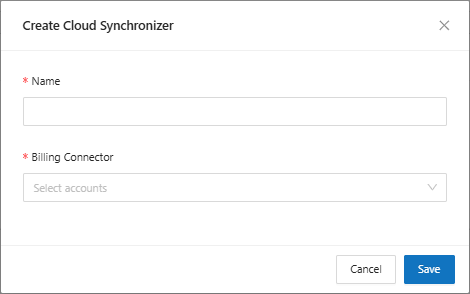
4. The screen for registering new Cloud Synchronizations will be displayed, where you will need to enter the following information:

<figure><img src="https://1687673077-files.gitbook.io/~/files/v0/b/gitbook-x-prod.appspot.com/o/spaces%2FZ9sinLUl52lDK1vg6b8g%2Fuploads%2FHilwT1ijpqf86PFUyxRS%2Fimage.png?alt=media&#x26;token=44113980-71c3-4e19-aa19-0b72d63fa230" alt=""><figcaption></figcaption></figure>

* **Name**: Enter the name you want to reference the Cloud synchronization.
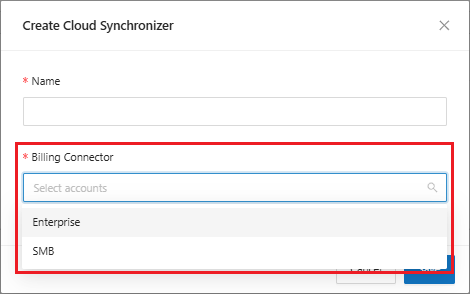
* **Billing Connector**: Select the "Billing Connector" option of the Cloud account you want to synchronize.

{% hint style="info" %}
By default, the system will perform **Billing** type synchronization, which allows you to synchronize billing data with the desired provider, but to do this, you must be logged in to the context of the provider you want to perform the synchronization for.
{% endhint %}

<figure><img src="https://1687673077-files.gitbook.io/~/files/v0/b/gitbook-x-prod.appspot.com/o/spaces%2FZ9sinLUl52lDK1vg6b8g%2Fuploads%2FxDUwribtkftdlSyKgBum%2Fimage.png?alt=media&#x26;token=249ef8d4-91e6-4bbd-a3a9-da17f8f30fd7" alt=""><figcaption></figcaption></figure>

5. Finally, by clicking the "**Save**" button, the data will be stored and the system will return to the main Cloud Synchronization screen.

<figure><img src="https://1687673077-files.gitbook.io/~/files/v0/b/gitbook-x-prod.appspot.com/o/spaces%2FZ9sinLUl52lDK1vg6b8g%2Fuploads%2FgJdLENzMUM4WaAxgcZOz%2Fimage.png?alt=media&#x26;token=905ec6ba-9653-4e53-a86d-102530b3016e" alt=""><figcaption></figcaption></figure>

5. **Actions**:

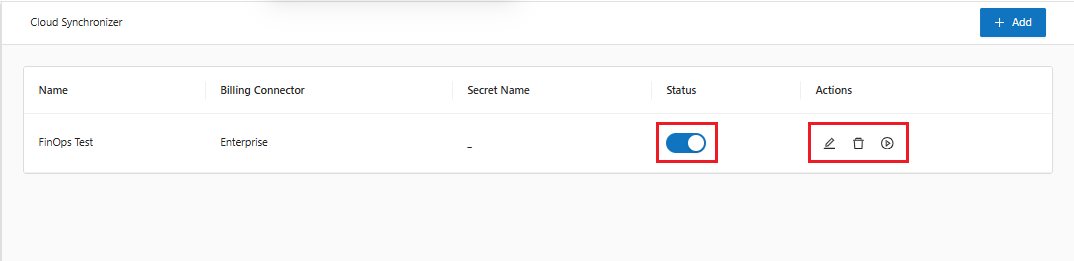
The system also allows you to perform some actions for each registered Synchronization:

<figure><img src="https://1687673077-files.gitbook.io/~/files/v0/b/gitbook-x-prod.appspot.com/o/spaces%2FZ9sinLUl52lDK1vg6b8g%2Fuploads%2FKBT0bqVgjZ9WnGCzPkps%2Fimage.png?alt=media&#x26;token=aa1e91e1-01e2-45d8-8fbd-37d9088e9118" alt=""><figcaption></figcaption></figure>

* **Status**: By clicking on the "![](https://1687673077-files.gitbook.io/~/files/v0/b/gitbook-x-prod.appspot.com/o/spaces%2FZ9sinLUl52lDK1vg6b8g%2Fuploads%2FKJoWXDz85krHW2fAKRYN%2F%7B1844D5B6-8251-4EE3-B2CD-6145C984EA16%7D.png?alt=media\&token=4bc9e497-d4a2-4790-b193-bbade36f0c1b)" icon, it is possible to activate or deactivate the registered synchronization.
* **Edit**: By clicking on the edit button "![](https://1687673077-files.gitbook.io/~/files/v0/b/gitbook-x-prod.appspot.com/o/spaces%2FZ9sinLUl52lDK1vg6b8g%2Fuploads%2F8OSJXV15cto4Z2UIUqL6%2Fimage.png?alt=media\&token=b72fd478-0dd4-459a-b505-e161d34e86d5)", the system will open the editing screen, allowing you to change information such as:
  * Name;&#x20;
  * Billing Connector.
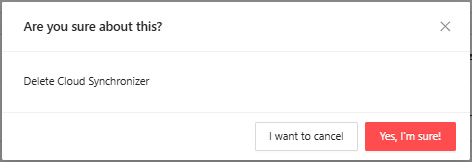
* **Delete**: By clicking on the delete "![](https://1687673077-files.gitbook.io/~/files/v0/b/gitbook-x-prod.appspot.com/o/spaces%2FZ9sinLUl52lDK1vg6b8g%2Fuploads%2F0XYTs3LGP7CxQ1f0Ii4O%2Fimage.png?alt=media\&token=c4a84dca-8281-449b-8e71-b10d4a85d120)", a screen will be displayed to confirm the action.

<figure><img src="https://1687673077-files.gitbook.io/~/files/v0/b/gitbook-x-prod.appspot.com/o/spaces%2FZ9sinLUl52lDK1vg6b8g%2Fuploads%2FiImXJOuQe08x594ubGP4%2F%7B7DF287AF-B39A-4A5B-B835-9FD0F8DCF110%7D.png?alt=media&#x26;token=3ecb7277-def9-4112-88f2-221cc4644f93" alt=""><figcaption></figcaption></figure>

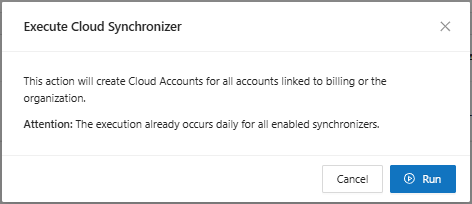
* **Execute**: By clicking on execute "![](https://1687673077-files.gitbook.io/~/files/v0/b/gitbook-x-prod.appspot.com/o/spaces%2FZ9sinLUl52lDK1vg6b8g%2Fuploads%2F8T3AykcYE9Ya37CzWr2f%2F%7B4E111ED0-3280-4E54-B4CE-748348291278%7D.png?alt=media\&token=8489358e-55fc-49b2-b65c-190210f43365)", a confirmation screen will be displayed for the action that will perform the immediate synchronization of the data.
<figure><img src="https://1687673077-files.gitbook.io/~/files/v0/b/gitbook-x-prod.appspot.com/o/spaces%2FZ9sinLUl52lDK1vg6b8g%2Fuploads%2Fm1Go1jzzd7aEJs0V4beO%2F%7B1FE9F049-414A-4469-8C21-75C728B7ECCE%7D.png?alt=media&#x26;token=d2beb5b9-a714-4aa3-96ff-d8bf1f7da65e" alt=""><figcaption></figcaption></figure>