# Data Connectors

### What is the Data Connectors feature:

A feature developed by Pier Cloud that allows you to connect to multiple data sources, both internal and external to the platform.

### How to use the Data Connectors feature:

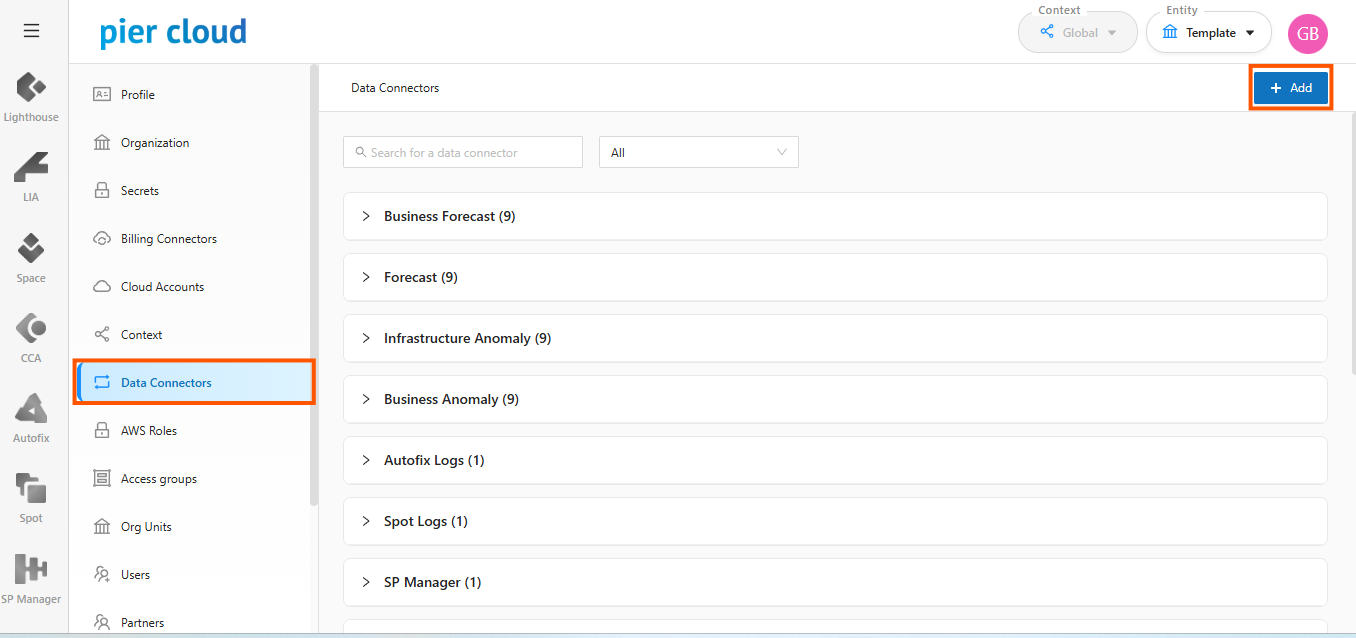
1. The system will display the side menu with configuration options. Select **"Data Connector"**:

<figure><img src="https://1687673077-files.gitbook.io/~/files/v0/b/gitbook-x-prod.appspot.com/o/spaces%2FZ9sinLUl52lDK1vg6b8g%2Fuploads%2FIYQ3ALsFluuFXSYnjUyN%2Fimage.png?alt=media&#x26;token=c8569b5b-2dbc-4279-b9e6-4d1ab5373890" alt=""><figcaption></figcaption></figure>

* On the main Data Connectors screen, the system allows you to connect a new data source to the platform by clicking the '**Add**' button.

1. A screen will appear to register the new data source, where you must provide the following information:

* **Data connector**: Select the data source you want to connect in this field. Depending on the selected data connector, the system will display specific additional fields for configuration."

**For Data Connectors options:**

* CCA Rules
* CCA Rightsizing AWS
* CCA Smart Instances
* CCA Payment Plans AWS
* CCA Rightsizing Azure
* LIA
* K8S Module

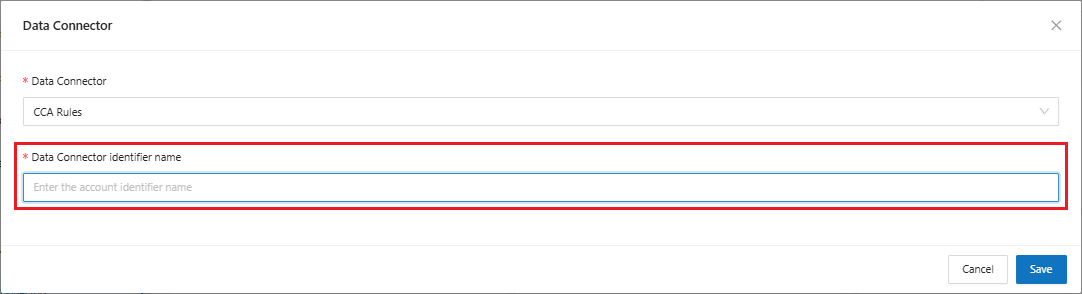
You will need to complete your registration by filling in the following field, which is common to all connectors:

* **Data Connector identifier name**: Enter a name that will be used to identify the Data Connector data source

<figure><img src="https://1687673077-files.gitbook.io/~/files/v0/b/gitbook-x-prod.appspot.com/o/spaces%2FZ9sinLUl52lDK1vg6b8g%2Fuploads%2FM1tcvJlpgIRFzUi8bzEG%2Fimage.png?alt=media&#x26;token=e58412bb-3714-4f96-818e-23c290697149" alt=""><figcaption></figcaption></figure>

**For these other Data Connector options**:&#x20;

* Budget,&#x20;
* Forecast,&#x20;
* Business Forecast,&#x20;
* Business Anomaly,&#x20;
* Infrastructure Anomaly.&#x20;

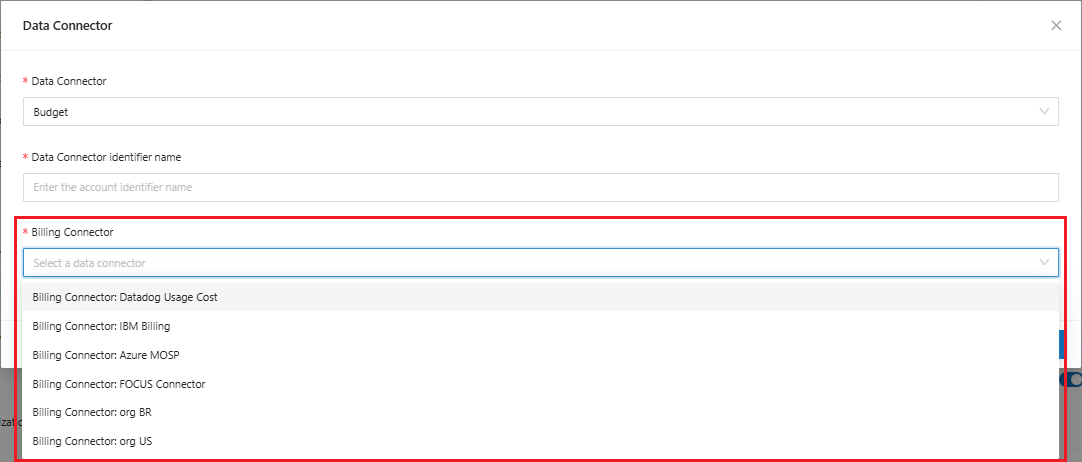
The following additional field will be displayed:

* **Billing Connector**: Select a provider from the Billing Connector options available for the functionality selected in the Data Connector.

<figure><img src="https://1687673077-files.gitbook.io/~/files/v0/b/gitbook-x-prod.appspot.com/o/spaces%2FZ9sinLUl52lDK1vg6b8g%2Fuploads%2FVdWxn0w22JXy3JTT72aB%2Fimage.png?alt=media&#x26;token=4ada57ba-0a37-430a-8888-06558b16f1dd" alt=""><figcaption></figcaption></figure>

{% hint style="info" %}
**For the other Data Connector options, we will detail the additional fields later.**
{% endhint %}

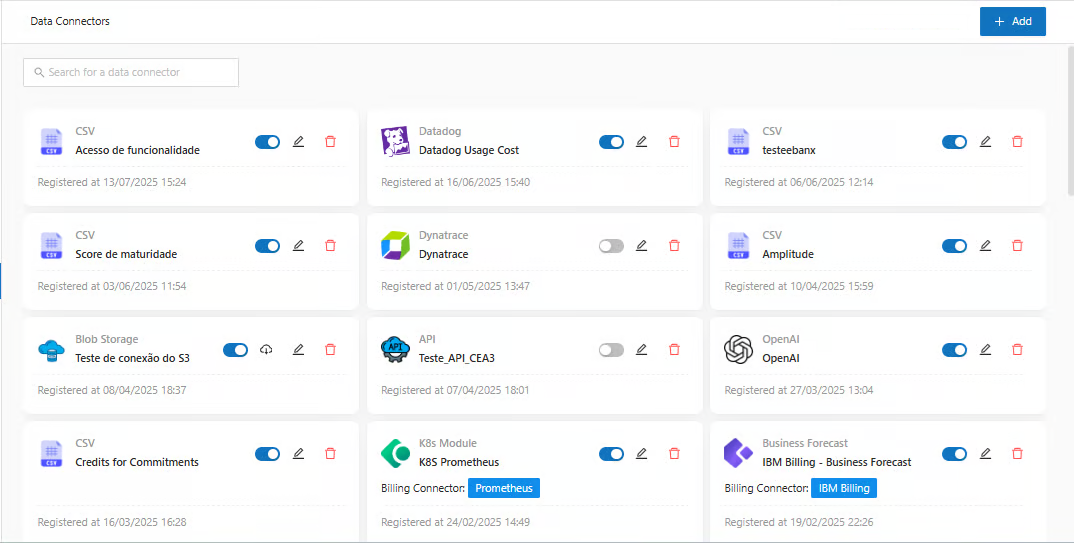
5. When you click on the “**Save**” button, the system will return to the main screen, where you will be able to view the new Data Connector available on the platform.

<figure><img src="https://1687673077-files.gitbook.io/~/files/v0/b/gitbook-x-prod.appspot.com/o/spaces%2FZ9sinLUl52lDK1vg6b8g%2Fuploads%2FwPTBv5LfW5JyKWfWjA68%2Fimage.png?alt=media&#x26;token=313129e1-1d91-4574-9d96-b9d235affeb1" alt=""><figcaption></figcaption></figure>

{% hint style="info" %}
Note: By default, every registered Data Connector starts with the initial status of Active.
{% endhint %}

5. **Filters**: On the main screen you can search for a specific Data Connector

<figure><img src="https://1687673077-files.gitbook.io/~/files/v0/b/gitbook-x-prod.appspot.com/o/spaces%2FZ9sinLUl52lDK1vg6b8g%2Fuploads%2FegMXNQqBjknYzkJ3eaGm%2Fimage.png?alt=media&#x26;token=b17e64d3-e816-456a-b8b7-b677f725911c" alt=""><figcaption></figcaption></figure>

7. **Actions**: And for each registered Data Connector, it is possible to perform the following actions:

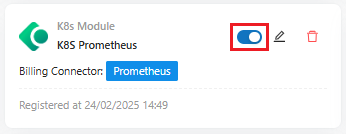
* **Enable/Disable** Data Connector by clicking the "![](https://1687673077-files.gitbook.io/~/files/v0/b/gitbook-x-prod.appspot.com/o/spaces%2FZ9sinLUl52lDK1vg6b8g%2Fuploads%2FFtvmRF45ILv1Nrurb6s8%2Fimage.png?alt=media\&token=d0c28db0-ebec-4b4b-a81f-5bdb79cc2e64)" button

<figure><img src="https://1687673077-files.gitbook.io/~/files/v0/b/gitbook-x-prod.appspot.com/o/spaces%2FZ9sinLUl52lDK1vg6b8g%2Fuploads%2FHkKEWgfqz0VTHcOr62on%2Fimage.png?alt=media&#x26;token=961ef25c-ea1d-4f83-ac5f-8b3c734bcd36" alt=""><figcaption></figcaption></figure>

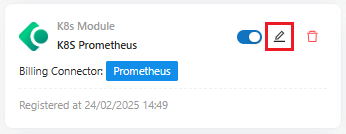
* **Edit**: Edit the information of the registered Data Connector by clicking the "![](https://1687673077-files.gitbook.io/~/files/v0/b/gitbook-x-prod.appspot.com/o/spaces%2FZ9sinLUl52lDK1vg6b8g%2Fuploads%2FkDwT279sWyeO1xBpNoEI%2Fimage.png?alt=media\&token=bccf7c58-011b-46f8-821b-61810f28b06f)" button

<figure><img src="https://1687673077-files.gitbook.io/~/files/v0/b/gitbook-x-prod.appspot.com/o/spaces%2FZ9sinLUl52lDK1vg6b8g%2Fuploads%2FnUunVTZBCNSTZoB67Xnx%2Fimage.png?alt=media&#x26;token=f14cf46f-78e4-42c4-b5c6-e6c36bd69f55" alt=""><figcaption></figcaption></figure>

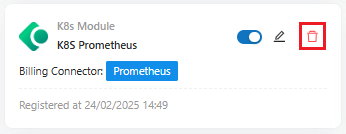
* **Delete**: Remove the registered Data Connector by clicking the "![](https://1687673077-files.gitbook.io/~/files/v0/b/gitbook-x-prod.appspot.com/o/spaces%2FZ9sinLUl52lDK1vg6b8g%2Fuploads%2FinKtK5Ottp6z0Gh3SGmy%2Fimage.png?alt=media\&token=5cac5e38-73aa-458b-9f1e-286e9276bcd4)" button

<figure><img src="https://1687673077-files.gitbook.io/~/files/v0/b/gitbook-x-prod.appspot.com/o/spaces%2FZ9sinLUl52lDK1vg6b8g%2Fuploads%2FEvjtvhcLTmbeYJfkd38h%2Fimage.png?alt=media&#x26;token=d52315da-19de-4929-81fa-8d21a510b58f" alt=""><figcaption></figcaption></figure>