# Data Connector API
On the main Data Connectors screen, when clicking the “Add” button, the system will display the screen to connect a new data source to the platform.
For each Data Connector option available on the platform, the system will present some additional fields to be filled in.
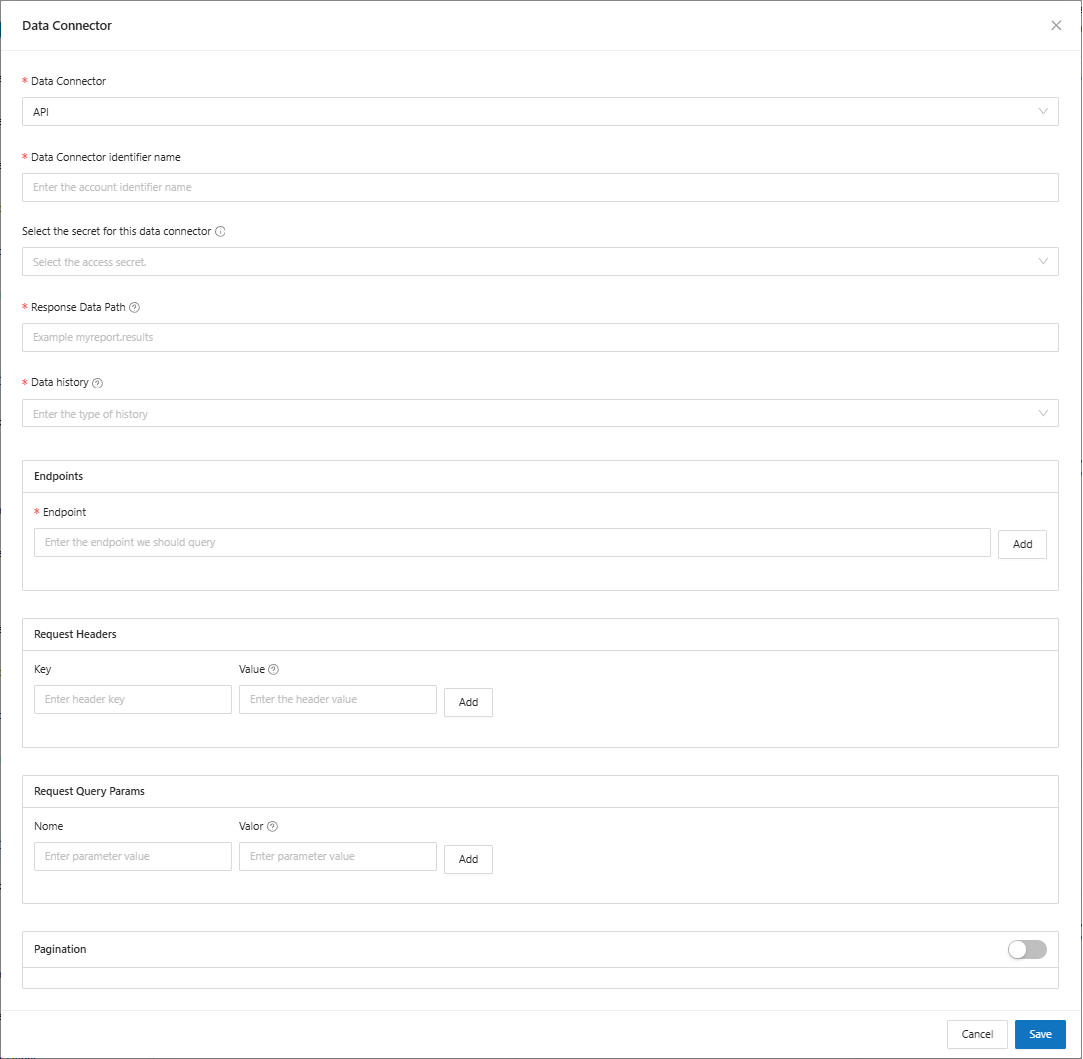
When selecting the **API** option, you will be asked to fill in the following fields:
* **Data Connector Identifier Name**: Enter the name that will identify the data source that will be connected
* **Select the secret for this data connector**: Select the secret you want to use from the registered options. We will use this secret to connect to the service.
* **Response Data Path**: Enter the path we should access in the API to identify the data you want to use.
* The Path must be separated by **common.dot (.)**
* If the API root is the return, enter only **"."**
* **Data History**: Select the desired history option from the following options:
* **The Daily History** every day will have values that represent the day of processing. Example, you will have data that represents the days 01/10, 02/10, 03/10 etc.. .
* **The Monthly History** will have data that represents the month of processing. Example, you will have data that represents the months 01/2023, 02/2023, 03/2023 etc...
* **Endpoints**:
* **Endpoint**: Enter the endpoint we should query.
* **Request Headers**:
* **Key**: Enter the header key
* **Value**: Enter the header value
You can add programmed values, possible values are
* $token (Token generated from the registered secret)
Usage example: "Bearer $token"
* **Request Query Params**:
* **Name**: Enter the name of the parameter
* **Value**: Enter the value of the parameter
You can add programmed values, possible values are:
* $current\_day (Current day's date (YYYY-MM-DD))
* $start\_of\_month (Start of month (YYYY-MM-DD))
* $end\_of\_month (End of month (YYYY-MM-DD))
* $d-1 (Current Day - 1 Day (YYYY-MM-DD))
* $d-2 (Current Day - 2 Days (YYYY-MM-DD))
* $d-3 (Current Day - 3 Days (YYYY-MM-DD))
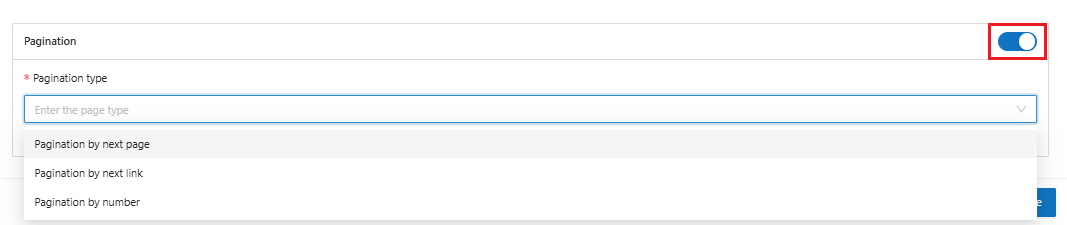
* **Pagination:** When enabling the pagination option, the system will display the following field:
* **Pagination type**: select the pagination type from the available options