# FOCUS for OCI

## Focus Configuration Process for OCI Provider

#### Welcome to Pier Cloud!

Pier Cloud is our centralized platform for managing cloud data and services. Our focus is to ensure that access to resources is secure, convenient, and efficient. This document is designed to guide you through configuring Focus on the OCI provider.

Below, you will find a detailed process that explains each step clearly and objectively.

### On the Pier Cloud Platform

1. On the Platform home page, click on the user icon and then select **Settings** as shown in the image below:

<figure><img src="https://1687673077-files.gitbook.io/~/files/v0/b/gitbook-x-prod.appspot.com/o/spaces%2FZ9sinLUl52lDK1vg6b8g%2Fuploads%2FC6mZQSzLiMsPW117o4Rv%2Fimage.png?alt=media&#x26;token=0a715384-0ce2-4e1f-8648-018748b1f754" alt=""><figcaption></figcaption></figure>

2. In the left menu, select **Billing Connectors.**

<figure><img src="https://1687673077-files.gitbook.io/~/files/v0/b/gitbook-x-prod.appspot.com/o/spaces%2FZ9sinLUl52lDK1vg6b8g%2Fuploads%2FxT56gDqQZPfgLAY1NooU%2Fimage.png?alt=media&#x26;token=bcfbc03c-4837-42e2-8f46-aac4ebf9aa13" alt=""><figcaption></figcaption></figure>

3. In this step, click on **+ Add Connector** in the top right menu as shown in the image below.

<figure><img src="https://1687673077-files.gitbook.io/~/files/v0/b/gitbook-x-prod.appspot.com/o/spaces%2FZ9sinLUl52lDK1vg6b8g%2Fuploads%2FI1tn2sBkgnYWF5nCJnC8%2Fimage.png?alt=media&#x26;token=d8501dfc-f45f-44ac-8c94-94413afd1170" alt=""><figcaption></figcaption></figure>

4. In this step, in the **Type** option, select **FOCUS**, in the **Cloud Provider** field, select **OCI (Oracle Cloud),** as illustrated in the image below.

<figure><img src="https://1687673077-files.gitbook.io/~/files/v0/b/gitbook-x-prod.appspot.com/o/spaces%2FZ9sinLUl52lDK1vg6b8g%2Fuploads%2FPQFP2sXCLugcBvvQRe8b%2Fimage.png?alt=media&#x26;token=1217b9c0-9263-49ff-af03-033c68de960a" alt=""><figcaption></figcaption></figure>

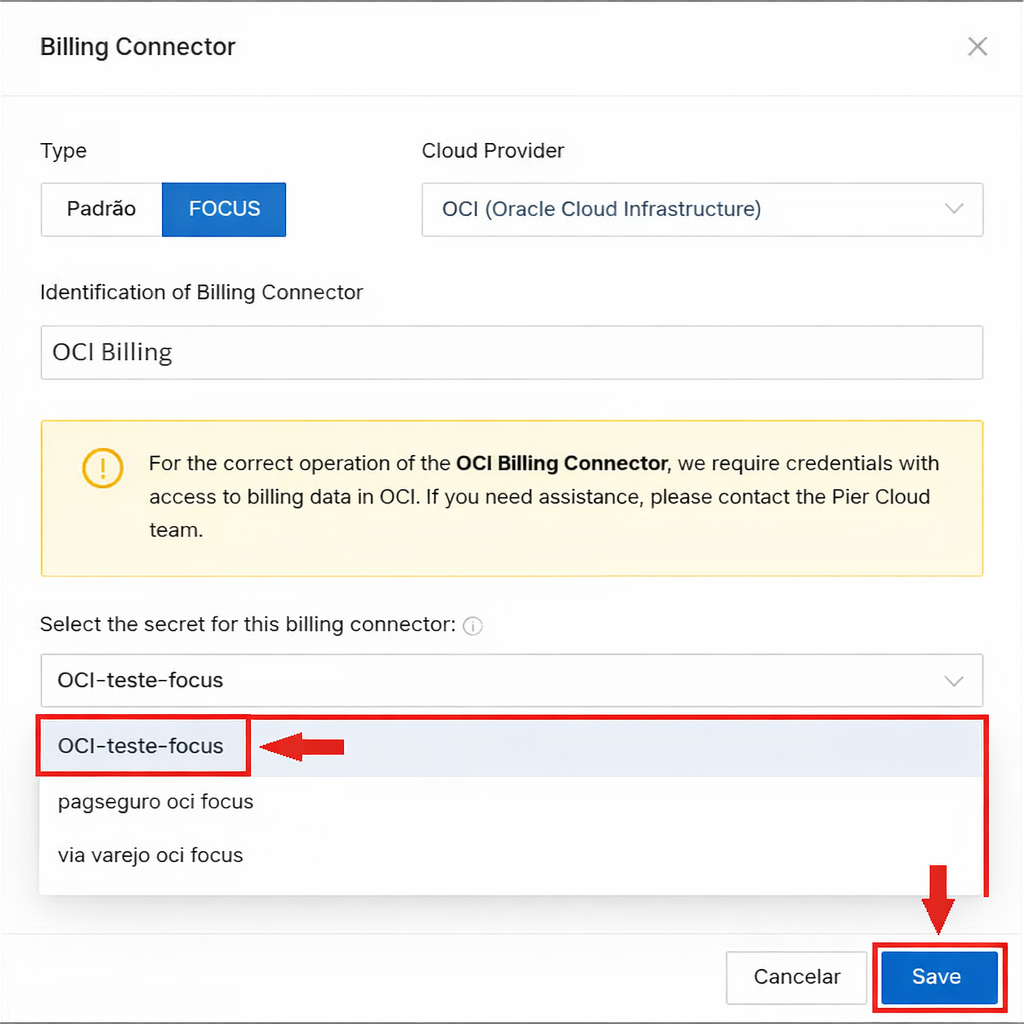
5. Here in the "**Select the Secret for this billing connector**" field, select the "**Secret**" the secret created, in this case you can use the same secret created for billing, then click **Save** to create the billing connector.

<figure><img src="https://1687673077-files.gitbook.io/~/files/v0/b/gitbook-x-prod.appspot.com/o/spaces%2FZ9sinLUl52lDK1vg6b8g%2Fuploads%2FUS51tIYKIR0uh3ZprlyA%2Fimage.png?alt=media&#x26;token=1d3c3b8d-f03a-459d-9d78-4c75f126af55" alt=""><figcaption></figcaption></figure>

5. **Billing Connector Focus OCI created successfully!**

No additional configuration is required by the client, as OCI already configures Focus automatically in the same folder where Billing is being generated.

<figure><img src="https://1687673077-files.gitbook.io/~/files/v0/b/gitbook-x-prod.appspot.com/o/spaces%2FZ9sinLUl52lDK1vg6b8g%2Fuploads%2FXtU8qH8s2sakQb06tDZM%2Fimage.png?alt=media&#x26;token=e7f8094b-ae7a-4fad-add6-11cbf3dfd638" alt=""><figcaption></figcaption></figure>

<br>