# Dynatrace Integration

## Dynatrace Configuration Process.

#### Welcome to Pier Cloud!

This document is intended to be a guide so that you can perform the necessary configuration so that you can connect the Pier Cloud platform with Dynatrace.

Below you will find a detailed process that explains each step clearly and objectively.

### In the DYNATRACE environment

1. Access the SaaS dynatrace environment and copy the **Enviroment ID** information, which can be viewed in 3 different places, as illustrated below, to use when creating the Data Connector:

<figure><img src="https://1687673077-files.gitbook.io/~/files/v0/b/gitbook-x-prod.appspot.com/o/spaces%2FZ9sinLUl52lDK1vg6b8g%2Fuploads%2FXiwd0f3bypfKkOa1DsU5%2Fimage.png?alt=media&#x26;token=1b8df89b-dfc5-47b2-a5d8-e0a57c30652d" alt=""><figcaption></figcaption></figure>

2. Then, access the "**Account Management**" option:

<figure><img src="https://1687673077-files.gitbook.io/~/files/v0/b/gitbook-x-prod.appspot.com/o/spaces%2FZ9sinLUl52lDK1vg6b8g%2Fuploads%2Fjy4TMEyIL9P41jnsB1Ne%2Fimage.png?alt=media&#x26;token=ee9b9e74-69cb-49a8-a3d6-39341f9500e6" alt=""><figcaption></figcaption></figure>

3. On the Dynatrace home page, go to the options: **Identity & access management** > **OAuth Clients**,  as illustrated below:

<figure><img src="https://1687673077-files.gitbook.io/~/files/v0/b/gitbook-x-prod.appspot.com/o/spaces%2FZ9sinLUl52lDK1vg6b8g%2Fuploads%2FdJdrBXIcJCeCmBqlwwPc%2Fimage.png?alt=media&#x26;token=78cde78e-7f51-401c-84b7-f83af1fa884d" alt=""><figcaption></figcaption></figure>

4. Click on **Create Client:**

<figure><img src="https://1687673077-files.gitbook.io/~/files/v0/b/gitbook-x-prod.appspot.com/o/spaces%2FZ9sinLUl52lDK1vg6b8g%2Fuploads%2FRjtgBPllX6gOZYjip6Z6%2Fimage.png?alt=media&#x26;token=37b816e0-bada-4cd6-b9c7-d9a130d57cc7" alt=""><figcaption></figcaption></figure>

5. In the "**Subject user email**" field, include a **valid email** and check the required permissions:

<figure><img src="https://1687673077-files.gitbook.io/~/files/v0/b/gitbook-x-prod.appspot.com/o/spaces%2FZ9sinLUl52lDK1vg6b8g%2Fuploads%2FBvObzdhfT5pRGuaFbdVU%2Fimage.png?alt=media&#x26;token=903cc2d3-4dd1-4402-ada7-3de11cba2128" alt=""><figcaption></figcaption></figure>

6. In the "**Environment Api**" session, select the permissions:

* environment-api:entities:read
* environment-api:metrics:read

<figure><img src="https://1687673077-files.gitbook.io/~/files/v0/b/gitbook-x-prod.appspot.com/o/spaces%2FZ9sinLUl52lDK1vg6b8g%2Fuploads%2FmZyVemX1m8GUmVvmbKi0%2Fimage.png?alt=media&#x26;token=a28ec1b4-5850-4dd9-bacc-58adaf711988" alt=""><figcaption></figcaption></figure>

7. In the "**Grail date ingest and query**" section, select the permissions:

* storage:metrics:read
* storage:buckets:read

<figure><img src="https://1687673077-files.gitbook.io/~/files/v0/b/gitbook-x-prod.appspot.com/o/spaces%2FZ9sinLUl52lDK1vg6b8g%2Fuploads%2F77E2wlbVsryqFmGer5PN%2Fimage.png?alt=media&#x26;token=896b2d1f-1a86-4b3c-8fa6-e2da8761abe2" alt=""><figcaption></figcaption></figure>

8. Finally, click on **Create Client**.
9. The system will display the following information, which must be copied and stored in a safe location for use in creating the Secret:

<figure><img src="https://1687673077-files.gitbook.io/~/files/v0/b/gitbook-x-prod.appspot.com/o/spaces%2FZ9sinLUl52lDK1vg6b8g%2Fuploads%2Fe3xtFDUrdLegqnQtgMNM%2Fimage.png?alt=media&#x26;token=a874183a-5cf1-42b5-879a-e2870a998b32" alt=""><figcaption></figcaption></figure>

10. Finally, click **Finish**.

**Note: After clicking the Finish button, you will not be able to view the created information again.**

### On the Pier Cloud Platform

1. On the Pier Cloud Platform, click on the user icon and then on the **Settings** option.

<figure><img src="https://1687673077-files.gitbook.io/~/files/v0/b/gitbook-x-prod.appspot.com/o/spaces%2FZ9sinLUl52lDK1vg6b8g%2Fuploads%2FCHGnCUyHOqrLdvbEFWZr%2Fimage.png?alt=media&#x26;token=7da4de41-e9f5-4322-842b-1e68047488bf" alt=""><figcaption></figcaption></figure>

#### Secret Creation:

2. The system will display the Features Menu on the left side. Click on the **Secrets** option and then on the **+ Add** button in the upper right corner to create the Secret.

<figure><img src="https://1687673077-files.gitbook.io/~/files/v0/b/gitbook-x-prod.appspot.com/o/spaces%2FZ9sinLUl52lDK1vg6b8g%2Fuploads%2FRmamWHN6Rg0FIMsNvOk9%2Fimage.png?alt=media&#x26;token=7ed4c602-49e6-4c3b-95c7-c4fa9cb79260" alt=""><figcaption></figcaption></figure>

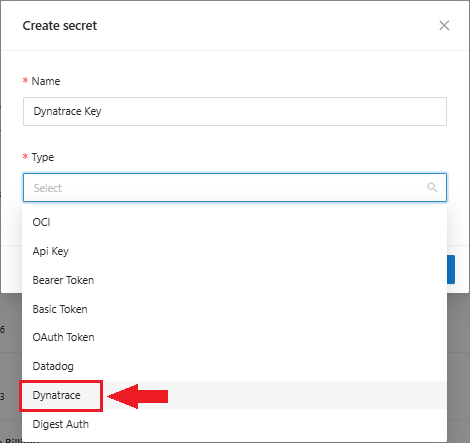
3. In this step we will configure the secret, in the **Name** field, we will add the name to identify the Secret, in the **Type** field we will select the type of secret, in this case we will select **Dynatrace**, as shown in the image below:

<figure><img src="https://1687673077-files.gitbook.io/~/files/v0/b/gitbook-x-prod.appspot.com/o/spaces%2FZ9sinLUl52lDK1vg6b8g%2Fuploads%2F8I6ONE865AByKvGNilUx%2Fimage.png?alt=media&#x26;token=a15aaf9a-a462-4a0b-b822-4da1d57a4988" alt=""><figcaption></figcaption></figure>

4. After selecting the Type, the system will display the **Client ID** and **Client Secret** field, where we will paste the Client ID and Client Secret collected in the Dynatrace environment (copied in step 9), then click **Save** to create the Secret.

<figure><img src="https://1687673077-files.gitbook.io/~/files/v0/b/gitbook-x-prod.appspot.com/o/spaces%2FZ9sinLUl52lDK1vg6b8g%2Fuploads%2FtzYMbxueqZPOHk1WpijS%2Fimage.png?alt=media&#x26;token=6c206ed0-3460-4c29-a691-58b667dadda8" alt=""><figcaption></figcaption></figure>

5. That's it, Secret created successfully!

#### Creating Data Connectors

6. In the functionality menu on the left, click on the **Data Connectors** option and then on the **+ Add** button in the upper right corner to create the Data Connector.

<figure><img src="https://1687673077-files.gitbook.io/~/files/v0/b/gitbook-x-prod.appspot.com/o/spaces%2FZ9sinLUl52lDK1vg6b8g%2Fuploads%2FURxENLxAbdpcsXpndMo5%2Fimage.png?alt=media&#x26;token=cfe39453-4db6-4f48-8a5d-89df00a77f9b" alt=""><figcaption></figcaption></figure>

7. In this step we will configure the Data Connector, in the **Data Connector** field, we will select the Dynatrace option, as shown in the image below, and in the **Data Connector Identifier Name** field we will add a **name** to identify the Data Connector to be created:

<figure><img src="https://1687673077-files.gitbook.io/~/files/v0/b/gitbook-x-prod.appspot.com/o/spaces%2FZ9sinLUl52lDK1vg6b8g%2Fuploads%2FxCZeZiBnz77laSbWyxNG%2Fimage.png?alt=media&#x26;token=028227cc-238c-42b8-8d4c-fc8ad048f6b4" alt=""><figcaption></figcaption></figure>

<figure><img src="https://1687673077-files.gitbook.io/~/files/v0/b/gitbook-x-prod.appspot.com/o/spaces%2FZ9sinLUl52lDK1vg6b8g%2Fuploads%2FeopSDKJMlrJWkzb7zc1l%2Fimage.png?alt=media&#x26;token=fd9fee21-2195-4c1f-a46e-297220648372" alt=""><figcaption></figcaption></figure>

8. After selecting the desired Data Connector, the system will present some new fields to be filled in:

* **Select the secret for this data connector**
* **Environment ID**

<figure><img src="https://1687673077-files.gitbook.io/~/files/v0/b/gitbook-x-prod.appspot.com/o/spaces%2FZ9sinLUl52lDK1vg6b8g%2Fuploads%2FJLGrF2JgKGt5vv8jmmQO%2Fimage.png?alt=media&#x26;token=814bae96-90ad-417f-95e5-99fd24010afe" alt=""><figcaption></figcaption></figure>

9. In the **Select the secret for this data connector** field, select the secret created in step 3:

<figure><img src="https://1687673077-files.gitbook.io/~/files/v0/b/gitbook-x-prod.appspot.com/o/spaces%2FZ9sinLUl52lDK1vg6b8g%2Fuploads%2FsSUdhnIqQOaXEajWqlR1%2Fimage.png?alt=media&#x26;token=8b40c29c-e4f8-4e32-a071-e331ba374e7f" alt=""><figcaption></figcaption></figure>

10. In the **Environment ID** field, provide the information collected from the Dynatrace environment (copied in step 1):

<figure><img src="https://1687673077-files.gitbook.io/~/files/v0/b/gitbook-x-prod.appspot.com/o/spaces%2FZ9sinLUl52lDK1vg6b8g%2Fuploads%2FBDTIGKcQ7gh2v78ykqpq%2Fimage.png?alt=media&#x26;token=4470ba28-4519-4bc1-86a2-1fd468d9f439" alt=""><figcaption></figcaption></figure>

11. The remaining fields will be filled in automatically.
12. Finally, click the Save button to create the new Data Connector.