# New Relic Integration

## New Relic Configuration Process.

#### Welcome to Pier Cloud!&#xD;

This document is intended to be a guide to help you prepare your environment to connect the Pier Cloud platform with New Relic.

Below, you will find a detailed process explaining each step.

#### PART I: Creating a Principal Service in New Relic

As a premise, we need to create a Service Principal in New Relic.

Below is the New Relic documentation informing how to configure the Service Principal and the appropriate accesses:

1. To start the configuration, you need to access the New Relic portal to add configuration.

Click on the user profile in the lower left corner, then select **API Keys**, as shown in the image below.

<figure><img src="https://lh7-rt.googleusercontent.com/slidesz/AGV_vUcM0V5mGPCGoF7lPFGV13d_ue7xqgWNOk7xtgLOWthTx1hgkloorGc6j-58KE36FcUTxmQS8O1K-vXW8eFu77qVwYzE_8LzNs0UQs1UWxX0oymDGDW_-NgTgNs-UxlRWtyXHlrJUSk55iIvG1MXy15HQBVKXBQd=s2048?key=ZzTeXh69ZTnFcW6F3629_g" alt=""><figcaption></figcaption></figure>

2. In this step, click on **create a key** to create a key.

<figure><img src="https://lh7-rt.googleusercontent.com/slidesz/AGV_vUeHxgySe_NgGhNhg865qr2H0BULisGpJbF6KtzCXFJj-GBUL-QdlBFkOFAChC5nbNNlbQ8V82_Gl7rzIJ0XIwAJXklo8UY7ygJNSaj8SfU_g310yX7hRsdSOeM6K3zK8L8lJahUlLDIFpiShAclIQ6u_GsofDg=s2048?key=ZzTeXh69ZTnFcW6F3629_g" alt=""><figcaption></figcaption></figure>

3. In this step we will add the name of the key in the **Name** field (to identify the key), then click on **Create a key**, to create the key, as shown in the image below:

<figure><img src="https://lh7-rt.googleusercontent.com/slidesz/AGV_vUdyqO3SFiysiz212UuSCA6DKE142b2XovZ_7XNn421By05BrlnJ9Tw0kUB8tYhIiJatOav5RbRjIk6rSPjA64nB2t9ot22IKitcGBlQBUiEwaQzeoGs7kJrIX6JDlrO4VpFFr0sDSB9VI6NofXH3I92k8PlXmha=s2048?key=ZzTeXh69ZTnFcW6F3629_g" alt=""><figcaption></figcaption></figure>

4. Done! The API Keys have been successfully created.

<figure><img src="https://lh7-rt.googleusercontent.com/slidesz/AGV_vUcClu7cRI37filht64ydtDgM9DXwZC3W0EerH9uOoAi66Bu_ek_hudfVnzg5SEaA5oS2hTBfjQTygLljqxBiaWakOv7XlEXChib6tkba2pofpJwuEEZfbVy3dFxmq4oe02PgH1xsdFXtObyuaK6tmE-a13-L0cE=s2048?key=ZzTeXh69ZTnFcW6F3629_g" alt=""><figcaption></figcaption></figure>

5. Now we will click on the three dots on the right side and then we will click on **Copy key**, to copy the key and copy **Account ID**.
   * Note: paste the **key** and the copied **Account ID** into a notepad, as we will add this key to the configuration on the Platform.

<figure><img src="https://lh7-rt.googleusercontent.com/slidesz/AGV_vUfgo05TWQ2eeCFAlDKV6QOEtdp-6h_lw5S_d6NbPrJBzRO-UJWSYioslvqS3pKfjwLXDW77iOz2V2IgIbW7kj_5Af3lws5R_0xMWg41E9FpAZZtmGAgFVT4opCuOv1C6YATK9Nz88PIGBUGcpQio1H6qT82MMTY=s2048?key=ZzTeXh69ZTnFcW6F3629_g" alt=""><figcaption></figcaption></figure>

### On the Pier Cloud Platform

1. In the Platform, click on the user icon then on the **Settings** option.

<figure><img src="https://1687673077-files.gitbook.io/~/files/v0/b/gitbook-x-prod.appspot.com/o/spaces%2FZ9sinLUl52lDK1vg6b8g%2Fuploads%2FCHGnCUyHOqrLdvbEFWZr%2Fimage.png?alt=media&#x26;token=7da4de41-e9f5-4322-842b-1e68047488bf" alt=""><figcaption></figcaption></figure>

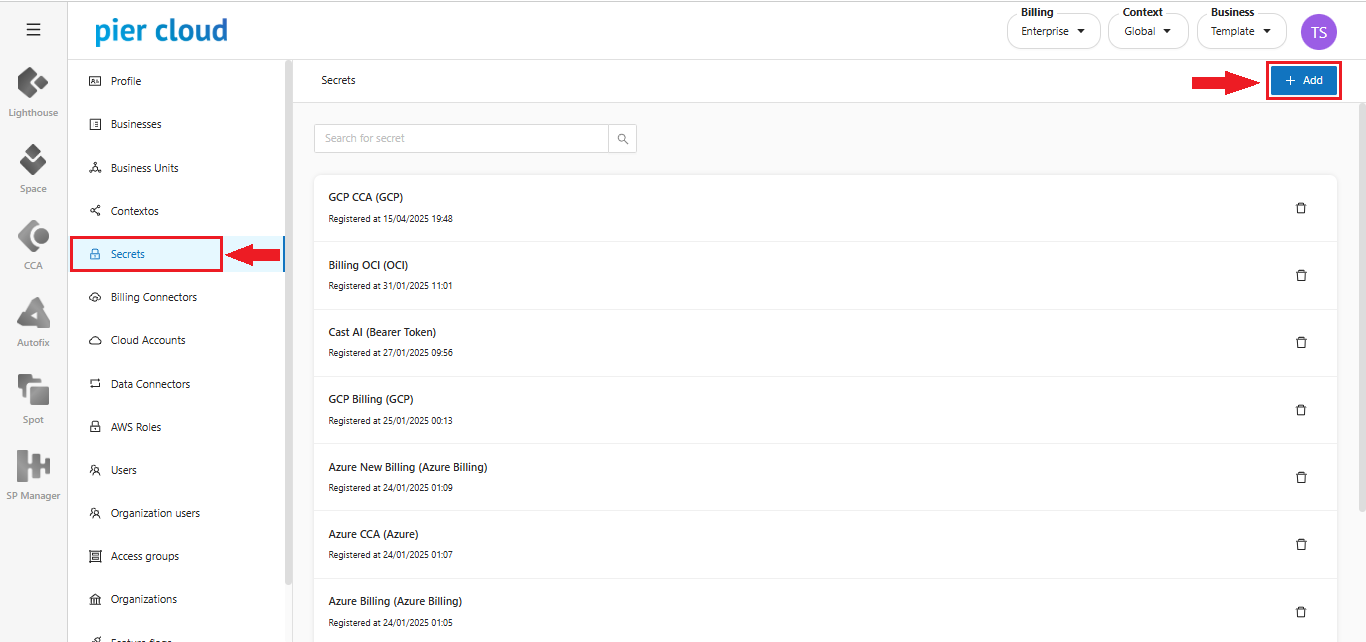
2. In this step, click on the **Secrets** option in the menu on the left, then on the **+ Add** button in the upper right corner to create the Secret.

<figure><img src="https://1687673077-files.gitbook.io/~/files/v0/b/gitbook-x-prod.appspot.com/o/spaces%2FZ9sinLUl52lDK1vg6b8g%2Fuploads%2FWG3hW8kjf9iWRrDflzgu%2Fimage.png?alt=media&#x26;token=ddef45de-d47b-475c-8ccf-fdd8be0608b5" alt=""><figcaption></figcaption></figure>

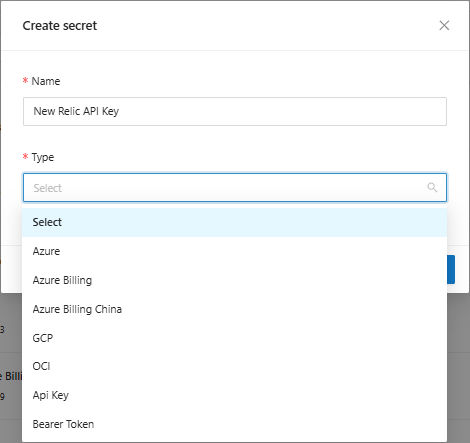
2.1. In this step we will configure the secret, in the **Name** field, we will add the name to identify the Secret, in the **Type** field we will select the type of secret, in this case we will select **Api Key**, as shown in the image below:

<figure><img src="https://1687673077-files.gitbook.io/~/files/v0/b/gitbook-x-prod.appspot.com/o/spaces%2FZ9sinLUl52lDK1vg6b8g%2Fuploads%2F51pJA7RONI2EJZQUpM09%2Fimage.png?alt=media&#x26;token=d944b8de-8973-44d1-aaa7-53f5778678cc" alt="" width="353"><figcaption></figcaption></figure>

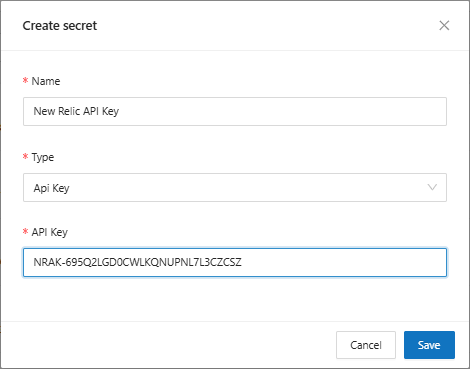
2.2. After selecting the Type in the previous step, the **API Key** field will appear, where we will paste the API Key created in the New Relic console (copied on step 8), then click **Save** to create the Secret.

<figure><img src="https://1687673077-files.gitbook.io/~/files/v0/b/gitbook-x-prod.appspot.com/o/spaces%2FZ9sinLUl52lDK1vg6b8g%2Fuploads%2FtdGsa18Nk9LM9vc3kxjQ%2Fimage.png?alt=media&#x26;token=f4de7f9f-1874-484d-b697-9a6614730a77" alt="" width="353"><figcaption></figcaption></figure>

2.3. Done! Secret created successfully.

<figure><img src="https://1687673077-files.gitbook.io/~/files/v0/b/gitbook-x-prod.appspot.com/o/spaces%2FZ9sinLUl52lDK1vg6b8g%2Fuploads%2FUb7jeJDm23N9oMBfYZ6I%2Fimage.png?alt=media&#x26;token=a2301c3d-34ff-4ffd-b5e0-8d6e54f9935b" alt=""><figcaption></figcaption></figure>

3. Here we will select the **Data Connectors** option, in the menu on the left, then click on **+ Add**, in the upper right corner,  to create the data connector, as shown in the image below:

<figure><img src="https://1687673077-files.gitbook.io/~/files/v0/b/gitbook-x-prod.appspot.com/o/spaces%2FZ9sinLUl52lDK1vg6b8g%2Fuploads%2FmKb7fhGNimz9vriOd1mR%2Fimage.png?alt=media&#x26;token=e05dd8ac-2c04-40d6-891c-a5f0b94fadf9" alt=""><figcaption></figcaption></figure>

3.1. In this step, in the **Data Connector** field, we will select the type (in this case it will be New Relic), in the **Data Connector Identifier Name** field, we will add the name to identify the Data connector.

<figure><img src="https://1687673077-files.gitbook.io/~/files/v0/b/gitbook-x-prod.appspot.com/o/spaces%2FZ9sinLUl52lDK1vg6b8g%2Fuploads%2FYmF65IkkGsaYZSOBUDO3%2Fimage.png?alt=media&#x26;token=9de72113-8cea-46f6-8aa1-d5ae16bb17d4" alt="" width="563"><figcaption></figcaption></figure>

3.2. Here we will add in the **Account ID** field (Information obtained on step 9), the metrics are created by default (the user can edit, remove or create new metrics, if necessary), then click on **Save**, to create the **Data Connector**, as shown in the image below:

<figure><img src="https://1687673077-files.gitbook.io/~/files/v0/b/gitbook-x-prod.appspot.com/o/spaces%2FZ9sinLUl52lDK1vg6b8g%2Fuploads%2FNV3IrUCwenwtIFTd9hus%2Fimage.png?alt=media&#x26;token=bcc20c0a-9341-4c75-866b-34566186a875" alt="" width="563"><figcaption></figcaption></figure>

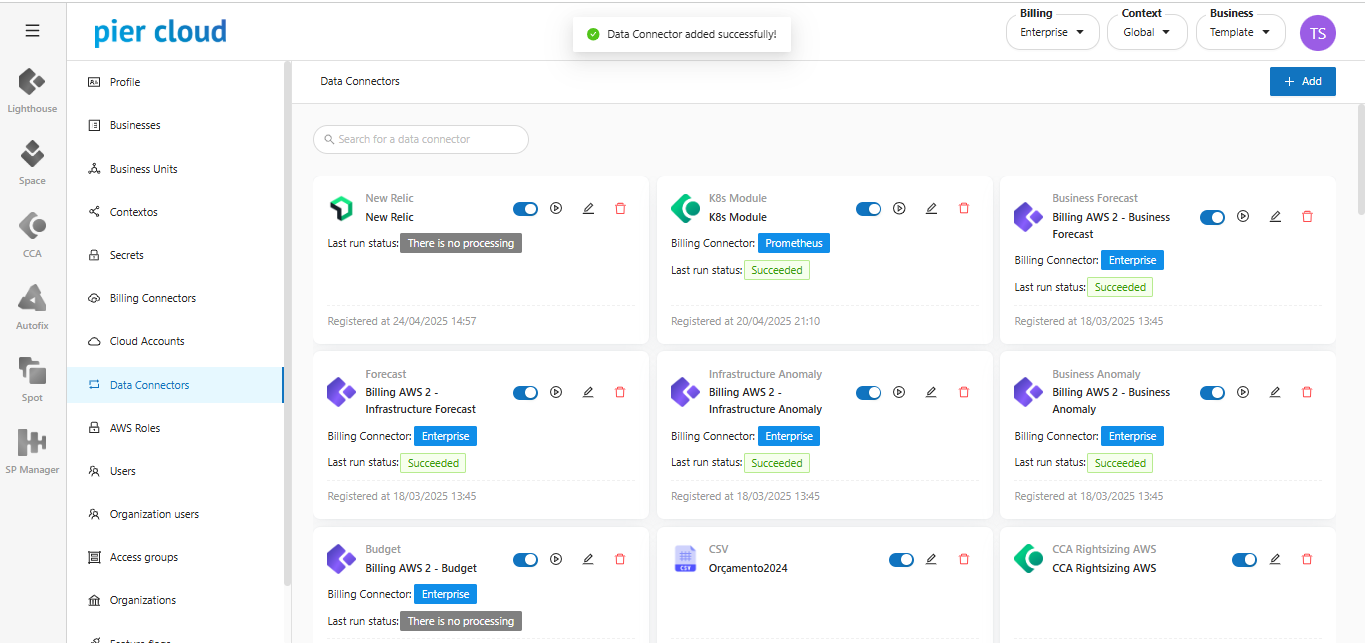
4. That's it, configuration completed! New Relic Data Connector created successfully.

<figure><img src="https://1687673077-files.gitbook.io/~/files/v0/b/gitbook-x-prod.appspot.com/o/spaces%2FZ9sinLUl52lDK1vg6b8g%2Fuploads%2FALzk8HNV3RM2dgZy36Jl%2Fimage.png?alt=media&#x26;token=e08079b9-1ac0-4c63-820f-7a7366736158" alt=""><figcaption></figcaption></figure>