# Prometheus Integration
## Prometheus Configuration Process.
#### Welcome to Pier Cloud!
This document aims to be a guide so that you can prepare the environment to connect the Pier Cloud platform with Prometheus using an Endpoint connection.
### On the Pier Cloud Platform
Configure the Pier Cloud Platform to receive data from the Prometheus integration
To configure the platform, follow the detailed steps below:
1. On the Pier Cloud platform, click on your user icon, then **settings**.
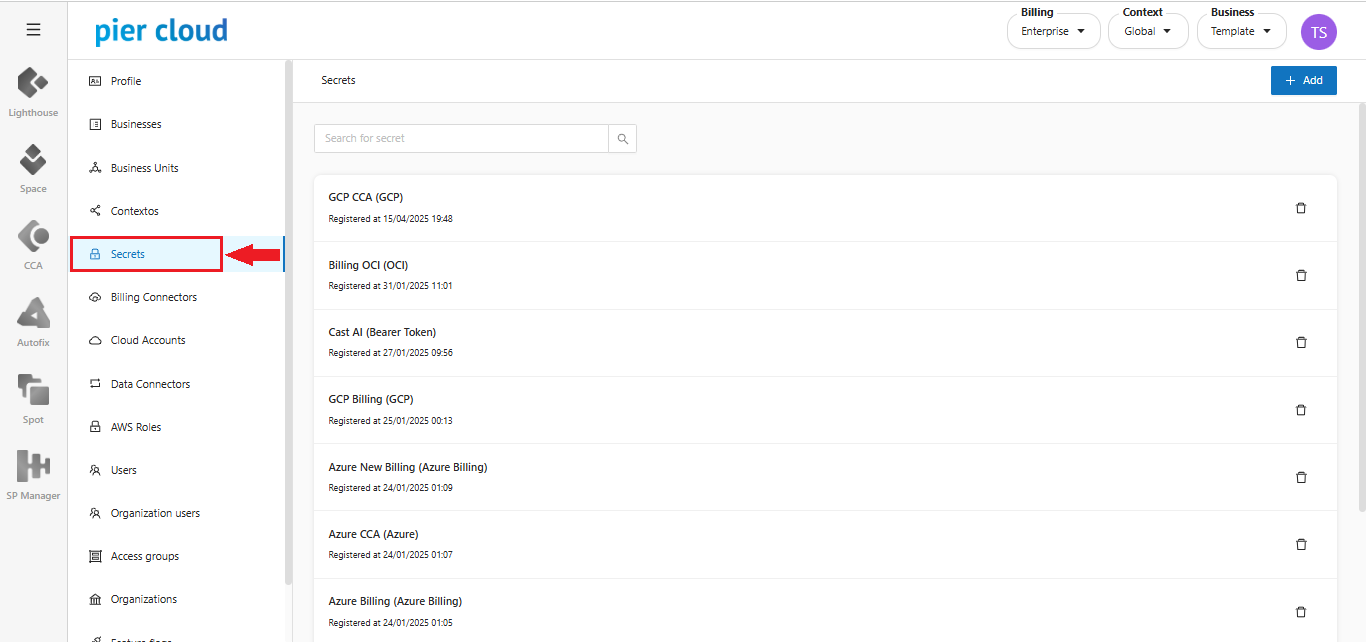
2. Here click on **secrets**, as shown in the image below:
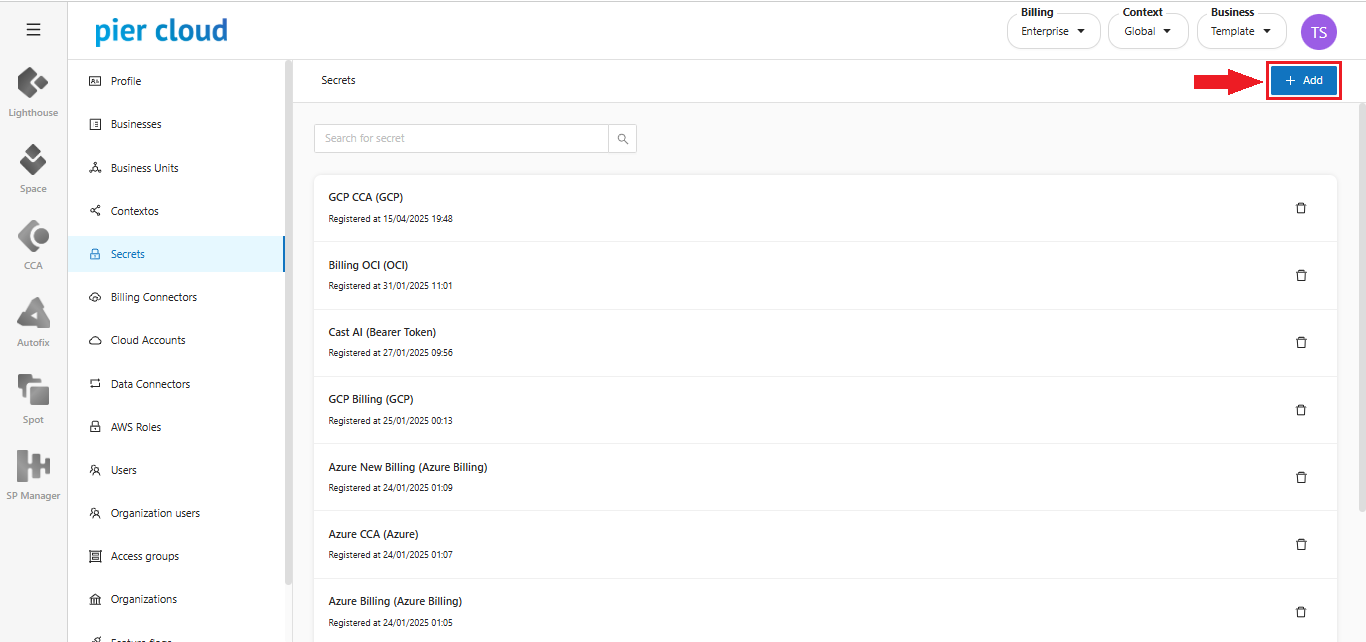
3. In this step click on **+ Add**.
4. In this step we will create the Token, in the **Name** field enter the token identification name, in the **Type** field enter the Bearer token and in the **bearer Token** field enter the token, then click save to create the token, as shown in the image below:
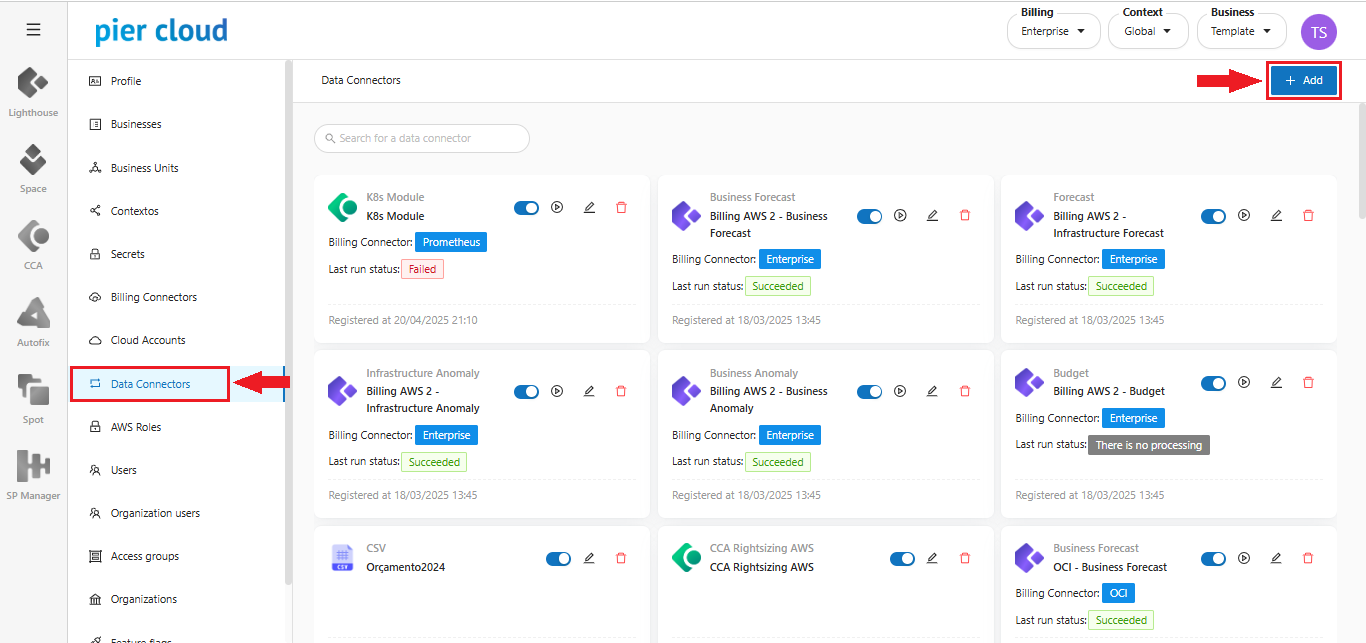
5. After creating the token, click on **Data Connector**, and then click on **+ Add**, in the upper right corner, to create the data connector, as shown in the image below:
7. In this step, we will add the information for our data connector.
1. In the **Data Connector** field, we will select a Data connector (in this case we will select the Prometheus data connector).
2. In the **Data Connector identifier Name** field, enter the identification name of the Data Connector.
3. In the **Select the Secret for this data connector** field, select Token created in step 4.
4. In the **Endpoint** field, enter the prometheus URL, then click **ADD**, as shown in the image below:
8. In this step we will finalize the Data Connector configuration.
* Note that after clicking Add in the **Endpoint** field, the URL is saved, as shown in the blue outline in the image below\..
* In the **Metric Name** field, enter the name of the metric for identification.
* In the **Metric value** field, enter the desired metric, click **Add**, to add the desired metric.
* Click **Save** to save the settings and create the Data Connector.
* **Note**: The metric inserted as an example was a Kubernetes metric, but other metrics can be inserted.
**Setup complete!**
* For the integration to work, the Prometheus Endpoint must be available on the internet.