# Slack
**A service offered by Pier Cloud that allows our FinOps platform to integrate with Slack for sending notifications related to identified anomalies and triggered alerts.**\
This document describes the steps required to configure and manage this integration, ensuring that your teams efficiently receive notifications and have access to the information they need.
### Connecting Slack to the Pier Cloud Platform
#### Prerequisite
To integrate with Slack, you must install the **PierCloudNotification App** in your workspace, which will enable the connection between the Pier Cloud platform and Slack.\
Further below, we will explain how to perform this installation.
{% hint style="warning" %}
#### Prerequisite
To integrate with Slack, you must install the **PierCloudNotification App** in your workspace, which will enable the connection between the Pier Cloud platform and Slack.\
Further below, we will explain how to perform this installation.
{% endhint %}
#### Step 1: Accessing Settings in Pier Cloud
1. Click on the **user profile**, then select **Settings**, as illustrated below:
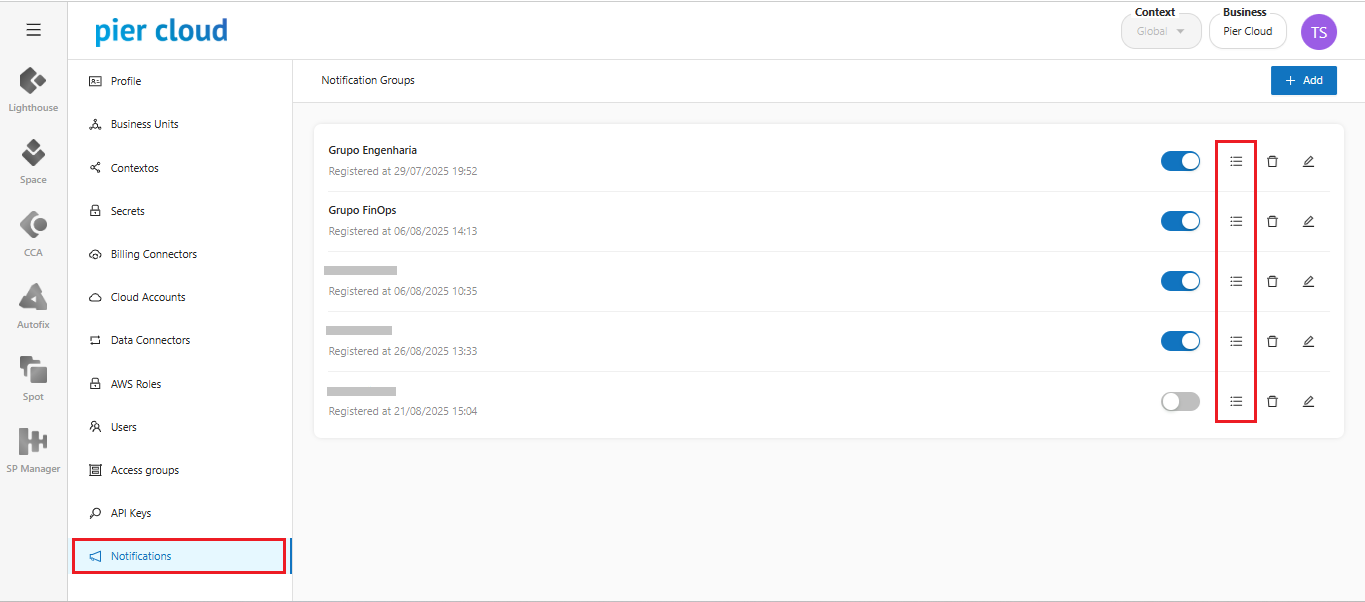
2. The system will display a side menu with several configuration options. Select **Notifications**:
3. By clicking the "" icon, the system allows you to view registered provider groups and add new ones.
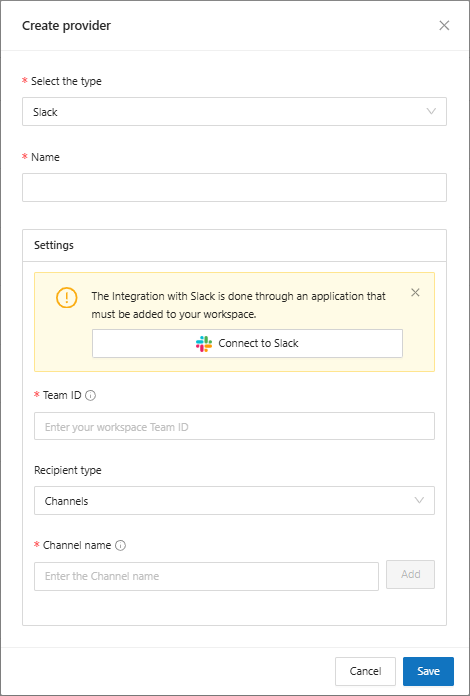
4. The system will then display a screen requesting the following information:
* **Select type:** Slack
* **Name:** Enter a name to identify the provider group
* **Settings:** For the Slack provider type, the following additional fields must be completed:
* **Team ID:** A unique identifier for your Slack workspace.
#### Step 2: Finding the Team ID via Automatic Installation
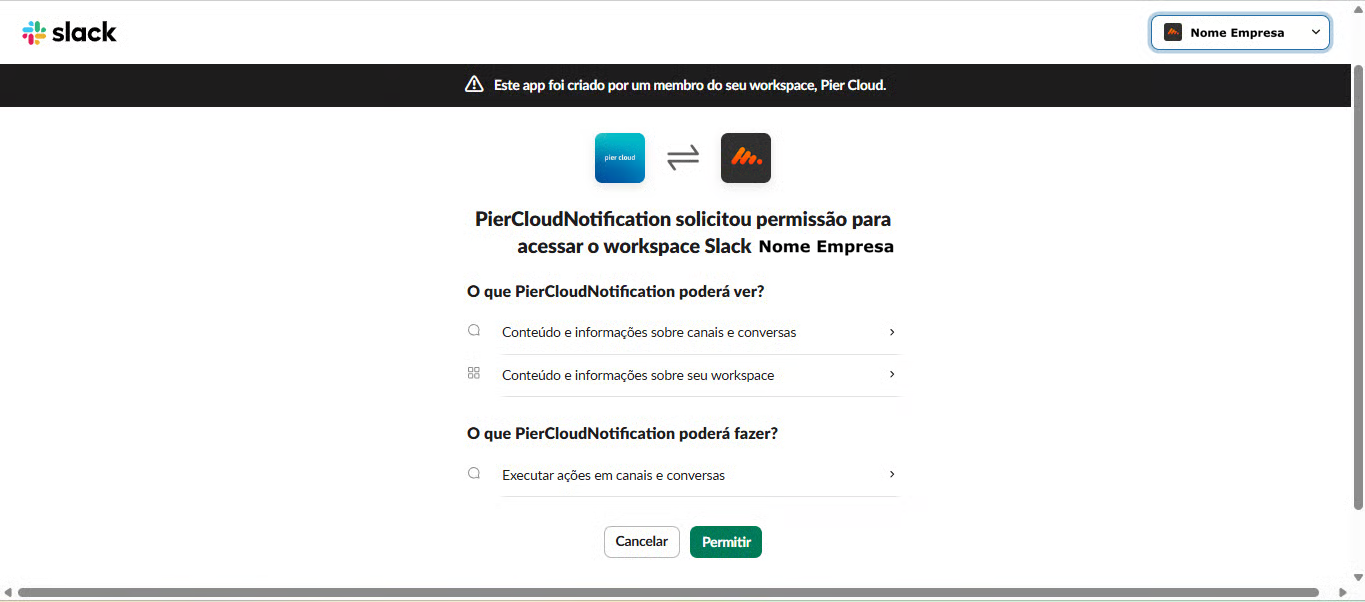
When selecting **Connect with Slack**, the system will redirect you to a screen requesting permission for the **PierCloudNotification App** to access your company’s Slack workspace:
Once you click **Allow**, the system will automatically install the PierCloudNotification App in your Slack marketplace and return to the provider registration screen, with the **Team ID** field automatically filled in.
***
#### Step 3: Identifying the Team ID and Installing the App Manually
It is also possible to find the **Team ID** manually using Slack share links. To perform this process manually, you must first install the PierCloudNotification App from your Slack Marketplace:
1. Go to the **Apps** section in Slack.
2. Select **Manage and than, Search Apps**.
3. Search for *“PierCloudNotification”*.
4. Click **Install** to add the app to your Slack workspace.
Once the installation is complete, you must obtain your Team ID:
1. Go to the channel where you want to receive notifications.
2. Right-click and select: **Copy ⇒ Copy link**.
3. Paste the copied link into a text editor and extract the bold part, as shown in the example below:
Example:
```
https://app.slack.com/client/TSE1234/CC00000
Team ID = TSE1234
```
This represents your **Team ID**, which must be entered into the **Team ID** field in the provider configuration.
***
#### Step 4: Adding Recipients
Once the **Team ID** information is filled in, proceed with the next configuration fields:
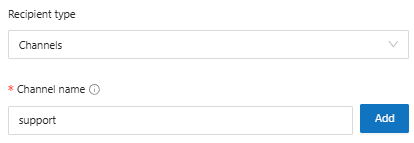
**Recipient Type:** Select who will receive the notification in Slack, choosing from the following options:
* **Channel:** If you want the notification to be directed to one or more Slack channels.
* **Channel Name:** Enter the exact channel name as it appears in Slack (without the "#" symbol), then click **Add**.
{% hint style="info" %}
For this type of insertion, via the **Notification Group** functionality, public channels must be used for the configuration to work. In the case of private Slack channels, the procedure must be carried out within the Slack channel itself, by sending an invitation to the **PierCloudNotification** App.
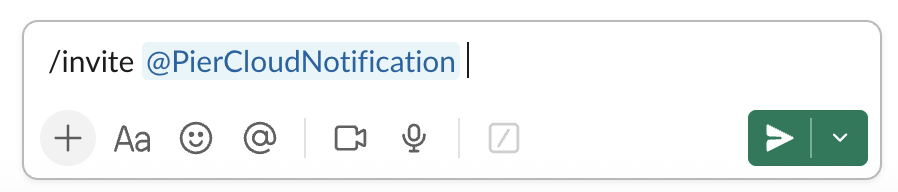
In the private channel where you want to send the notification, enter the following command in the message input area, as shown below:\
`/invite @PierCloudNotification`
Once this is done, click **Send** or press **Enter** so that the message is sent and the App is added to the channel.

{% endhint %}
* **Users:** If you want the notification to be directed to one or more Slack users.
* **User Name:** The username can be identified from the email used in Slack, considering only the part before the **@** symbol.\
Example: if the email is `user@company.com`, the username should be entered as `user`. Then click **Add**.
{% hint style="danger" %}
The system allows only one recipient type per provider registration.
* If you add a **channel**, it will block adding users.
* If you add a **user**, it will block adding channels.
To include both recipient types, you must create **two separate Slack provider registrations**: one with a channel and another with a user.
{% endhint %}
#### Step 5: Saving the Configuration
Once all required information is entered, click **Save**. The system will store the data and return to the main screen, where you can view the registered provider within the notification group.




 Once this is done, click **Send** or press **Enter** so that the message is sent and the App is added to the channel.

{% endhint %}
* **Users:** If you want the notification to be directed to one or more Slack users.
* **User Name:** The username can be identified from the email used in Slack, considering only the part before the **@** symbol.\
Example: if the email is `user@company.com`, the username should be entered as `user`. Then click **Add**.
Once this is done, click **Send** or press **Enter** so that the message is sent and the App is added to the channel.

{% endhint %}
* **Users:** If you want the notification to be directed to one or more Slack users.
* **User Name:** The username can be identified from the email used in Slack, considering only the part before the **@** symbol.\
Example: if the email is `user@company.com`, the username should be entered as `user`. Then click **Add**.
