# Auto Scaling Groups

1. **Accessing Auto Scaling Groups**.&#x20;

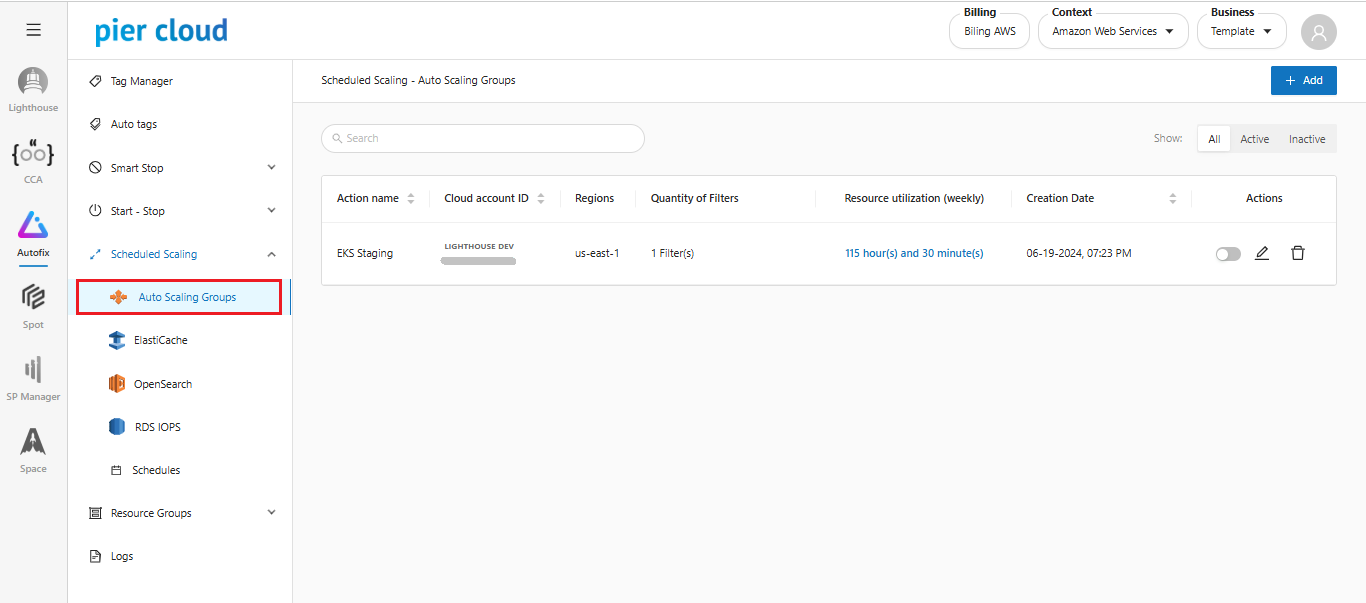
In the **Scheduled Scaling** side menu, select **Auto Scaling Groups:**

<figure><img src="https://1687673077-files.gitbook.io/~/files/v0/b/gitbook-x-prod.appspot.com/o/spaces%2FZ9sinLUl52lDK1vg6b8g%2Fuploads%2FaViM3JvMw1T8nUrzB1po%2Fimage.png?alt=media&#x26;token=4487e158-20b2-4677-be0a-b85bdaa78826" alt=""><figcaption></figcaption></figure>

2. **Creating an action**

It is possible to configure the Auto Scaling Group by clicking the **+ Add** button:

<figure><img src="https://1687673077-files.gitbook.io/~/files/v0/b/gitbook-x-prod.appspot.com/o/spaces%2FZ9sinLUl52lDK1vg6b8g%2Fuploads%2Fu41r9ouUP5relBfgtgKF%2Fimage.png?alt=media&#x26;token=8d0375c9-e87c-401e-9951-f3cfde2ddafd" alt=""><figcaption></figcaption></figure>

2. **Properties**

The system allows to configure the name of the rule, the account that will be affected and the region of the resources.

<figure><img src="https://1687673077-files.gitbook.io/~/files/v0/b/gitbook-x-prod.appspot.com/o/spaces%2FZ9sinLUl52lDK1vg6b8g%2Fuploads%2FZilCOj1R9pL00jWpB4In%2Fimage.png?alt=media&#x26;token=3c22537a-1cfa-4529-aa1a-5d4166c4e654" alt="" width="563"><figcaption></figcaption></figure>

* **Action name:**

Define the name of the action that will be created

<figure><img src="https://1687673077-files.gitbook.io/~/files/v0/b/gitbook-x-prod.appspot.com/o/spaces%2FZ9sinLUl52lDK1vg6b8g%2Fuploads%2FChPcbETaC75PlThn2VP4%2Fimage.png?alt=media&#x26;token=ce0e6831-68b3-4a96-a5a0-883aa827d8ea" alt="" width="563"><figcaption></figcaption></figure>

* **Regions**:

Selecione a região pertencente aos recursos que serão utilizados, podendo selecionar mais de uma região.

Select the region belonging to the resources that will be used, it is possible to select more than one region.

<figure><img src="https://1687673077-files.gitbook.io/~/files/v0/b/gitbook-x-prod.appspot.com/o/spaces%2FZ9sinLUl52lDK1vg6b8g%2Fuploads%2FWf6MvBjUVkjuGCcsSBFu%2Fimage.png?alt=media&#x26;token=4d3d60f2-ff38-474d-9b81-44bf91f2428d" alt="" width="311"><figcaption></figcaption></figure>

* **Cloud Account ID:**

Select the account ID that will be used.

<figure><img src="https://1687673077-files.gitbook.io/~/files/v0/b/gitbook-x-prod.appspot.com/o/spaces%2FZ9sinLUl52lDK1vg6b8g%2Fuploads%2FSDr55SLjR02Rpg2DYvyb%2Fimage.png?alt=media&#x26;token=dda8e5af-85f9-4e06-bb59-e5df4ecd41c0" alt="" width="312"><figcaption></figcaption></figure>

3. **Filters**

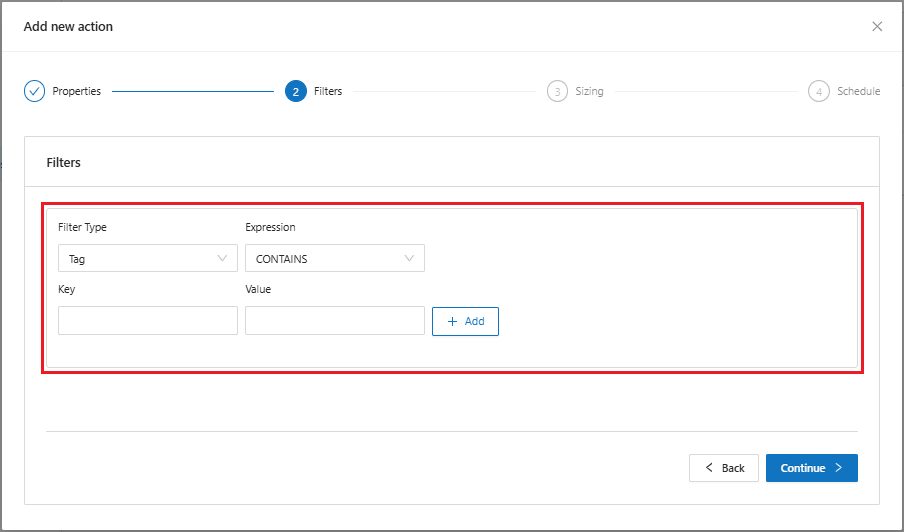
When continuing, the system will display the filter screen, where it is possible to add the desired filters.

<figure><img src="https://1687673077-files.gitbook.io/~/files/v0/b/gitbook-x-prod.appspot.com/o/spaces%2FZ9sinLUl52lDK1vg6b8g%2Fuploads%2FJNMT9GGU3ReAHxRAAHCH%2Fimage.png?alt=media&#x26;token=81b76474-2b12-4ff1-8138-7b26be1e820b" alt="" width="563"><figcaption></figcaption></figure>

The filters are where Scheduled Scaling will locate resources by key and value. The system allows to consider only one type of resource, or exclude that resource from the list, considering the trigger rule as, for example, “Contains” and informing a Key and a Value.

* In "**Filter Type**" it is possible to locate the resource in three ways: **tag, resource name and resource id.**

<figure><img src="https://1687673077-files.gitbook.io/~/files/v0/b/gitbook-x-prod.appspot.com/o/spaces%2FZ9sinLUl52lDK1vg6b8g%2Fuploads%2Fci56WFkRkodYF9j3ektd%2Fimage.png?alt=media&#x26;token=e77608bc-0473-472c-9944-f854e0738b02" alt="" width="563"><figcaption></figcaption></figure>

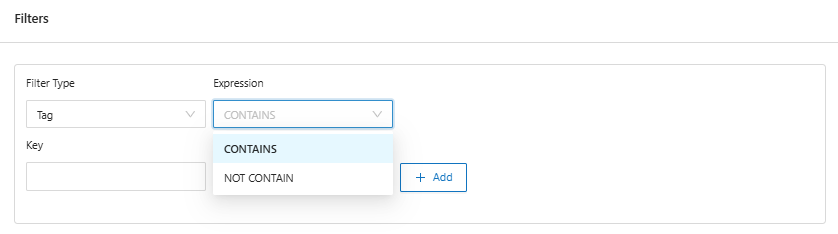
* Set the expression **CONTAINS** and **NOT CONTAIN**.

<figure><img src="https://1687673077-files.gitbook.io/~/files/v0/b/gitbook-x-prod.appspot.com/o/spaces%2FZ9sinLUl52lDK1vg6b8g%2Fuploads%2F53MZoJZsM8NN28etWEHp%2Fimage.png?alt=media&#x26;token=d8adcb00-3e7f-441b-a249-572add70733a" alt="" width="563"><figcaption></figcaption></figure>

* In key and value, add the resource identification so it can be found.

<figure><img src="https://1687673077-files.gitbook.io/~/files/v0/b/gitbook-x-prod.appspot.com/o/spaces%2FZ9sinLUl52lDK1vg6b8g%2Fuploads%2Fj8IzptzglOodteplh0LE%2Fimage.png?alt=media&#x26;token=186282d4-ee76-44c5-8188-e93352ea2377" alt="" width="563"><figcaption></figcaption></figure>

* When adding, it is possible to view the filter of the created resource

<figure><img src="https://1687673077-files.gitbook.io/~/files/v0/b/gitbook-x-prod.appspot.com/o/spaces%2FZ9sinLUl52lDK1vg6b8g%2Fuploads%2F1s8Yv57rDeWKixelQXFP%2Fimage.png?alt=media&#x26;token=1366d5db-d55d-41d3-b1ce-6f3901245d0d" alt="" width="563"><figcaption></figcaption></figure>

4. **Sizing**&#x20;

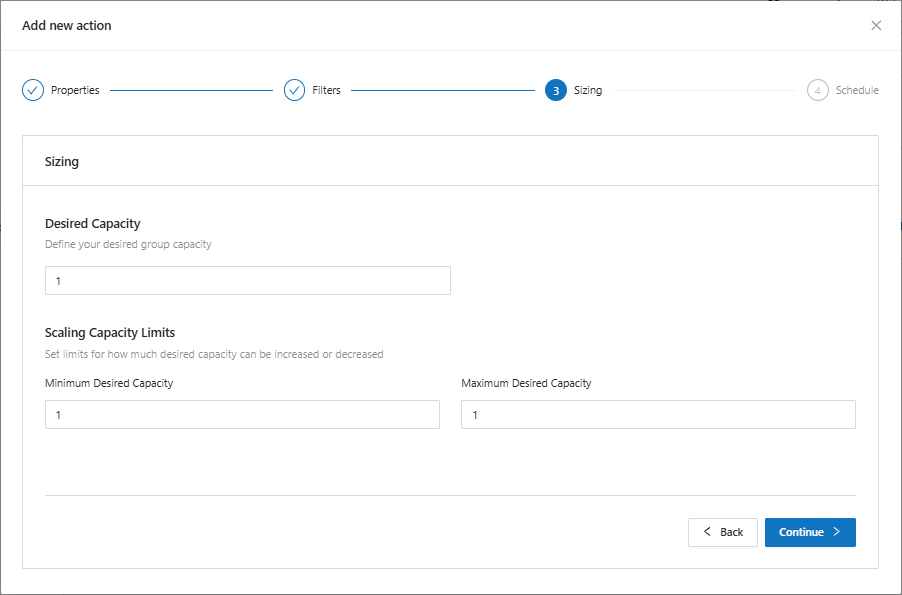
when clicking continue, the system will display the sizing screen where it is possible configure the initial capacity, determine a minimum and a maximum that it can scale, if necessary.

<figure><img src="https://1687673077-files.gitbook.io/~/files/v0/b/gitbook-x-prod.appspot.com/o/spaces%2FZ9sinLUl52lDK1vg6b8g%2Fuploads%2FVmubsntKk7GaQPKxQT4c%2Fimage.png?alt=media&#x26;token=6476b8e0-a124-4f40-80b7-3758459235a7" alt="" width="563"><figcaption></figcaption></figure>

5. **Schedule**

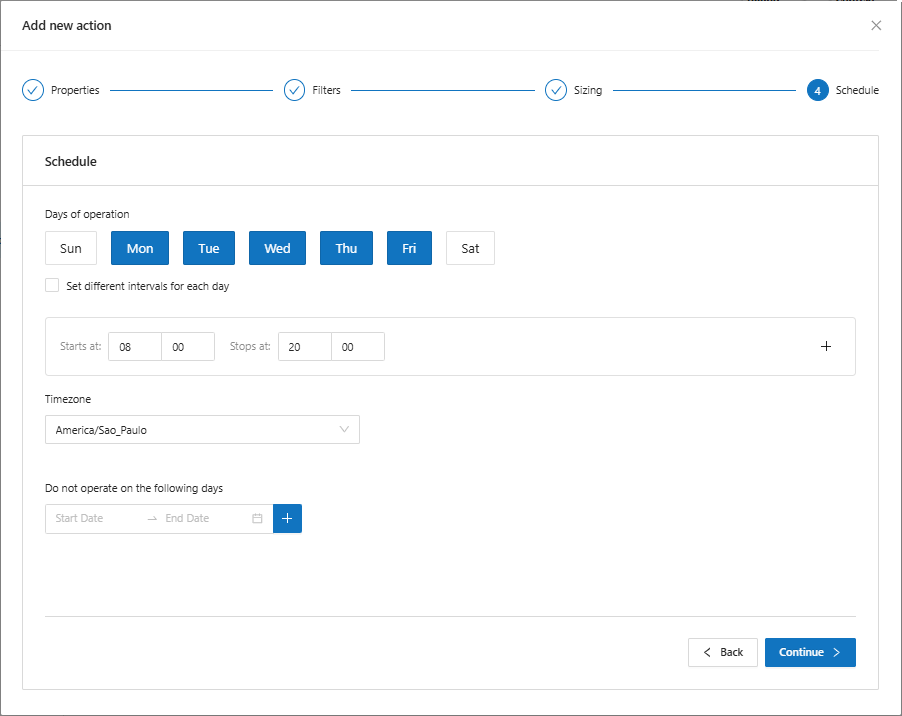
When clicking continue, the system will display the Schedule screen, where it is possible to set the days and periods in which this rule will work.

<figure><img src="https://1687673077-files.gitbook.io/~/files/v0/b/gitbook-x-prod.appspot.com/o/spaces%2FZ9sinLUl52lDK1vg6b8g%2Fuploads%2FgZJnbPBHmiNo6ChrQDdR%2Fimage.png?alt=media&#x26;token=9ffd0fc4-f9c1-4af9-b394-a7e194c6093b" alt="" width="563"><figcaption></figcaption></figure>

In Schedule, set the period of operation of the rule.&#x20;

**Schedule**:&#x20;

It is possible to define the days on which this rule will operate, at what times it will be turned on, and at what times it will be turned off. Blue means it is enabled, white means it is disabled. It is possible to  enable a default schedule for every day.

<figure><img src="https://1687673077-files.gitbook.io/~/files/v0/b/gitbook-x-prod.appspot.com/o/spaces%2FZ9sinLUl52lDK1vg6b8g%2Fuploads%2FTL1Upk1XRGDAU272cBlO%2Fimage.png?alt=media&#x26;token=5ea4ada1-7101-40a5-9042-80d610a7b9cb" alt="" width="563"><figcaption></figcaption></figure>

* In the "**set different intervals for each day**" option, it is possible to customize the execution time for each day of the week.

<figure><img src="https://1687673077-files.gitbook.io/~/files/v0/b/gitbook-x-prod.appspot.com/o/spaces%2FZ9sinLUl52lDK1vg6b8g%2Fuploads%2FglC2lhPLMNm2i8uUFCJF%2Fimage.png?alt=media&#x26;token=91584891-1795-409c-8507-15e7a550e6ea" alt="" width="563"><figcaption></figcaption></figure>

* Set the resource group **timezone** so that there is no time difference.

<figure><img src="https://1687673077-files.gitbook.io/~/files/v0/b/gitbook-x-prod.appspot.com/o/spaces%2FZ9sinLUl52lDK1vg6b8g%2Fuploads%2FIJkwmpsbfo9sOdrYq6bd%2Fimage.png?alt=media&#x26;token=37df9c37-c4ce-4c04-969f-f1ad98aeb6cc" alt="" width="271"><figcaption></figcaption></figure>

The system allows to select the time zone corresponding to the location where the rule will be activated. It can even be used by a business rule, sometimes the customer may be from a different place and the peak time will be different from your location.

* It is possible to define exceptions to the rule's operation, for days when the rule should not work.

<figure><img src="https://1687673077-files.gitbook.io/~/files/v0/b/gitbook-x-prod.appspot.com/o/spaces%2FZ9sinLUl52lDK1vg6b8g%2Fuploads%2FwVlFkC6mLUme2pYE8at3%2Fimage.png?alt=media&#x26;token=11192901-954a-4cd0-a8f3-d7d236c51c28" alt="" width="224"><figcaption></figcaption></figure>

The system allows to delete the day informed, if necessary.

<figure><img src="https://1687673077-files.gitbook.io/~/files/v0/b/gitbook-x-prod.appspot.com/o/spaces%2FZ9sinLUl52lDK1vg6b8g%2Fuploads%2FPwcn5GzQ12g86QkMs2mX%2Fimage.png?alt=media&#x26;token=2b5adb0a-50ae-4cf1-a58b-69d2c1fddb3e" alt="" width="563"><figcaption></figcaption></figure>

6. **View created action**

After the action creation is complete, the configuration is visible on the home screen, where it is possible to **turn off** the rule, **edit** and **delete** the created rule.

<figure><img src="https://1687673077-files.gitbook.io/~/files/v0/b/gitbook-x-prod.appspot.com/o/spaces%2FZ9sinLUl52lDK1vg6b8g%2Fuploads%2FjCwKwK0tB8cEKXhmcMPa%2Fimage.png?alt=media&#x26;token=2942dc6f-53a9-468a-8d8b-ec7d7429a532" alt=""><figcaption></figcaption></figure>

Click on the flag to enable or disable the created action

<figure><img src="https://1687673077-files.gitbook.io/~/files/v0/b/gitbook-x-prod.appspot.com/o/spaces%2FZ9sinLUl52lDK1vg6b8g%2Fuploads%2F6cEfU8sWl6LXnceqpP8F%2Fimage.png?alt=media&#x26;token=66f49893-1446-4491-bbf7-5d817605d758" alt=""><figcaption></figcaption></figure>

The system allows to **edit and delete** the created action by clicking on the button "![](https://1687673077-files.gitbook.io/~/files/v0/b/gitbook-x-prod.appspot.com/o/spaces%2FZ9sinLUl52lDK1vg6b8g%2Fuploads%2FyGkb52efWH9ck65dgWBd%2Fimage.png?alt=media\&token=f6e5f07e-b512-45f0-b49c-8ac94e2e9766)" and "![](https://1687673077-files.gitbook.io/~/files/v0/b/gitbook-x-prod.appspot.com/o/spaces%2FZ9sinLUl52lDK1vg6b8g%2Fuploads%2Fi0STbxFzPx1jb1ny026r%2Fimage.png?alt=media\&token=57a6e423-ba06-493e-b84c-4f4361efab8b)" respectively.