# Rules

Rules is a CCA feature that checks the resources used in the cloud, returning recommendations for optimizing the environment.

GCP Rules are **Savings** rules.

#### **How to get to Rules:**&#x20;

1. In the CCA side feature menu, select **Rules**.

<figure><img src="https://1687673077-files.gitbook.io/~/files/v0/b/gitbook-x-prod.appspot.com/o/spaces%2FZ9sinLUl52lDK1vg6b8g%2Fuploads%2FaxzywWaXgZ9zOrhN9S3d%2Fimage.png?alt=media&#x26;token=638d7147-bb3b-4452-bcf0-c4a6f1ead235" alt=""><figcaption></figcaption></figure>

2. **Filters**

On the home screen it possible to search for available rules:

<figure><img src="https://1687673077-files.gitbook.io/~/files/v0/b/gitbook-x-prod.appspot.com/o/spaces%2FZ9sinLUl52lDK1vg6b8g%2Fuploads%2FZF9XVrTtVy2sq9wBwJiV%2Fimage.png?alt=media&#x26;token=e4e1f402-ddd4-4bc6-812b-c0ef9c515ca0" alt=""><figcaption></figcaption></figure>

And filter by categories:

<figure><img src="https://1687673077-files.gitbook.io/~/files/v0/b/gitbook-x-prod.appspot.com/o/spaces%2FZ9sinLUl52lDK1vg6b8g%2Fuploads%2FMvBDePRsJE6LJiXCaczR%2Fimage.png?alt=media&#x26;token=e897feb6-42b2-4c2e-9c68-3033b07685a6" alt=""><figcaption></figcaption></figure>

3. **Report**&#x20;

When you click on “**Download report**”, a .csv file is downloaded with details of all the rules.

<figure><img src="https://1687673077-files.gitbook.io/~/files/v0/b/gitbook-x-prod.appspot.com/o/spaces%2FZ9sinLUl52lDK1vg6b8g%2Fuploads%2FBEOoyU6Pf0iMKTOH9Jct%2Fimage.png?alt=media&#x26;token=6f2f7faa-09fa-4532-860c-5e63b9c9d995" alt=""><figcaption></figcaption></figure>

4. **Rules**

The CCA Rules are a set of recommendations based on the services available from the provider. For GCP, there is a category mentioned above.&#x20;

For each rule, it is possible to view some information:

<figure><img src="https://1687673077-files.gitbook.io/~/files/v0/b/gitbook-x-prod.appspot.com/o/spaces%2FZ9sinLUl52lDK1vg6b8g%2Fuploads%2FBRFj6ad6KcOubMosv9kB%2Fimage.png?alt=media&#x26;token=b61f5f54-4c39-4743-adb6-eab679e9cc81" alt=""><figcaption></figcaption></figure>

* **Monitored accounts:** Lists the number of accounts that are being monitored for this recommendation.&#x20;
* **Total resources found:** Lists the number of resources that apply to the rule.
* **Total estimated savings:** Estimated cost of savings with implementation of the recommendations.

Clicking on the **rule name in blue** opens a detailed breakdown of the rule, showing the following information:

* Monitored accounts
* Non-compliance resources
* Total ignored resources found
* Ignored resources cost
* Total estimated savings

<figure><img src="https://1687673077-files.gitbook.io/~/files/v0/b/gitbook-x-prod.appspot.com/o/spaces%2FZ9sinLUl52lDK1vg6b8g%2Fuploads%2FplFBll8OoktNU6TWwO1h%2Fimage.png?alt=media&#x26;token=300f4951-6228-4f2a-a8c2-bd0700fe8b43" alt=""><figcaption></figcaption></figure>

The system also allows you to **filter** by **Account ID**, **Resource ID**, or **Region**, as highlighted below:

{% hint style="info" %}
**As filters are applied, the data displayed in the rule’s overview panel may change.**
{% endhint %}

<figure><img src="https://1687673077-files.gitbook.io/~/files/v0/b/gitbook-x-prod.appspot.com/o/spaces%2FZ9sinLUl52lDK1vg6b8g%2Fuploads%2FJdoM22GvqRyLZsBzkD7E%2Fimage.png?alt=media&#x26;token=b000acfb-4f98-462f-a4fd-3c3a88a78e41" alt=""><figcaption></figcaption></figure>

Clicking on the option “**Download report**”, a .csv file is downloaded with details only for the selected rule.

<figure><img src="https://1687673077-files.gitbook.io/~/files/v0/b/gitbook-x-prod.appspot.com/o/spaces%2FZ9sinLUl52lDK1vg6b8g%2Fuploads%2FE7dMjcuRs9iYPxb42hLy%2Fimage.png?alt=media&#x26;token=fe15ae78-470b-46ce-8917-92e1c7e025a7" alt=""><figcaption></figcaption></figure>

Further down, the system presents some action options:

<figure><img src="https://1687673077-files.gitbook.io/~/files/v0/b/gitbook-x-prod.appspot.com/o/spaces%2FZ9sinLUl52lDK1vg6b8g%2Fuploads%2FvncSHbKUINRAYod1Lb9Y%2Fimage.png?alt=media&#x26;token=280abec9-f06a-48a7-94fa-a9198bc18d79" alt=""><figcaption></figcaption></figure>

* By clicking the ignore icon "<img src="https://1687673077-files.gitbook.io/~/files/v0/b/gitbook-x-prod.appspot.com/o/spaces%2FZ9sinLUl52lDK1vg6b8g%2Fuploads%2FSZwKW3Dg2JRzQVz82abn%2Fimage.png?alt=media&#x26;token=933dc8d0-27e4-4167-b0d7-49d754ba6a6d" alt="" data-size="line">"  you can ignore the recommendation for that selected resource. The system will display a screen to you explain the reason why you want to ignore the resource.

<figure><img src="https://1687673077-files.gitbook.io/~/files/v0/b/gitbook-x-prod.appspot.com/o/spaces%2FZ9sinLUl52lDK1vg6b8g%2Fuploads%2FGlxLZPiq8pp7CE0Toeki%2Fimage.png?alt=media&#x26;token=3a62a04f-3919-4ab8-9e87-6f5cfe98d900" alt="" width="563"><figcaption></figcaption></figure>

By describing the reason and confirming the action, clicking the checkbox, the system will enable the button to complete the action:

<figure><img src="https://1687673077-files.gitbook.io/~/files/v0/b/gitbook-x-prod.appspot.com/o/spaces%2FZ9sinLUl52lDK1vg6b8g%2Fuploads%2FUGKnrNmLvxAwuTfcJ3Zn%2Fimage.png?alt=media&#x26;token=34a0e1de-9355-4396-9564-6125e06b9894" alt="" width="563"><figcaption></figcaption></figure>

* In the icon next to ![](https://1687673077-files.gitbook.io/~/files/v0/b/gitbook-x-prod.appspot.com/o/spaces%2FZ9sinLUl52lDK1vg6b8g%2Fuploads%2Fu0rb6VcN1p9ckuon3i9i%2Fimage.png?alt=media\&token=232ea769-f3f1-4eb4-9076-4703dc410982)" you can view details about the chosen resource such as **resource information** and **Meta Data**:

<figure><img src="https://1687673077-files.gitbook.io/~/files/v0/b/gitbook-x-prod.appspot.com/o/spaces%2FZ9sinLUl52lDK1vg6b8g%2Fuploads%2Fb2hslC5HvreTVbmxLFBd%2Fimage.png?alt=media&#x26;token=0f5b440d-6ee5-4dfe-85e5-8e8f74a8ec1a" alt=""><figcaption></figcaption></figure>

5. **Rule settings**

Clicking on the "![](https://1687673077-files.gitbook.io/~/files/v0/b/gitbook-x-prod.appspot.com/o/spaces%2FZ9sinLUl52lDK1vg6b8g%2Fuploads%2FZIAB1Kt1mYqNwsR5ZbPh%2Fimage.png?alt=media\&token=9525ea7b-4764-46ae-976e-f0677053c347)" gear, opens the rule configuration.

<figure><img src="https://1687673077-files.gitbook.io/~/files/v0/b/gitbook-x-prod.appspot.com/o/spaces%2FZ9sinLUl52lDK1vg6b8g%2Fuploads%2F6PzELEwfg5EpkaQ39Jq5%2Fimage.png?alt=media&#x26;token=66b6e14c-7835-4732-a1d5-416b07c03d79" alt=""><figcaption></figcaption></figure>

In the configuration, you can search for the customization you want to view.

<figure><img src="https://1687673077-files.gitbook.io/~/files/v0/b/gitbook-x-prod.appspot.com/o/spaces%2FZ9sinLUl52lDK1vg6b8g%2Fuploads%2FWiAHBudoNqaoqhGrV1Gj%2Fimage.png?alt=media&#x26;token=6ce8217a-d1b3-484c-b0f9-cba775b0f3b1" alt=""><figcaption></figcaption></figure>

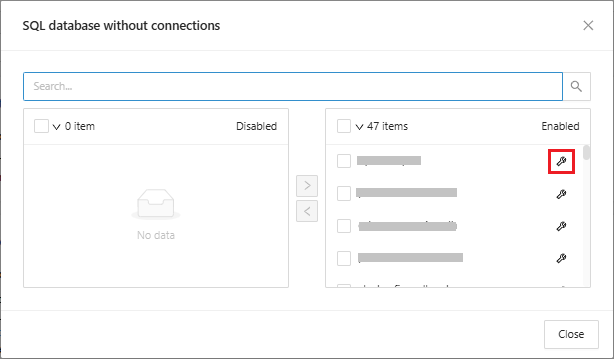
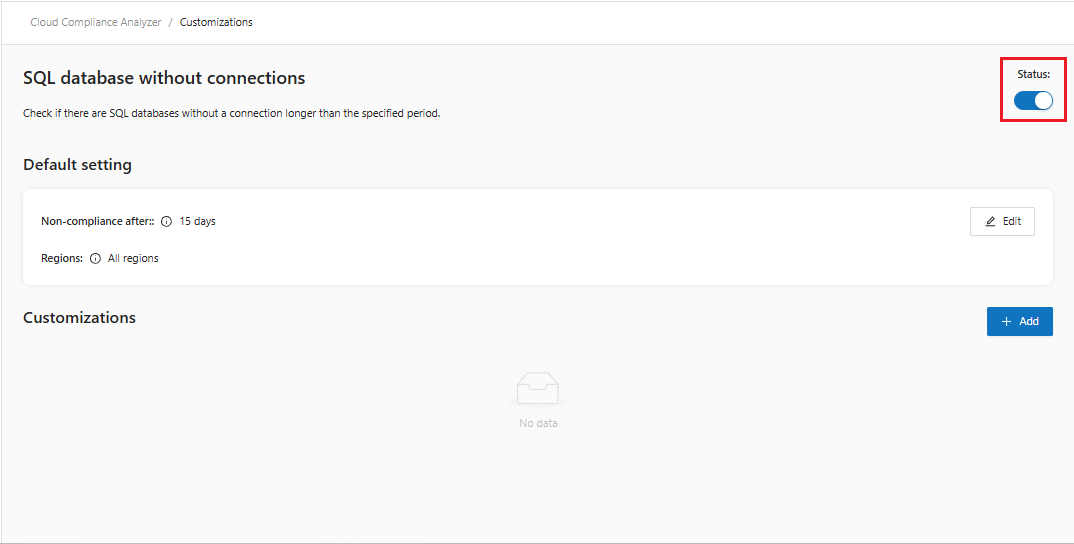
By clicking on the "![](https://1687673077-files.gitbook.io/~/files/v0/b/gitbook-x-prod.appspot.com/o/spaces%2FZ9sinLUl52lDK1vg6b8g%2Fuploads%2Fe2WSg4fY26fEt4DfrPWY%2Fimage.png?alt=media\&token=6d3c223a-cad1-49d7-b670-6cc90334079d)" key corresponding to the customization, it is possible to open the rule customizations, allowing you to disable the rule chosen in “**Status**”.

<figure><img src="https://1687673077-files.gitbook.io/~/files/v0/b/gitbook-x-prod.appspot.com/o/spaces%2FZ9sinLUl52lDK1vg6b8g%2Fuploads%2FympdNlbnoR1jgGpIoYBz%2Fimage.png?alt=media&#x26;token=d1b889d1-6e71-4201-aea1-cc75c69f763f" alt=""><figcaption></figcaption></figure>

**Default Settings:**

In **default setting**, it is possible to have the configuration specified for each resource as:

* **Non-compliance after**: Number of days after which the resource begins to be considered non-compliant.  \
  Example: Infrequent users: after 15 days, it is considered non-compliant.
* **Regions**: The regions that will be listed are the regions that are being monitored.&#x20;

<figure><img src="https://1687673077-files.gitbook.io/~/files/v0/b/gitbook-x-prod.appspot.com/o/spaces%2FZ9sinLUl52lDK1vg6b8g%2Fuploads%2Fd8FlVLlyWCfOBsUJQ93p%2Fimage.png?alt=media&#x26;token=55191c40-638b-449e-ae0b-a5df716657a5" alt=""><figcaption></figcaption></figure>

By clicking the **Edit** option, you can configure the acceptable period for the resource to be considered out of compliance.

The system will prompt you to fill in the following fields:

* Filter period operator: Select from the available options
  * **Less than**: When you want the number of days for the resource to be considered out of compliance to be less than the specified number.
  * **Greater than**: When you want the number of days for the resource to be considered out of compliance to be greater than the specified number.
* Filter period days: Specify the number of days for the rule to be considered out of compliance.

<figure><img src="https://1687673077-files.gitbook.io/~/files/v0/b/gitbook-x-prod.appspot.com/o/spaces%2FZ9sinLUl52lDK1vg6b8g%2Fuploads%2FHNmrVCIBbnBowrKKFaZd%2Fimage.png?alt=media&#x26;token=d4a43336-cb8a-44be-b292-e0d9a4d999ef" alt=""><figcaption></figcaption></figure>

By clicking the **save** button, the system will complete the rule compliance customization.

{% hint style="warning" %}
If this rule has no customization, the compliance value will be as per the default values.
{% endhint %}

It is possible to add new customizations to the rule.

<figure><img src="https://1687673077-files.gitbook.io/~/files/v0/b/gitbook-x-prod.appspot.com/o/spaces%2FZ9sinLUl52lDK1vg6b8g%2Fuploads%2F1drbS7jEuuPlhQT4hnbn%2Fimage.png?alt=media&#x26;token=57ca9be0-2b64-45f4-b9a0-e3a3939b5df6" alt=""><figcaption></figcaption></figure>

Clicking **Add** opens the customization screen, where you will need to fill in the following information:

* **Filter kind**: Select between the two existing filter types
  * Filter only the resources that match the filter
  * Filter only the resources that do not match the filter
* **Filter key**: Enter the filter key that matches the tag
* **Enter the filter value**: Enter the value you want to return in the filter

<figure><img src="https://1687673077-files.gitbook.io/~/files/v0/b/gitbook-x-prod.appspot.com/o/spaces%2FZ9sinLUl52lDK1vg6b8g%2Fuploads%2F23NFmNSdqtyGNQc73h0v%2Fimage.png?alt=media&#x26;token=a03b0cde-8d21-4694-9d2e-8baea5af652a" alt=""><figcaption></figcaption></figure>

After inserting the customizations you want, just click **save**, and the customization will be added to the selected rule.

### Rules of Savings

1. **SQL database without connections:** Check if there are SQL databases without a connection longer than the specified period.
2. **Low Use VM:** This rule identifies GCP Virtual Machines (VMs) that are currently running but show consistently low CPU usage and low network output over a configurable time period. By querying GCP metrics, it determines which VMs are underutilized, helping teams to identify cost optimization opportunities by resizing, stopping, or decommissioning low-use VMs.
3. **Unused custom image:** Identifies custom images on GCP that are not being used, that is, they are not attached to any disk or instance template. These images may be generating unexpected costs.
4. **Snapshots high retention:** Identify snapshots retained for a long period of storage.
5. **IPs detached**: Public IPs not associated with a VM.
6. **Stopped VM**: Identifies stopped and unused VMs in GCP account