# Configure the Rules

1. On the main alarm screen, the system allows you to register a new alarms by clicking on the "**New Alarm**" optio&#x6E;**.**

<figure><img src="https://1687673077-files.gitbook.io/~/files/v0/b/gitbook-x-prod.appspot.com/o/spaces%2FZ9sinLUl52lDK1vg6b8g%2Fuploads%2FX7AbjrXJZAHCFAQFmpDS%2Fimage.png?alt=media&#x26;token=f0e7d19f-86c3-434b-a6ed-51f2ced44feb" alt=""><figcaption></figcaption></figure>

2. **General** Information&#x20;

Register the new alarm data and press the **Next** button.&#x20;

* **Name**: Alarm identification
* **Description**: Any additional information about the alarm

<figure><img src="https://1687673077-files.gitbook.io/~/files/v0/b/gitbook-x-prod.appspot.com/o/spaces%2FZ9sinLUl52lDK1vg6b8g%2Fuploads%2FZ0HgVyH8rSnapcaJbdpd%2Fimage.png?alt=media&#x26;token=141f4057-2889-4159-b1e2-874afb3d9c4c" alt=""><figcaption></figcaption></figure>

3. Register the **Indicator** information..

<figure><img src="https://1687673077-files.gitbook.io/~/files/v0/b/gitbook-x-prod.appspot.com/o/spaces%2FZ9sinLUl52lDK1vg6b8g%2Fuploads%2FJxWNjt331CjmAu6dcw5B%2Fimage.png?alt=media&#x26;token=002a6f14-6c35-4b25-ad3b-140c1e1fac67" alt=""><figcaption></figcaption></figure>

**Agregator**: Select the agregator (Last, Period, Competency)

<figure><img src="https://1687673077-files.gitbook.io/~/files/v0/b/gitbook-x-prod.appspot.com/o/spaces%2FZ9sinLUl52lDK1vg6b8g%2Fuploads%2FysYMOszzFfAuzGLH75PV%2Fimage.png?alt=media&#x26;token=773e0e84-ea50-41f3-9351-5bffcd48c963" alt=""><figcaption></figcaption></figure>

* **Last**: When selecting the "**Last**" agregator, the system will display some additional fields for filling in:
  * Value
  * Period (Day, Week, Month, Year)&#x20;
  * Delay by (Optional)&#x20;
  * Period (Day, Week, Month, Year)

Use this option to accumulate values ​​from the last x days, weeks, months or years, for example: Last 7 days with a 3-day delay (we consider a 3-day delay for cloud providers to close)

<figure><img src="https://1687673077-files.gitbook.io/~/files/v0/b/gitbook-x-prod.appspot.com/o/spaces%2FZ9sinLUl52lDK1vg6b8g%2Fuploads%2F0k9pmLdXi6QwrDf8BGv6%2Fimage.png?alt=media&#x26;token=1fd27b98-bbd5-49ef-8e8d-a9a53bc3e0aa" alt=""><figcaption></figcaption></figure>

* **Period**: When selecting the “**Period**” agregator, the system will display some additional fields to complete
  * Start of period&#x20;
  * End of period

Use this option to consolidate values ​​from a specific period.

<figure><img src="https://1687673077-files.gitbook.io/~/files/v0/b/gitbook-x-prod.appspot.com/o/spaces%2FZ9sinLUl52lDK1vg6b8g%2Fuploads%2FVFNv7k0botWe4XUgkAZJ%2Fimage.png?alt=media&#x26;token=9c70ee53-7ad7-41a6-ade0-6829c9d2ac13" alt=""><figcaption></figcaption></figure>

* **Competency**: When selecting the "**Competency**" agregator, the system will display an additional field&#x20;
  * Competency: Inform a month of competence.

<figure><img src="https://1687673077-files.gitbook.io/~/files/v0/b/gitbook-x-prod.appspot.com/o/spaces%2FZ9sinLUl52lDK1vg6b8g%2Fuploads%2F2PSfx1TUR16MIzib3yGE%2Fimage.png?alt=media&#x26;token=4f4a1e1c-e3e8-4312-a71a-8b83fd9d31bc" alt=""><figcaption></figcaption></figure>

Use this option to work with a specific month of competency

<figure><img src="https://1687673077-files.gitbook.io/~/files/v0/b/gitbook-x-prod.appspot.com/o/spaces%2FZ9sinLUl52lDK1vg6b8g%2Fuploads%2FrqlCTHnFZdLRlDL0Puw9%2Fimage.png?alt=media&#x26;token=3a0c832b-5ead-40d2-8b2f-ec8bc3853398" alt=""><figcaption></figcaption></figure>

**Dataset (optional)**: Select this option to use a data set.

<figure><img src="https://1687673077-files.gitbook.io/~/files/v0/b/gitbook-x-prod.appspot.com/o/spaces%2FZ9sinLUl52lDK1vg6b8g%2Fuploads%2FXDBOLsRWw0K6k0SucgMG%2Fimage.png?alt=media&#x26;token=391ddc84-bb84-4976-8cb1-69867a326c33" alt=""><figcaption></figcaption></figure>

**Expression**: Select the options from the list as below:

<figure><img src="https://1687673077-files.gitbook.io/~/files/v0/b/gitbook-x-prod.appspot.com/o/spaces%2FZ9sinLUl52lDK1vg6b8g%2Fuploads%2FBTnjaiTHPxDXeUly2MYZ%2Fimage.png?alt=media&#x26;token=0a58e92c-8bc8-4c56-b88d-773a3c44952b" alt=""><figcaption></figcaption></figure>

* Sum: adds the values ​​of the parameterized period&#x20;
* Average: calculates the average of the values ​​in the parameterized period&#x20;
* Average by date: calculates the average by date in the parameterized period&#x20;
* Quantity: counts the number of values ​​that are not blank.

**Return Type**: Select the option as below:

<figure><img src="https://1687673077-files.gitbook.io/~/files/v0/b/gitbook-x-prod.appspot.com/o/spaces%2FZ9sinLUl52lDK1vg6b8g%2Fuploads%2Fogcp9XJYHCK6j0A9obS7%2Fimage.png?alt=media&#x26;token=9a853035-ec5e-4223-8e32-ecaf456672ea" alt=""><figcaption></figcaption></figure>

* Key and value: Use this option to filter billing fields (key), and the content (value). For example:

<figure><img src="https://1687673077-files.gitbook.io/~/files/v0/b/gitbook-x-prod.appspot.com/o/spaces%2FZ9sinLUl52lDK1vg6b8g%2Fuploads%2FzGOvYkhsgXgfS5zmO0C6%2Fimage.png?alt=media&#x26;token=435c2258-b845-4549-ad37-941ad7865f7b" alt=""><figcaption></figcaption></figure>

* Calculated field: Use this option for filters that combine mathematical operators, for example amortized cost greater than 1,000:

<figure><img src="https://1687673077-files.gitbook.io/~/files/v0/b/gitbook-x-prod.appspot.com/o/spaces%2FZ9sinLUl52lDK1vg6b8g%2Fuploads%2Fp16yIaStDJGy9aNOORo1%2Fimage.png?alt=media&#x26;token=8ef2dcac-c55d-4acd-b392-f92410043a3c" alt=""><figcaption></figcaption></figure>

**Calculated field return**: Inform the billing field that will be totaled in this context.

<figure><img src="https://1687673077-files.gitbook.io/~/files/v0/b/gitbook-x-prod.appspot.com/o/spaces%2FZ9sinLUl52lDK1vg6b8g%2Fuploads%2FdfKU8H5mPyXzu4zj3EPN%2Fimage.png?alt=media&#x26;token=fd5cb877-ca2a-47d3-8859-b4e4a2f5c3b4" alt=""><figcaption></figcaption></figure>

4. Register the **Limit** information.

<figure><img src="https://1687673077-files.gitbook.io/~/files/v0/b/gitbook-x-prod.appspot.com/o/spaces%2FZ9sinLUl52lDK1vg6b8g%2Fuploads%2FNR1XckToiTF9IE4Wboav%2Fimage.png?alt=media&#x26;token=02d94ab1-ba63-4edb-b280-b49c9823fbdf" alt=""><figcaption></figcaption></figure>

**Type**: Select the type as below:

<figure><img src="https://1687673077-files.gitbook.io/~/files/v0/b/gitbook-x-prod.appspot.com/o/spaces%2FZ9sinLUl52lDK1vg6b8g%2Fuploads%2FFE2a1i7w2wkLUlAu786y%2Fimage.png?alt=media&#x26;token=13af2cbe-4196-4db2-81d0-9abc75e7bc4d" alt=""><figcaption></figcaption></figure>

* Static: When selecting this option, the system will request some additional information:
  * &#x20;Competency: Inform the month of competence.&#x20;
  * Static: Inform the limit value for sending the notification.

Use this option to set a limit based on a fixed value. Example: In this context, when the indicator value reaches 100,000, the notification will be sent.

<figure><img src="https://1687673077-files.gitbook.io/~/files/v0/b/gitbook-x-prod.appspot.com/o/spaces%2FZ9sinLUl52lDK1vg6b8g%2Fuploads%2F0QgYUeFxqMfQLIJyndVf%2Fimage.png?alt=media&#x26;token=07624ccf-36c4-4bb9-8858-998e2f7a42ee" alt=""><figcaption></figcaption></figure>

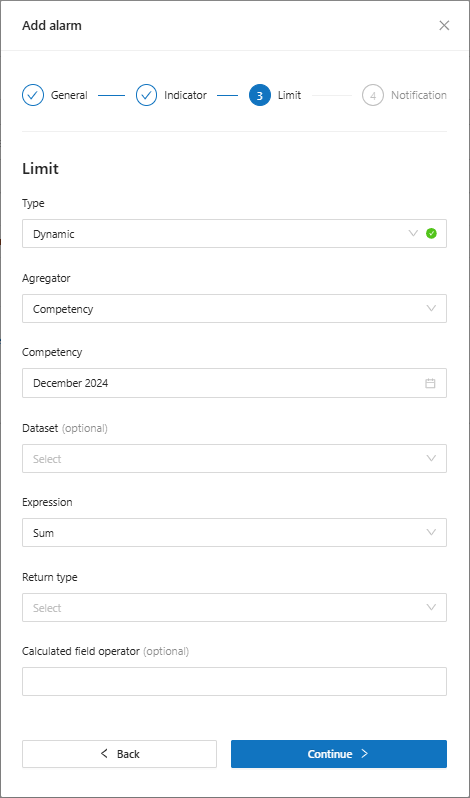
* Dynamic: When selecting this option, the system will request some additional information:

<figure><img src="https://1687673077-files.gitbook.io/~/files/v0/b/gitbook-x-prod.appspot.com/o/spaces%2FZ9sinLUl52lDK1vg6b8g%2Fuploads%2Fi5X0YBgrmgTwgtd7lNvm%2Fimage.png?alt=media&#x26;token=4f3eae1d-32a5-4c5c-b691-42df3b106138" alt=""><figcaption></figcaption></figure>

Use this option for dynamic limits, for example, when the indicator reaches 10% of the actual cost the alarm will be triggered.

**Agregator**: Select the agregator (Last, Period, Competency)

<figure><img src="https://1687673077-files.gitbook.io/~/files/v0/b/gitbook-x-prod.appspot.com/o/spaces%2FZ9sinLUl52lDK1vg6b8g%2Fuploads%2FQdATaeypTmc7ipviilcN%2Fimage.png?alt=media&#x26;token=47f5bf7f-f3ac-4bc6-be93-2d6a64936559" alt=""><figcaption></figcaption></figure>

* **Last**: When selecting the "**Last**" agregator, the system will display some additional fields for filling in:&#x20;
  * Value&#x20;
  * Period (Day, Week, Month, Year)&#x20;
  * Delay by (Optional)&#x20;
  * Period (Day, Week, Month, Year)

Use this option to accumulate values ​​from the last x days, weeks, months or years, for example: Last 7 days with a 3-day delay (we consider a 3-day delay for cloud providers to close)

<figure><img src="https://1687673077-files.gitbook.io/~/files/v0/b/gitbook-x-prod.appspot.com/o/spaces%2FZ9sinLUl52lDK1vg6b8g%2Fuploads%2FqcvhGFbJi3NxhIqizB1y%2Fimage.png?alt=media&#x26;token=86598396-9409-4de0-ac71-cf29e6df79ae" alt=""><figcaption></figcaption></figure>

* **Period**: When selecting the "**Period**" agregator, the system will display some additional fields to complete:
  * Start of period&#x20;
  * End of period

Use this option to consolidate values ​​from a specific period.

<figure><img src="https://1687673077-files.gitbook.io/~/files/v0/b/gitbook-x-prod.appspot.com/o/spaces%2FZ9sinLUl52lDK1vg6b8g%2Fuploads%2FKIbSSZSZCImmMU2rpWL7%2Fimage.png?alt=media&#x26;token=c0bfa7f0-0e40-4f29-a85b-1dd73fe272af" alt=""><figcaption></figcaption></figure>

* **Competency**: When selecting the "**Competency**" agregator, the system will display an additional field&#x20;
  * Competency: Use this option to work with a specific month of competency

<figure><img src="https://1687673077-files.gitbook.io/~/files/v0/b/gitbook-x-prod.appspot.com/o/spaces%2FZ9sinLUl52lDK1vg6b8g%2Fuploads%2Fv58J8bqy6ssK1vAPXrYc%2Fimage.png?alt=media&#x26;token=9e519477-bea2-4285-b764-19dc5440b819" alt=""><figcaption></figcaption></figure>

**Dataset (optional)**: Select this option to use a data set.

<figure><img src="https://1687673077-files.gitbook.io/~/files/v0/b/gitbook-x-prod.appspot.com/o/spaces%2FZ9sinLUl52lDK1vg6b8g%2Fuploads%2FuolzlztBd5LqtJr0IwqN%2Fimage.png?alt=media&#x26;token=5b718e07-cf45-4b7b-beef-f3af6b7ea4f5" alt=""><figcaption></figcaption></figure>

**Expression**: Select the options from the list as below:

<figure><img src="https://1687673077-files.gitbook.io/~/files/v0/b/gitbook-x-prod.appspot.com/o/spaces%2FZ9sinLUl52lDK1vg6b8g%2Fuploads%2Fgcj40lGPW02j1mA1hk4N%2Fimage.png?alt=media&#x26;token=d4044eeb-0949-4cbc-95f7-075fb6595ce2" alt=""><figcaption></figcaption></figure>

* Sum: adds the values ​​of the parameterized period&#x20;
* Average: calculates the average of the values ​​in the parameterized period&#x20;
* Average by date: calculates the average by date in the parameterized period&#x20;
* Quantity: counts the number of values ​​that are not blank.

**Return Type**: Select the option as below:

<figure><img src="https://1687673077-files.gitbook.io/~/files/v0/b/gitbook-x-prod.appspot.com/o/spaces%2FZ9sinLUl52lDK1vg6b8g%2Fuploads%2Fqb5xO74AeLbmK7KOd9OJ%2Fimage.png?alt=media&#x26;token=e5e6d274-b960-4dd0-a9cc-a092f5680224" alt=""><figcaption></figcaption></figure>

* Key and value: Use this option to filter billing fields (key), and the content (value). For example:

<figure><img src="https://1687673077-files.gitbook.io/~/files/v0/b/gitbook-x-prod.appspot.com/o/spaces%2FZ9sinLUl52lDK1vg6b8g%2Fuploads%2FzE9dKv4fwW7D7IrT2hPq%2Fimage.png?alt=media&#x26;token=6a097bcc-adda-4a6d-bf97-f284bdf44f37" alt=""><figcaption></figcaption></figure>

* Calculated field: Use this option for filters that combine mathematical operators, for example amortized cost greater than 1,000:

<figure><img src="https://1687673077-files.gitbook.io/~/files/v0/b/gitbook-x-prod.appspot.com/o/spaces%2FZ9sinLUl52lDK1vg6b8g%2Fuploads%2FjqdMwPW2LUqYslHi7whc%2Fimage.png?alt=media&#x26;token=ad6d45b5-4e56-4119-a9bc-118649eb2164" alt=""><figcaption></figcaption></figure>

**Calculated field return:** Inform the billing field that will be totaled in this context.

<figure><img src="https://1687673077-files.gitbook.io/~/files/v0/b/gitbook-x-prod.appspot.com/o/spaces%2FZ9sinLUl52lDK1vg6b8g%2Fuploads%2FrtJvBaBETF7vXWcAO3Jt%2Fimage.png?alt=media&#x26;token=897542b2-9980-40e5-950d-2c17139ce7ca" alt=""><figcaption></figcaption></figure>

**Calculated field operator**: Inform the operator that will be used in the calculated field

<figure><img src="https://1687673077-files.gitbook.io/~/files/v0/b/gitbook-x-prod.appspot.com/o/spaces%2FZ9sinLUl52lDK1vg6b8g%2Fuploads%2FafP4C5E1YKMLVoch2P6d%2Fimage.png?alt=media&#x26;token=62123948-9b57-48fd-a62d-89cf0eb5372f" alt=""><figcaption></figcaption></figure>

5. Register the **Notification** information.

* **Margin Ratio**: The alarm will be triggered whenever the configured ratio is reached.
* **Send notification**: Select Yes to send a notification whenever the alarm is triggered.

<figure><img src="https://1687673077-files.gitbook.io/~/files/v0/b/gitbook-x-prod.appspot.com/o/spaces%2FZ9sinLUl52lDK1vg6b8g%2Fuploads%2FEwgdB3863sHSUGPcUAmj%2Fimage.png?alt=media&#x26;token=479fcefb-593d-44f4-9146-94264780ba4b" alt="" width="563"><figcaption></figcaption></figure>

When selecting **Yes**, the system will request additional information:

* **Cycle**: Number of times the notification will be sent, with the option to notify once or always.
* **Notification Groups**: Select the notification group that will be triggered.

<figure><img src="https://1687673077-files.gitbook.io/~/files/v0/b/gitbook-x-prod.appspot.com/o/spaces%2FZ9sinLUl52lDK1vg6b8g%2Fuploads%2FiD7EUOqs8E7lo6deGnWd%2Fimage.png?alt=media&#x26;token=93ebe4f3-4fad-4c9b-8af2-18bf6f98d879" alt="" width="563"><figcaption></figcaption></figure>

{% hint style="info" %}
To select a Notification Group, you'll need to configure the desired groups in the Notifications feature. This ensures they are pre-registered and can be selected.
{% endhint %}