# Import and Export Rules

The Alarms functionality allows the import and export of rules.

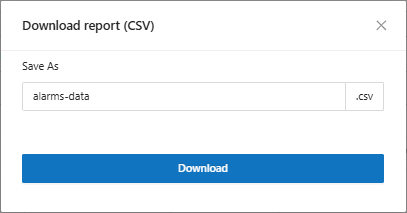
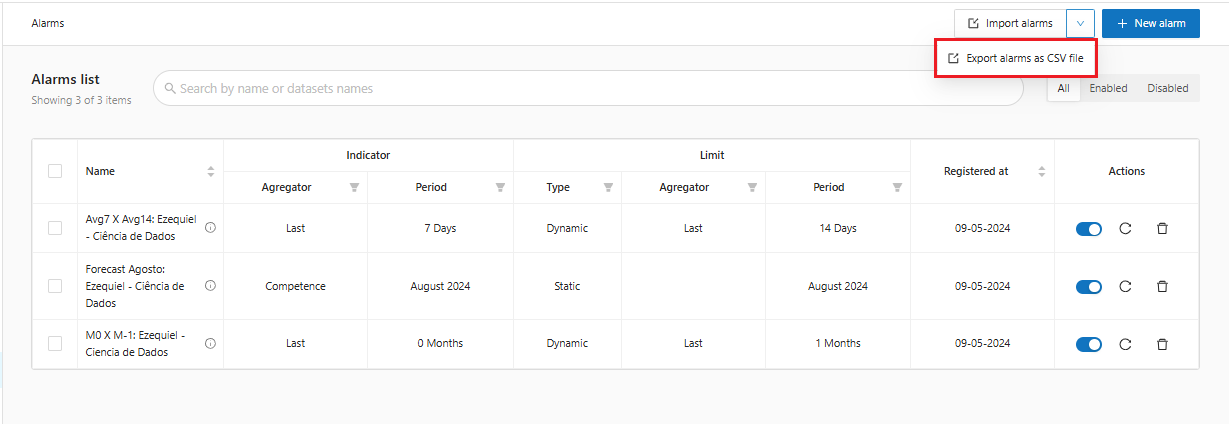
1. On the Alarms screen, click the highlighted down arrow button which will display the option to export the alarm rules as a CSV file.

<figure><img src="https://1687673077-files.gitbook.io/~/files/v0/b/gitbook-x-prod.appspot.com/o/spaces%2FZ9sinLUl52lDK1vg6b8g%2Fuploads%2FWKy2MHGp6jclIx2d0HYC%2Fimage.png?alt=media&#x26;token=1956523b-d311-4bfa-885b-9d3d5d26bffe" alt=""><figcaption></figcaption></figure>

<figure><img src="https://1687673077-files.gitbook.io/~/files/v0/b/gitbook-x-prod.appspot.com/o/spaces%2FZ9sinLUl52lDK1vg6b8g%2Fuploads%2FW8HU2rBAyEdVZIRauZ9p%2Fimage.png?alt=media&#x26;token=e8740f63-6703-483c-a86b-1582e828c7a0" alt=""><figcaption></figcaption></figure>

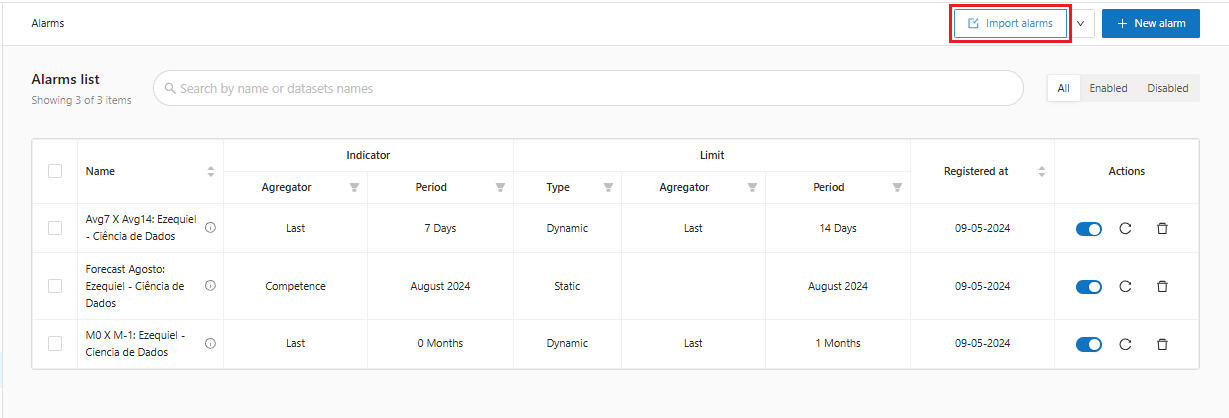
2. Press the highlighted button to import rules from a csv file.

<figure><img src="https://1687673077-files.gitbook.io/~/files/v0/b/gitbook-x-prod.appspot.com/o/spaces%2FZ9sinLUl52lDK1vg6b8g%2Fuploads%2FFImiFXe2Bf9RyWMBOLrp%2Fimage.png?alt=media&#x26;token=e871b729-a299-40f6-b684-1adb01542437" alt=""><figcaption></figcaption></figure>

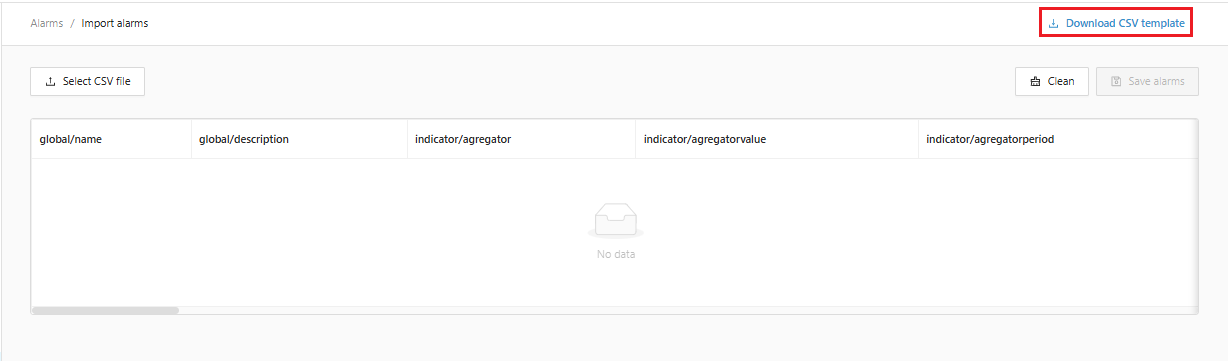
3. The system will display the Import Alarms screen, where it is possible to download a CSV template with the information model to fill in.

<figure><img src="https://1687673077-files.gitbook.io/~/files/v0/b/gitbook-x-prod.appspot.com/o/spaces%2FZ9sinLUl52lDK1vg6b8g%2Fuploads%2FpqgLaDU0GqJadfzB3MXh%2Fimage.png?alt=media&#x26;token=bfb5d78b-63b2-41d6-b5f4-0b0a84193713" alt=""><figcaption></figcaption></figure>

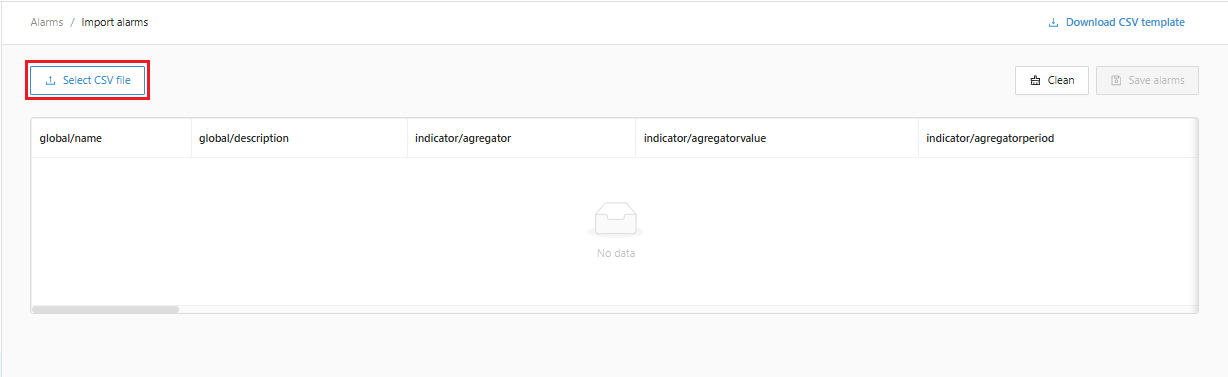
4. And select the CSV file with the alarm rules to import.

<figure><img src="https://1687673077-files.gitbook.io/~/files/v0/b/gitbook-x-prod.appspot.com/o/spaces%2FZ9sinLUl52lDK1vg6b8g%2Fuploads%2F0kasRmKijsGcDRMnWX6M%2Fimage.png?alt=media&#x26;token=0bc795f7-a832-4aa1-a967-1686e473fc86" alt=""><figcaption></figcaption></figure>

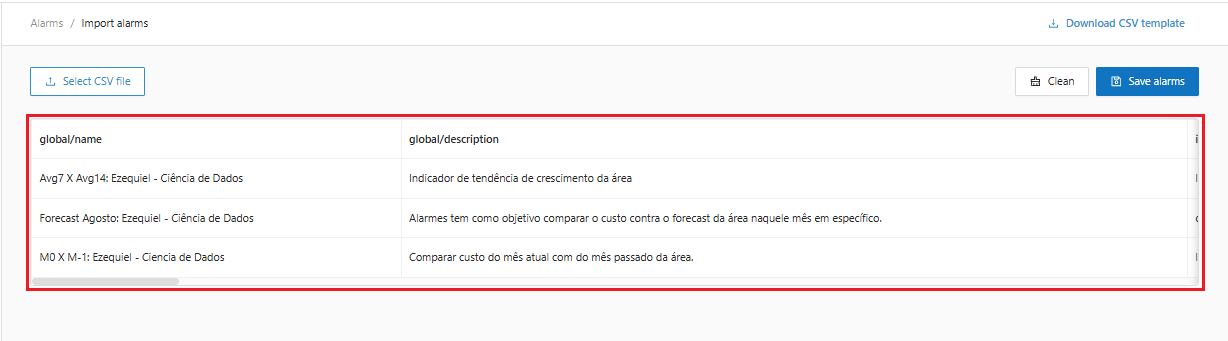
5. When selecting the file for import, the system will display all fields filled with the alarm rules of the selected file:

<figure><img src="https://1687673077-files.gitbook.io/~/files/v0/b/gitbook-x-prod.appspot.com/o/spaces%2FZ9sinLUl52lDK1vg6b8g%2Fuploads%2FrvkogzlWw9JD4Kg3lWrG%2Fimage.png?alt=media&#x26;token=58250072-508c-4992-ad91-ee5d34411dbb" alt=""><figcaption></figcaption></figure>

6. By clicking the Clear "![](https://1687673077-files.gitbook.io/~/files/v0/b/gitbook-x-prod.appspot.com/o/spaces%2FZ9sinLUl52lDK1vg6b8g%2Fuploads%2FUozLgIEHfsUCydrxPMka%2Fimage.png?alt=media\&token=356d88bc-7d46-4d59-8bfd-e49aee3cbde5)" button, the system will delete the information from the fields, and by clicking the Save "![](https://1687673077-files.gitbook.io/~/files/v0/b/gitbook-x-prod.appspot.com/o/spaces%2FZ9sinLUl52lDK1vg6b8g%2Fuploads%2FEaLJFxK12U6N5ba22MGM%2Fimage.png?alt=media\&token=9f561bf9-3cb9-447b-8b8f-6bcc72027327)" button, the system will save the rules and return to the main screen, displaying all saved rules.

<figure><img src="https://1687673077-files.gitbook.io/~/files/v0/b/gitbook-x-prod.appspot.com/o/spaces%2FZ9sinLUl52lDK1vg6b8g%2Fuploads%2FUCDMYXNZRGcPA3oEFPLJ%2Fimage.png?alt=media&#x26;token=1142ec68-b612-4211-8962-0d76d6c13d28" alt=""><figcaption></figcaption></figure>

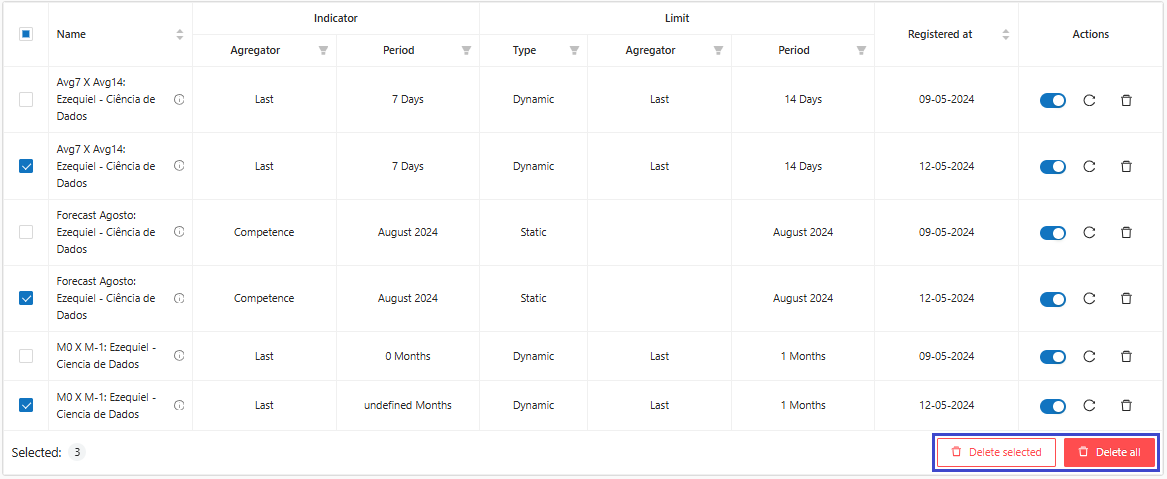
7. When returning to the main screen, the system allows you to delete some selected rules, or delete all of them.

<figure><img src="https://1687673077-files.gitbook.io/~/files/v0/b/gitbook-x-prod.appspot.com/o/spaces%2FZ9sinLUl52lDK1vg6b8g%2Fuploads%2FHWu3rAsguZAnCblOSGVG%2Fimage.png?alt=media&#x26;token=b258da27-80f0-443d-bbc0-0c1d7b1a2452" alt=""><figcaption></figcaption></figure>

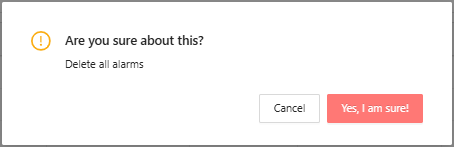
8. By clicking delete, the system will display the message to confirm the action:
<figure><img src="https://1687673077-files.gitbook.io/~/files/v0/b/gitbook-x-prod.appspot.com/o/spaces%2FZ9sinLUl52lDK1vg6b8g%2Fuploads%2FS3Rsmvz35e6OJKlQpTBg%2Fimage.png?alt=media&#x26;token=17c70b67-2d3e-4fd8-b094-fc5a926d94ae" alt=""><figcaption></figcaption></figure>