# Infrastructure anomalies

**Step by step execution:**

1. In Anomalies, access the **Infrastructure Anomalies** functionality:

<figure><img src="https://1687673077-files.gitbook.io/~/files/v0/b/gitbook-x-prod.appspot.com/o/spaces%2FZ9sinLUl52lDK1vg6b8g%2Fuploads%2FHP2W7KRYZ2ZzxrNSczY8%2Fimage.png?alt=media&#x26;token=484a6697-fafb-4ae5-ab2b-980d76123612" alt=""><figcaption></figcaption></figure>

2. The system will open on the main Infrastructure Anomalies screen with the possibility of configurations, by clicking on the **"**![](https://1687673077-files.gitbook.io/~/files/v0/b/gitbook-x-prod.appspot.com/o/spaces%2FZ9sinLUl52lDK1vg6b8g%2Fuploads%2FCThyjrElsNpNsSG80Nbq%2Fimage.png?alt=media\&token=e30563df-7951-4ad8-9f60-d062cfe4b9c3)**"** icon, as highlighted below:

<figure><img src="https://1687673077-files.gitbook.io/~/files/v0/b/gitbook-x-prod.appspot.com/o/spaces%2FZ9sinLUl52lDK1vg6b8g%2Fuploads%2FpGT8wQseMEzLmNRfu5NM%2Fimage.png?alt=media&#x26;token=fc75129b-46f0-4fae-aeaa-803502204d30" alt=""><figcaption></figcaption></figure>

3. The screen for configuring the **Detection Model** will be displayed:

{% hint style="info" %}
Before configuring the model, understand how the anomaly is detected:

The model calculates the variation in consumption between the current date **(D0)** and the model date **(D-1, D-7 and D-14)** and checks if the variation is above the value ($) or % configured in the **global** model or in each of the models **by account**.

**D-1**: Date of the previous day&#x20;

**D-7**: Date of 7 days ago&#x20;

**D-14**: Date of the last 14 days (average of the period)

Now, choose the model that best suits your needs:
{% endhint %}

{% tabs %}
{% tab title=" Global" %}

* It prevails over all accounts and applies the 3 models D-1, D-7 and D-14
  {% endtab %}

{% tab title="By Acount " %}

* It prevails over a specific account and allows the choice of the model to be applied D-1, D-7 and or D-14
  {% endtab %}
  {% endtabs %}

4. Configure the model:

* **Global**

  * In the **Description** tab, inform the value ($) and the percentage (%) that is considered outside the acceptable standard and save the configuration

  <figure><img src="https://1687673077-files.gitbook.io/~/files/v0/b/gitbook-x-prod.appspot.com/o/spaces%2FZ9sinLUl52lDK1vg6b8g%2Fuploads%2FLnUf9gP06tyYYG4ztN60%2Fimage.png?alt=media&#x26;token=57490daa-a516-4846-b11c-9bdc7e74e50d" alt=""><figcaption></figcaption></figure>

  * In the **Notification** tab, the system allows you to enable sending by selecting **Yes**, and to choose the desired **Notification Group**.

  <figure><img src="https://1687673077-files.gitbook.io/~/files/v0/b/gitbook-x-prod.appspot.com/o/spaces%2FZ9sinLUl52lDK1vg6b8g%2Fuploads%2FrQUcAaY81zbXM7uO0i1z%2Fimage.png?alt=media&#x26;token=c660a631-ed8a-466c-806a-e37d47f87663" alt=""><figcaption></figcaption></figure>

{% hint style="info" %}
To select the Notification Group, it is necessary to configure the desired groups within the [Notifications ](https://docs.piercloud.com.br/plataforma-de-finops/finops-platform-english/platform-configuration/setup-features/notifications)functionality, so that they are pre-registered and available for selection.
{% endhint %}

* **By Account**&#x20;
  * In the list "**Configuration of Templates by Account**, the system allows you to search for a specific account:

<figure><img src="https://1687673077-files.gitbook.io/~/files/v0/b/gitbook-x-prod.appspot.com/o/spaces%2FZ9sinLUl52lDK1vg6b8g%2Fuploads%2Frx01jYhIjOOoHuUNYt2O%2Fimage.png?alt=media&#x26;token=3882f423-d028-4dbd-9a8a-fa15b82c4d30" alt=""><figcaption></figcaption></figure>

* In addition to adjusting the configuration in the line of the account to be configured, by clicking on the gear button "![](https://1687673077-files.gitbook.io/~/files/v0/b/gitbook-x-prod.appspot.com/o/spaces%2FZ9sinLUl52lDK1vg6b8g%2Fuploads%2FItbIMm0WhkfJx4K9H0te%2Fimage.png?alt=media\&token=bbbf7322-3cdd-40b8-a062-86b61abc31f2)".

<figure><img src="https://1687673077-files.gitbook.io/~/files/v0/b/gitbook-x-prod.appspot.com/o/spaces%2FZ9sinLUl52lDK1vg6b8g%2Fuploads%2F8bgAr6vAFoAhXNGwH3kU%2Fimage.png?alt=media&#x26;token=2b4d68f5-6c6a-4b41-a2ad-a4cfda4f7937" alt=""><figcaption></figcaption></figure>

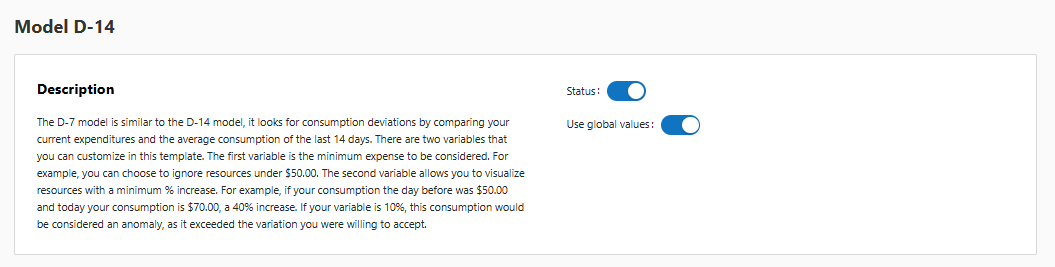
5. On the template configuration screen, the system allows you to:&#x20;

* Disable the Model that should not be applied by clicking on the **Status** button.&#x20;
* Disable the "**Use global values**" option to enter the value ($) and the percentage (%) that will be considered outside the acceptable standard for each of the models.

<figure><img src="https://1687673077-files.gitbook.io/~/files/v0/b/gitbook-x-prod.appspot.com/o/spaces%2FZ9sinLUl52lDK1vg6b8g%2Fuploads%2FCq5VG767rzcEDSc0niSY%2Fimage.png?alt=media&#x26;token=3c36491b-1523-491f-93b1-64652fa12805" alt=""><figcaption></figcaption></figure>

<figure><img src="https://1687673077-files.gitbook.io/~/files/v0/b/gitbook-x-prod.appspot.com/o/spaces%2FZ9sinLUl52lDK1vg6b8g%2Fuploads%2FD3j78QAndOXaMoc6AoaF%2Fimage.png?alt=media&#x26;token=e9f5f361-8424-435d-ae14-4702ff6b9b1e" alt=""><figcaption></figcaption></figure>

<figure><img src="https://1687673077-files.gitbook.io/~/files/v0/b/gitbook-x-prod.appspot.com/o/spaces%2FZ9sinLUl52lDK1vg6b8g%2Fuploads%2F5NPteSyyhX9aFqpOSDuK%2Fimage.png?alt=media&#x26;token=5fde2a23-7cd1-4b21-a62b-4f3bc35b582e" alt=""><figcaption></figcaption></figure>