# Add Field

On the main screen, the system allows to add a new field&#x20;

2. Click on **Add Field**:

<figure><img src="https://1687673077-files.gitbook.io/~/files/v0/b/gitbook-x-prod.appspot.com/o/spaces%2FZ9sinLUl52lDK1vg6b8g%2Fuploads%2FY4DNQrCzOkIXj4pNPi9q%2Fimage.png?alt=media&#x26;token=a4ca3260-cd53-45ef-ad39-fd4ed28899d0" alt=""><figcaption></figcaption></figure>

The system will display a screen to register the field data:

<figure><img src="https://1687673077-files.gitbook.io/~/files/v0/b/gitbook-x-prod.appspot.com/o/spaces%2FZ9sinLUl52lDK1vg6b8g%2Fuploads%2FoZYeDxZbm6K4TxZxuVfv%2Fimage.png?alt=media&#x26;token=a550ee0e-c08a-47aa-aad2-13bfb95cf810" alt=""><figcaption></figcaption></figure>

* **Field Name**: Inform the name that will be assigned to the field. A good practice is to include field information in the name.&#x20;
* **Data Type**: Select the type of data that will be used in the field (String, Number and date)

<figure><img src="https://1687673077-files.gitbook.io/~/files/v0/b/gitbook-x-prod.appspot.com/o/spaces%2FZ9sinLUl52lDK1vg6b8g%2Fuploads%2FkUR5TYLFoQ3vklRW1nYb%2Fimage.png?alt=media&#x26;token=d659629a-d709-4a39-9072-ae835b5586f1" alt=""><figcaption></figcaption></figure>

* A brief description of the field types:&#x20;
  * String: Represented by alphanumeric characters (letters, numbers and special characters) that can be used in the field.&#x20;
  * Number: Represents quantitative information that can be measured and counted. Often used to perform mathematical operations and statistical analyses.&#x20;
  * Date: Represents information related to the date that can be used in the field.
* **Description**: Inform a brief description of the field that will be created.

<figure><img src="https://1687673077-files.gitbook.io/~/files/v0/b/gitbook-x-prod.appspot.com/o/spaces%2FZ9sinLUl52lDK1vg6b8g%2Fuploads%2FY4Ijaxkwa4ZfKgZsi8wO%2Fimage.png?alt=media&#x26;token=b3b4b4e7-a1ae-4610-a123-6b9ca854071e" alt=""><figcaption></figcaption></figure>

* **Data Connectors**: When working with Data Connectors, only those selected below will be listed&#x20;
  * Inform the data connector that will be used. This is an optional field.

<figure><img src="https://1687673077-files.gitbook.io/~/files/v0/b/gitbook-x-prod.appspot.com/o/spaces%2FZ9sinLUl52lDK1vg6b8g%2Fuploads%2FqZmd6S04G53PFr87wvs5%2Fimage.png?alt=media&#x26;token=c2cdc4da-5eea-418a-95f4-74106c592f77" alt=""><figcaption></figcaption></figure>

* **Define SQL**: Inform the SQL expression that will be used to form the calculated field.

<figure><img src="https://1687673077-files.gitbook.io/~/files/v0/b/gitbook-x-prod.appspot.com/o/spaces%2FZ9sinLUl52lDK1vg6b8g%2Fuploads%2FKDrJQy8ToqjWtBUeySV9%2Fimage.png?alt=media&#x26;token=2520814d-12fb-46c3-a605-d1ec6759306e" alt=""><figcaption></figcaption></figure>

* By clicking on the format button "![](https://1687673077-files.gitbook.io/~/files/v0/b/gitbook-x-prod.appspot.com/o/spaces%2FZ9sinLUl52lDK1vg6b8g%2Fuploads%2FSRWAj032WmiiZnTm64EB%2Fimage.png?alt=media\&token=846b0470-4b23-41b0-a153-c6d78edd1a51)", it is possible to indent the code, making it easier to read.

Note: When using a calculated field within another calculated field, you should use a colon before using double quotes. For example: SUM(:"pier/aws/fieldname":)

3. **Test Field**&#x20;

By clicking on the "Test Field" button, it is possible to test the created field before saving it.

<figure><img src="https://1687673077-files.gitbook.io/~/files/v0/b/gitbook-x-prod.appspot.com/o/spaces%2FZ9sinLUl52lDK1vg6b8g%2Fuploads%2FesqmXq0CfFp1UykjRXI6%2Fimage.png?alt=media&#x26;token=604c8229-6f0b-4488-89f0-a4f0a25ad30f" alt=""><figcaption></figcaption></figure>

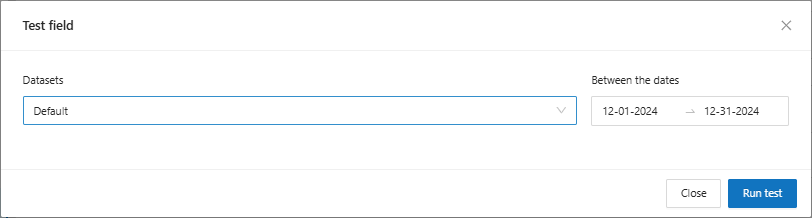
The system will display the screen to test the created field:&#x20;

* It will be necessary to select the **Dataset** used and click on the "**Run test**" button:

<figure><img src="https://1687673077-files.gitbook.io/~/files/v0/b/gitbook-x-prod.appspot.com/o/spaces%2FZ9sinLUl52lDK1vg6b8g%2Fuploads%2FzjAufyei54XcN0csXrT8%2Fimage.png?alt=media&#x26;token=67e1c52a-f428-487e-991e-c72c3443f2ab" alt=""><figcaption></figcaption></figure>

The system will display the test result:

<figure><img src="https://1687673077-files.gitbook.io/~/files/v0/b/gitbook-x-prod.appspot.com/o/spaces%2FZ9sinLUl52lDK1vg6b8g%2Fuploads%2FGRfjPhlD5tAu6eWBK2HJ%2Fimage.png?alt=media&#x26;token=68fa5d45-f494-4d6d-8af8-b27184b40a0f" alt=""><figcaption></figcaption></figure>

3. **Save Field**&#x20;

By clicking on the **Save Field** button, the system will save the created field and return to the main screen.

<figure><img src="https://1687673077-files.gitbook.io/~/files/v0/b/gitbook-x-prod.appspot.com/o/spaces%2FZ9sinLUl52lDK1vg6b8g%2Fuploads%2FTvPuReJLAa258pWvecWj%2Fimage.png?alt=media&#x26;token=2ba4fdc8-ae58-46fa-8803-52e6882191ac" alt=""><figcaption></figcaption></figure>