# Allocation of Indirect Costs

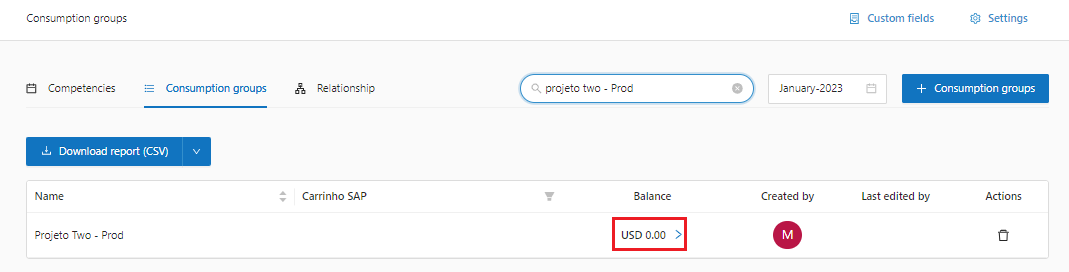
**Step 1**: In Consumption Groups select the date of competency.

<figure><img src="https://1687673077-files.gitbook.io/~/files/v0/b/gitbook-x-prod.appspot.com/o/spaces%2FZ9sinLUl52lDK1vg6b8g%2Fuploads%2FpIiqS1s4JQWhK7QOmOnM%2Fimage.png?alt=media&#x26;token=b436777c-9543-4097-994e-054305e2fe9d" alt=""><figcaption></figcaption></figure>

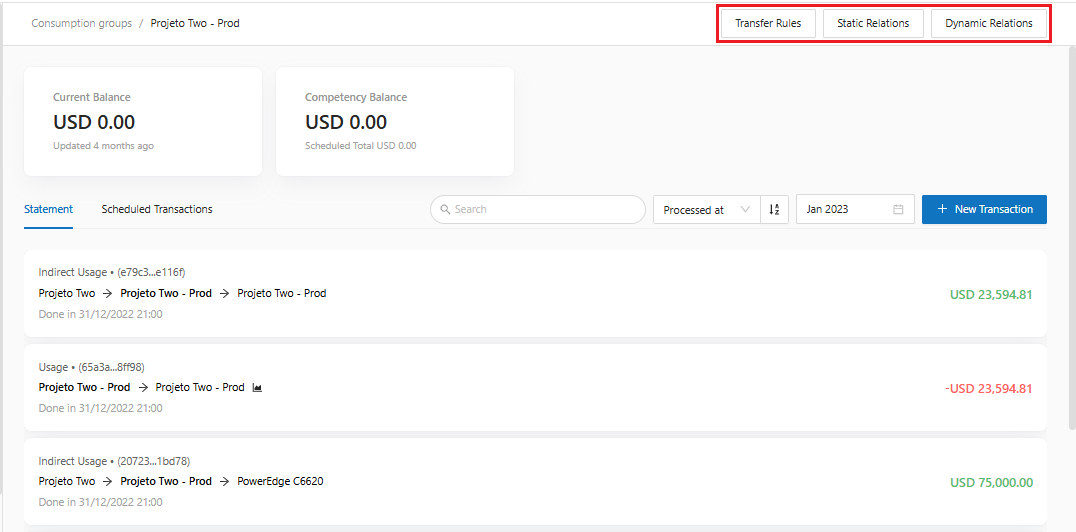
**Step 2**: Search for the object to be prorated and click on the Group balance.

<figure><img src="https://1687673077-files.gitbook.io/~/files/v0/b/gitbook-x-prod.appspot.com/o/spaces%2FZ9sinLUl52lDK1vg6b8g%2Fuploads%2FEegVIKptMJ5YBb0hVD7N%2Fimage.png?alt=media&#x26;token=1b2744ed-96fd-4975-8d0f-99ea36e7099d" alt=""><figcaption></figcaption></figure>

**Step 3:** Click on **Transfer Rules**, **Static Relationships** or **Dynamic Relationships**.

<figure><img src="https://1687673077-files.gitbook.io/~/files/v0/b/gitbook-x-prod.appspot.com/o/spaces%2FZ9sinLUl52lDK1vg6b8g%2Fuploads%2FUOizfetkFNtQMwibpzpH%2Fimage.png?alt=media&#x26;token=bfd019f8-606a-4a63-ae73-7dbaafb2e90b" alt=""><figcaption></figcaption></figure>

**Transfer Rules:** Transfers the values ​​of a specific rule to another Consumption Group to be informed.

<figure><img src="https://1687673077-files.gitbook.io/~/files/v0/b/gitbook-x-prod.appspot.com/o/spaces%2FZ9sinLUl52lDK1vg6b8g%2Fuploads%2FzIhvA1NDoEO7cdm7zX4N%2Fimage.png?alt=media&#x26;token=fcb24a95-a2df-43b4-9fa5-7af54e05c7e8" alt=""><figcaption></figcaption></figure>

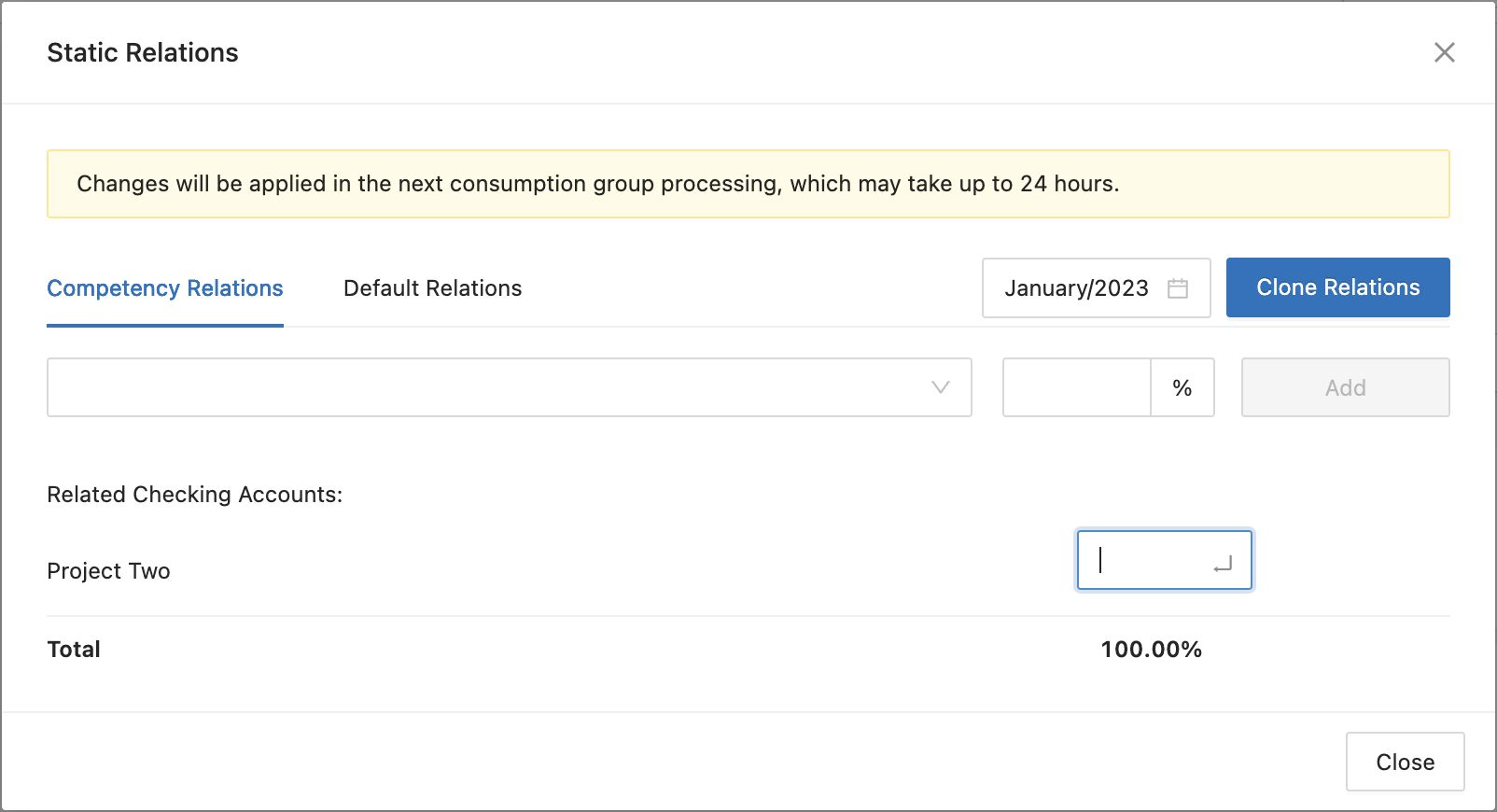
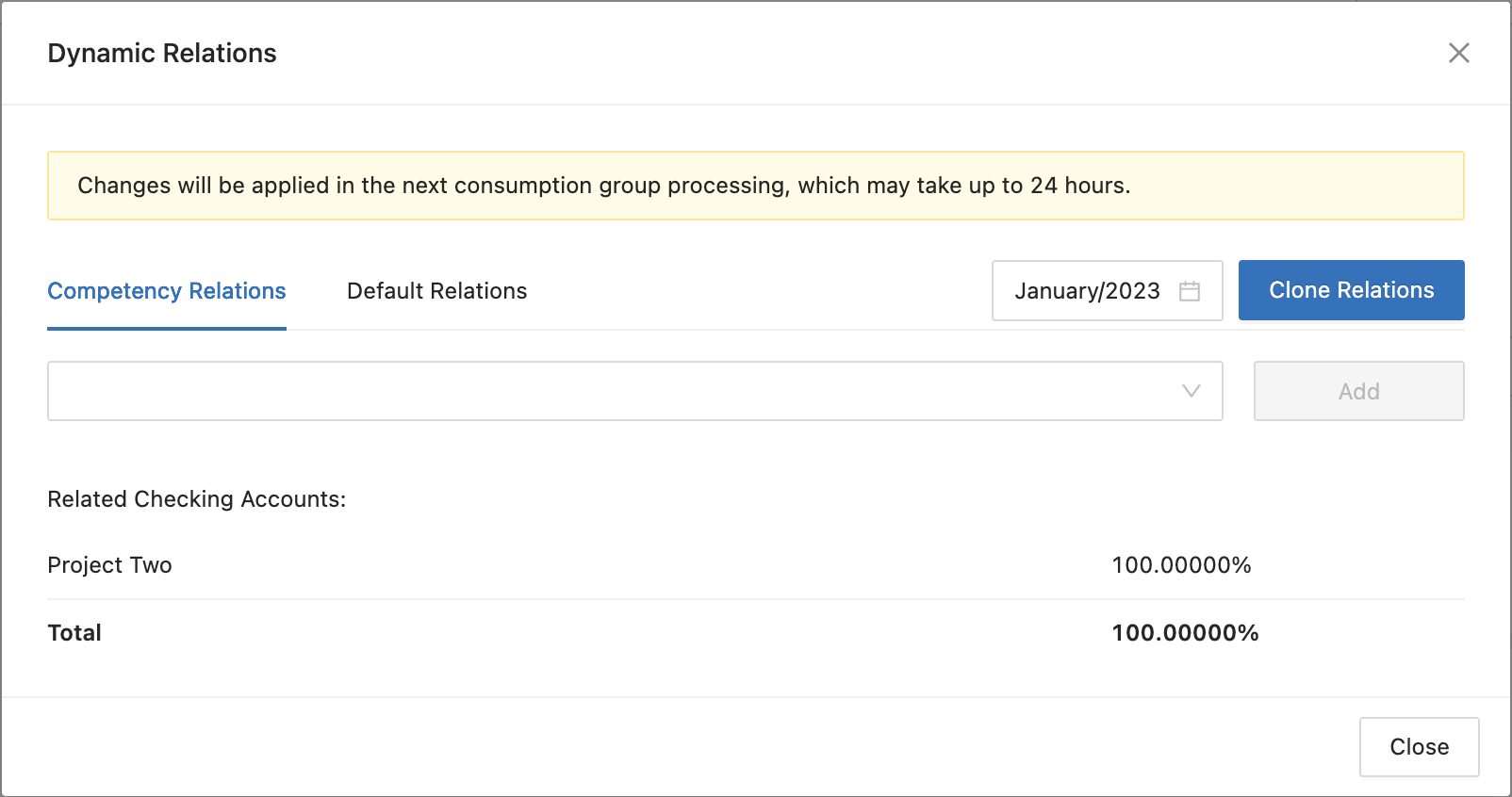
**Static Relations**: Use this option when you want to prorated of statically way, informing the percentage for each cost center.&#x20;

In this example, the cost of Project Two - Prod is 100% paid by Project Two.

* **Competency Relations**: This is the effective relations that the selected month will use.

<figure><img src="https://1687673077-files.gitbook.io/~/files/v0/b/gitbook-x-prod.appspot.com/o/spaces%2FZ9sinLUl52lDK1vg6b8g%2Fuploads%2FuwGP0HFun3I623zpPZll%2Fimage.png?alt=media&#x26;token=0dd7cbfc-b2f3-4c08-898b-c50d2cbe4366" alt=""><figcaption></figcaption></figure>

For each related checking account, the system allows you to edit the percentage by clicking the "<img src="https://1687673077-files.gitbook.io/~/files/v0/b/gitbook-x-prod.appspot.com/o/spaces%2FZ9sinLUl52lDK1vg6b8g%2Fuploads%2FSa5rMpSX0nc22Xpu0b2Q%2Fimage.png?alt=media&#x26;token=1d859748-7867-41dd-8239-861895e173de" alt="" data-size="line">", icon next to the value.

<figure><img src="https://1687673077-files.gitbook.io/~/files/v0/b/gitbook-x-prod.appspot.com/o/spaces%2FZ9sinLUl52lDK1vg6b8g%2Fuploads%2FD7PqMCwqWJdPGsDIzbnj%2Fimage.png?alt=media&#x26;token=56138761-f1ed-4e91-a4b1-70ef7912bbc8" alt=""><figcaption></figcaption></figure>

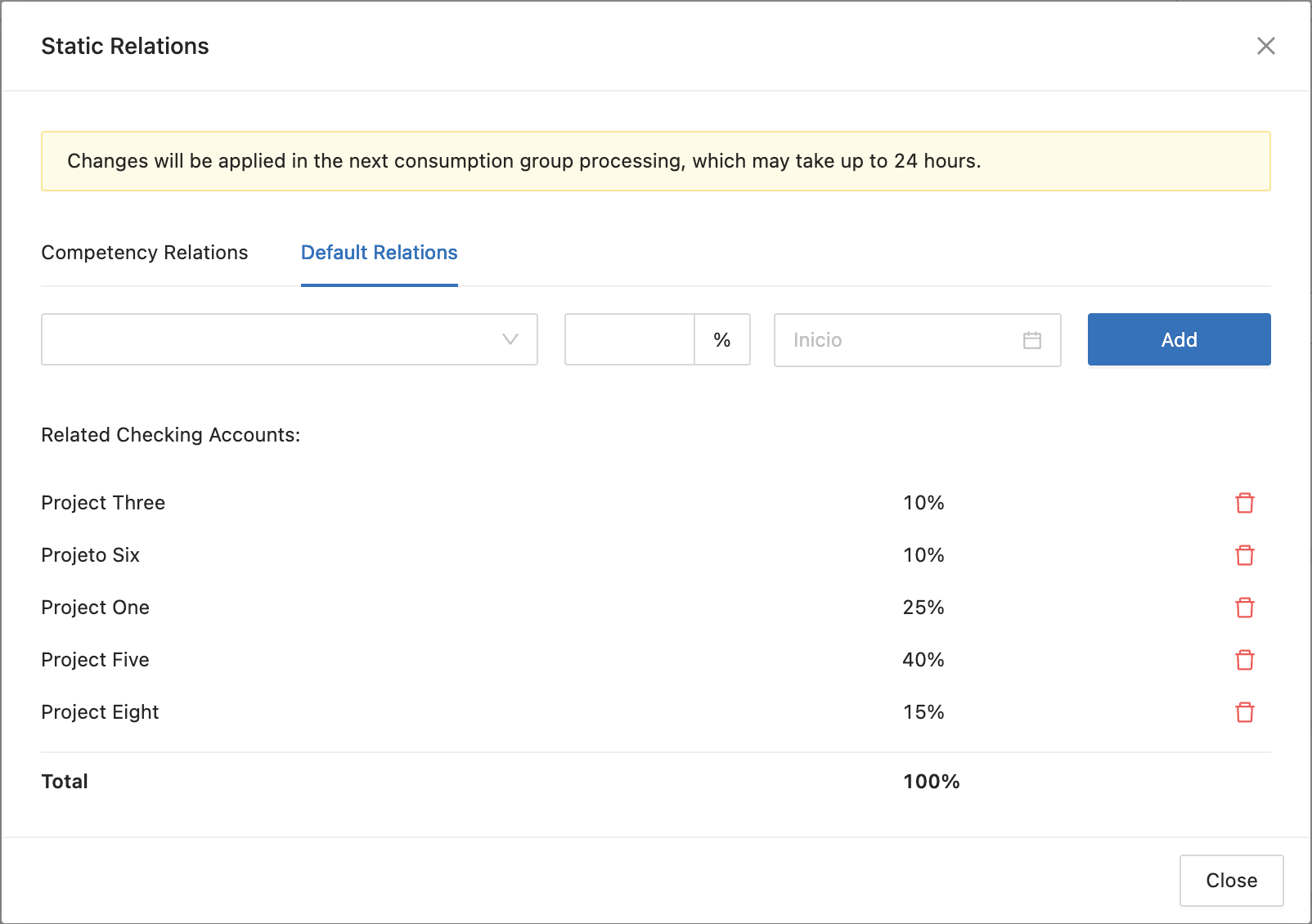
* **Default Relations:** It is possible to determine a default relations, but if the relations by competence is defined, it will be prioritized by the system when used.

<figure><img src="https://1687673077-files.gitbook.io/~/files/v0/b/gitbook-x-prod.appspot.com/o/spaces%2FZ9sinLUl52lDK1vg6b8g%2Fuploads%2FcJKcAQQjcFBSoBxsZXzi%2Fimage.png?alt=media&#x26;token=b45e173e-ff18-45ca-a576-15d33fe11e15" alt=""><figcaption></figcaption></figure>

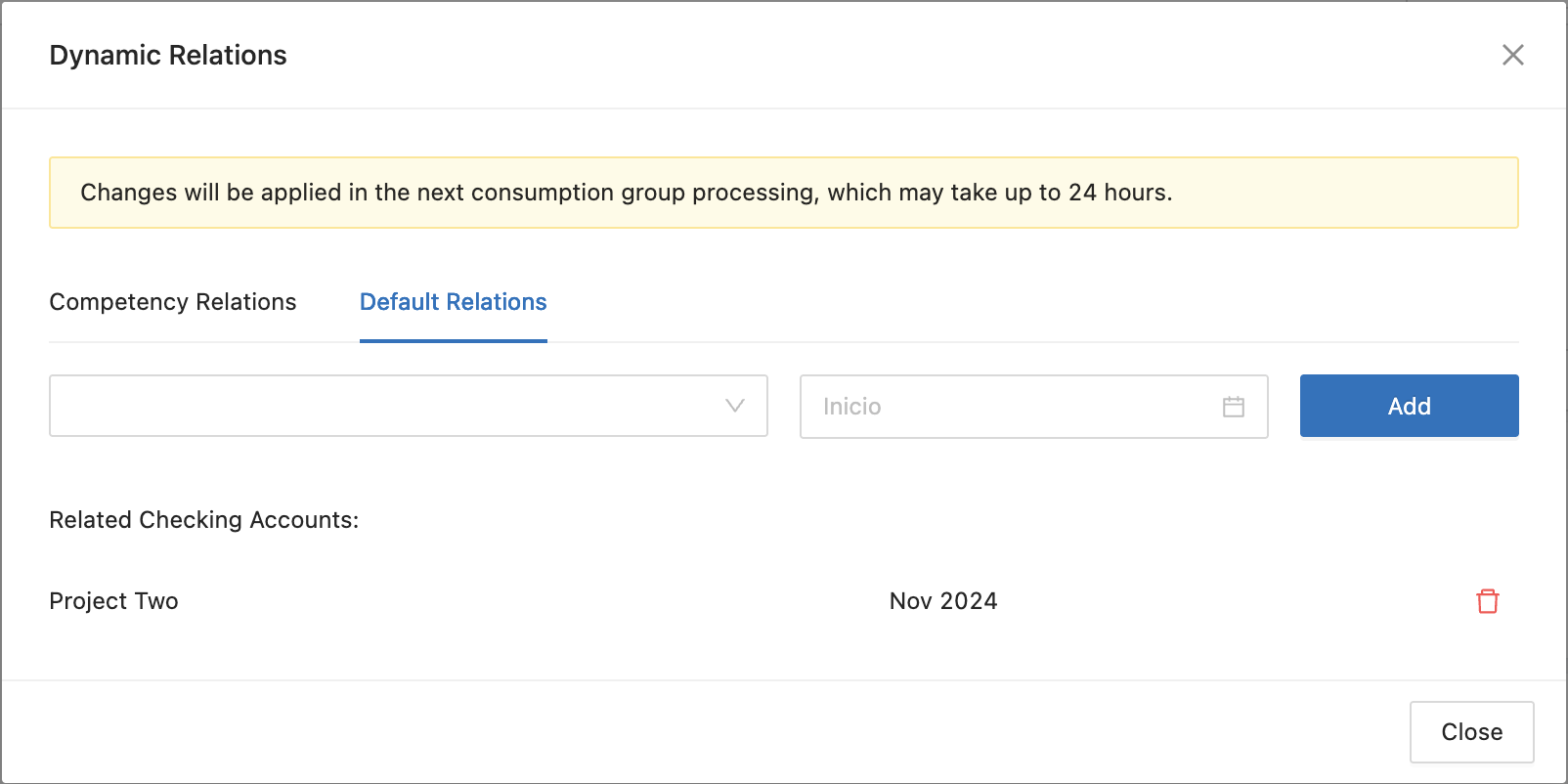
**Dynamic Relations**: use this option when you want to prorated of dynamically way, informing only the cost centers and the percentage will be calculated proportionally.&#x20;

In this example, the Shared Cost is being prorated proportionally according to the expenses of the following projects.

* **Competency Relations:** This is the effective relations that the selected month will use.

<figure><img src="https://1687673077-files.gitbook.io/~/files/v0/b/gitbook-x-prod.appspot.com/o/spaces%2FZ9sinLUl52lDK1vg6b8g%2Fuploads%2FOpmpXpxrMIB8lntzfadn%2Fimage.png?alt=media&#x26;token=960be15f-3bd3-415a-b2f2-139b69b791b8" alt=""><figcaption></figcaption></figure>

* **Default Relations**:  It is possible to determine a default relations, but if the relations by competence is defined, it will be prioritized by the system when used.

<figure><img src="https://1687673077-files.gitbook.io/~/files/v0/b/gitbook-x-prod.appspot.com/o/spaces%2FZ9sinLUl52lDK1vg6b8g%2Fuploads%2FGzRJs2Qhxv3Q7GPgsjbC%2Fimage.png?alt=media&#x26;token=e4f74999-ebd5-4240-a2b3-37abc20e904e" alt=""><figcaption></figcaption></figure>

Click **Close.**

That's it, prorate created!

<mark style="background-color:purple;">Attention! The configured prorate will only be reflected in the Group statement after the transactions have been reprocessed.</mark>

**Manage transactions**&#x20;

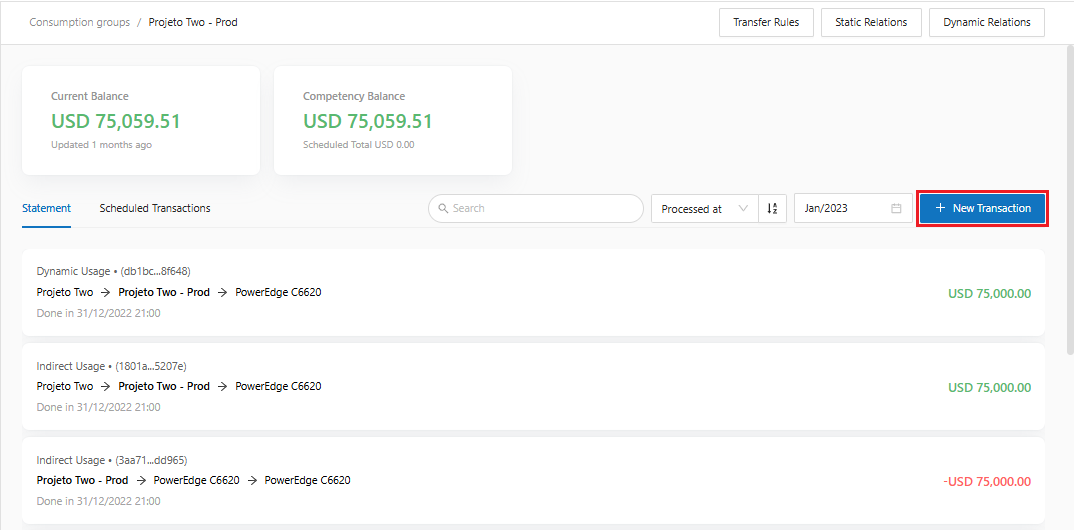
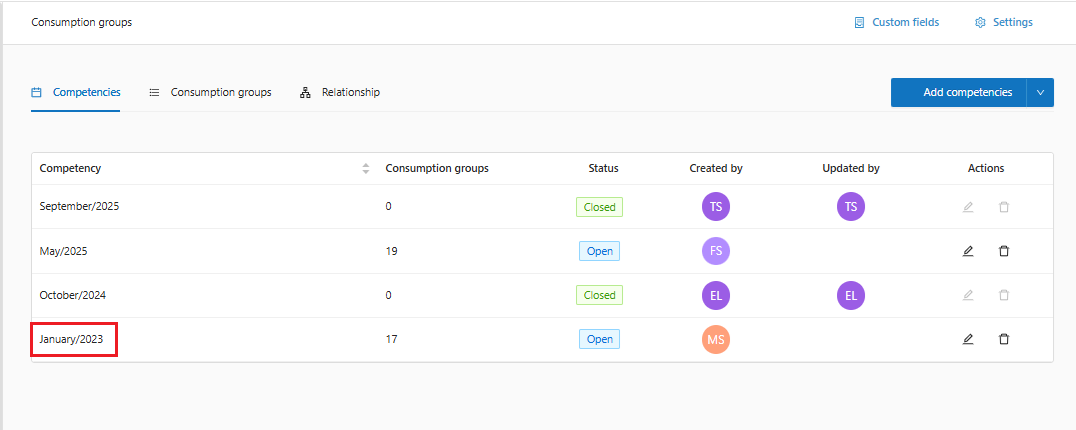
**Step 1**: In Lighthouse / Budgets / Consumption Groups, click on the desired Competency.&#x20;

**Step 2**: Search for the desired consumption group.&#x20;

**Step 3**: Click on the balance of the desired Consumption Group.&#x20;

**Step 4**: Inform the competency and click on **New Transaction**.&#x20;

**Step 5**: Inform the transfer date.&#x20;

<figure><img src="https://1687673077-files.gitbook.io/~/files/v0/b/gitbook-x-prod.appspot.com/o/spaces%2FZ9sinLUl52lDK1vg6b8g%2Fuploads%2FvhjhUL203S5D31GBD51Z%2Fimage.png?alt=media&#x26;token=e40a0e98-69f3-4268-a6b6-ba9e7dfaec75" alt=""><figcaption></figcaption></figure>

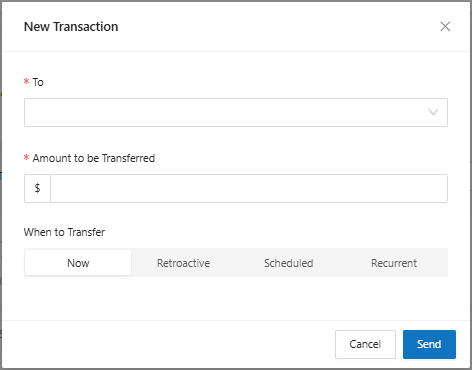
* **To**: Select the Consumption Group from the list&#x20;
* **Amount to be transferred**: Inform the amount&#x20;
* **When to transfer**: Inform the transfer date
<figure><img src="https://1687673077-files.gitbook.io/~/files/v0/b/gitbook-x-prod.appspot.com/o/spaces%2FZ9sinLUl52lDK1vg6b8g%2Fuploads%2FfAvVSE9ICftfC1Qh7mWo%2Fimage.png?alt=media&#x26;token=025546ac-04d5-4459-9873-3f4c5c1ba2fe" alt=""><figcaption></figcaption></figure>