# Rules

1. By clicking on the "**Rules**" tab, the system will display the Rules screen containing some information:

<figure><img src="https://1687673077-files.gitbook.io/~/files/v0/b/gitbook-x-prod.appspot.com/o/spaces%2FZ9sinLUl52lDK1vg6b8g%2Fuploads%2Fk9INHG3J80E83UKUM9pZ%2Fimage.png?alt=media&#x26;token=f221ce0b-ec75-4d96-a3c7-7a5a37c110eb" alt=""><figcaption></figcaption></figure>

2. On the main Rules screen, the system allows you to view the following information:

* **Allocated**: Total value of rules allocated to a consumption group.&#x20;
* **Unallocated**: Total value of rules that are not allocated to any consumption group.&#x20;
* **Unallocated percentage**: Percentage referring to the total value of rules that are not allocated to any consumption group.

<figure><img src="https://1687673077-files.gitbook.io/~/files/v0/b/gitbook-x-prod.appspot.com/o/spaces%2FZ9sinLUl52lDK1vg6b8g%2Fuploads%2FEi1ALWi0BM3pPeDwQEun%2Fimage.png?alt=media&#x26;token=546b53e5-72d1-4523-bd32-0fc92dc58310" alt=""><figcaption></figcaption></figure>

3. The system also allows you to apply some search filters on the screen:

* **Rules:** Enables searching by Rule ID, name, or rule author.
* **Ownership:** Enables searching across all rules or restricting the search to those under your ownership.
* **Status:** Provides the ability to filter rules based on whether they are active or expired.
* **Allocation:** Allows filtering by rules that are either associated with a consumption group or not.
* **Boost:** Enables searching for a specific boost that has been applied to a rule.

<figure><img src="https://1687673077-files.gitbook.io/~/files/v0/b/gitbook-x-prod.appspot.com/o/spaces%2FZ9sinLUl52lDK1vg6b8g%2Fuploads%2F4qiupCcYy7bA53Gx76Hz%2Fimage.png?alt=media&#x26;token=da059751-f99e-4444-a3bb-6d088a87374f" alt=""><figcaption></figcaption></figure>

4. **Settings**&#x20;

Clicking on the **Settings** option in the upper right corner:

<figure><img src="https://1687673077-files.gitbook.io/~/files/v0/b/gitbook-x-prod.appspot.com/o/spaces%2FZ9sinLUl52lDK1vg6b8g%2Fuploads%2FTjI4pzAHpyOMtyvEMMix%2Fimage.png?alt=media&#x26;token=bd47b2db-ca4d-437b-9f9b-63380a30f856" alt=""><figcaption></figcaption></figure>

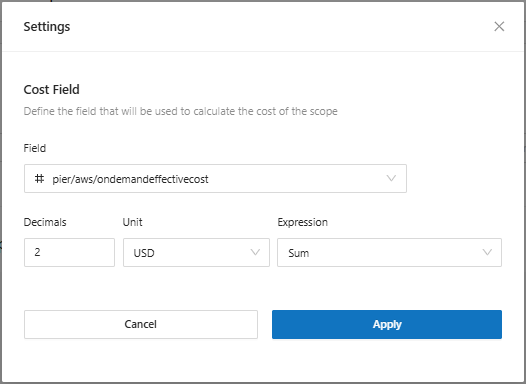
The system will open a screen that allows you to perform some initial configurations:

<figure><img src="https://1687673077-files.gitbook.io/~/files/v0/b/gitbook-x-prod.appspot.com/o/spaces%2FZ9sinLUl52lDK1vg6b8g%2Fuploads%2FblWYJlIZY3c0seZ6Nfg9%2Fimage.png?alt=media&#x26;token=6f3b2f05-5ac7-42bf-802c-5d665f60ae81" alt=""><figcaption></figcaption></figure>

* **Field**: It is possible to select the field that will be used to calculate the scope cost.

<figure><img src="https://1687673077-files.gitbook.io/~/files/v0/b/gitbook-x-prod.appspot.com/o/spaces%2FZ9sinLUl52lDK1vg6b8g%2Fuploads%2FEyJsjZCdcF8Wqx7jYWbc%2Fimage.png?alt=media&#x26;token=4da7d55f-14bd-4e77-94b4-451f816d853d" alt=""><figcaption></figcaption></figure>

* **Decimals**: Allows you to configure the number of decimal places that will be used

<figure><img src="https://1687673077-files.gitbook.io/~/files/v0/b/gitbook-x-prod.appspot.com/o/spaces%2FZ9sinLUl52lDK1vg6b8g%2Fuploads%2F4S83G6wwEtBz99RYsuHD%2Fimage.png?alt=media&#x26;token=55734639-d0c6-4bbc-8fb0-918968682def" alt=""><figcaption></figcaption></figure>

* **Unit**: Allows you to inform the operational unit that will be used in the calculation.

<figure><img src="https://1687673077-files.gitbook.io/~/files/v0/b/gitbook-x-prod.appspot.com/o/spaces%2FZ9sinLUl52lDK1vg6b8g%2Fuploads%2FXeCME15lKQgZ3HEcTNYu%2Fimage.png?alt=media&#x26;token=67fedad8-a73e-46a1-8eb5-4ba1163c766c" alt=""><figcaption></figcaption></figure>

* **Expression**: Allows you to select the expression that will be used in the calculation..

<figure><img src="https://1687673077-files.gitbook.io/~/files/v0/b/gitbook-x-prod.appspot.com/o/spaces%2FZ9sinLUl52lDK1vg6b8g%2Fuploads%2FL2gPEqvWlpwqmJWzrCQD%2Fimage.png?alt=media&#x26;token=7248b0a6-aa9d-4055-b9ab-3d9e196995a9" alt=""><figcaption></figcaption></figure>

Finally, by clicking the **apply** button, the system will apply the configuration to the rules that are created

5. Click **Add New Rule**.

<figure><img src="https://1687673077-files.gitbook.io/~/files/v0/b/gitbook-x-prod.appspot.com/o/spaces%2FZ9sinLUl52lDK1vg6b8g%2Fuploads%2FV2uQglN9pfqpwx94LIaO%2Fimage.png?alt=media&#x26;token=89000868-7b01-4f06-b7ee-dc16a51be1d5" alt=""><figcaption></figcaption></figure>

On the rule addition screen, there are 3 parts that need to be detailed in the process: **new rule**, **scope list** and **boost**, in addition to a part of **configurations** that the system allows you to make. We will see each of them below.

<figure><img src="https://1687673077-files.gitbook.io/~/files/v0/b/gitbook-x-prod.appspot.com/o/spaces%2FZ9sinLUl52lDK1vg6b8g%2Fuploads%2F0dY1fI7i0HqKqwaCOsQQ%2Fimage.png?alt=media&#x26;token=b5700632-c6fa-4f5d-991a-9dfdc952085e" alt=""><figcaption></figcaption></figure>

* **New Rule**&#x20;

Add the Rule Name. We recommend that the rule name be related to its scope and/or the corresponding business rule. In **Table 1**, we followed this recommendation by combining the "**company**" column with the "**cost\_center**" column, separating them with a " - " character.

<figure><img src="https://1687673077-files.gitbook.io/~/files/v0/b/gitbook-x-prod.appspot.com/o/spaces%2FZ9sinLUl52lDK1vg6b8g%2Fuploads%2FR9t3sZNGWeE33h4NwzJY%2Fimage.png?alt=media&#x26;token=fdf03eba-738a-4a7e-81f0-63e7acbc69d5" alt=""><figcaption></figcaption></figure>

Add a **Start Date** and/or **Expiration Date**. In this example, we will select January/2024.

<figure><img src="https://1687673077-files.gitbook.io/~/files/v0/b/gitbook-x-prod.appspot.com/o/spaces%2FZ9sinLUl52lDK1vg6b8g%2Fuploads%2Fj0crUSWJBDlphfDfxiTx%2Fimage.png?alt=media&#x26;token=16d42fca-93c8-43aa-8ccb-55d9c07f1d07" alt=""><figcaption></figcaption></figure>

The Expiration Date is optional and can be used, for example, if a certain cost center will exist for a specific period of time. In this case, we will select December/2024.

<figure><img src="https://1687673077-files.gitbook.io/~/files/v0/b/gitbook-x-prod.appspot.com/o/spaces%2FZ9sinLUl52lDK1vg6b8g%2Fuploads%2F7XatIkQVbbhp33OVfitf%2Fimage.png?alt=media&#x26;token=c074cf6b-1194-4673-994d-7bcb795559b9" alt=""><figcaption></figcaption></figure>

Once this is done, let's go to the next step.

* **Scopes List**&#x20;

<figure><img src="https://1687673077-files.gitbook.io/~/files/v0/b/gitbook-x-prod.appspot.com/o/spaces%2FZ9sinLUl52lDK1vg6b8g%2Fuploads%2F81GfrhecIwbksy9UuVZa%2Fimage.png?alt=media&#x26;token=3a28bdf9-8710-4dd2-85e6-b727ceddf86d" alt=""><figcaption></figcaption></figure>

Add a new scope. In the scope, we will identify the key that will assign a certain resource to a business.

<figure><img src="https://1687673077-files.gitbook.io/~/files/v0/b/gitbook-x-prod.appspot.com/o/spaces%2FZ9sinLUl52lDK1vg6b8g%2Fuploads%2FMwv0YQHus4PO6EZoAk5X%2Fimage.png?alt=media&#x26;token=0d4c24ef-6787-432f-8bde-2a842e2c8a5f" alt=""><figcaption></figcaption></figure>

Add the **Field Name** and **logical operation**.

In **Table 1**, we have the "**Scope**" column, whose rule refers to the "account id" (lineitem/usageaccountid). Since all accounts belong to a cost center and a company, we can allocate all accounts in the corresponding rule.

In this case, we will use the lineitem/usageaccountid field as scope.

<figure><img src="https://1687673077-files.gitbook.io/~/files/v0/b/gitbook-x-prod.appspot.com/o/spaces%2FZ9sinLUl52lDK1vg6b8g%2Fuploads%2FHUQQUqL03sa1gpKMwlTt%2Fimage.png?alt=media&#x26;token=02732d23-9509-4f6d-8854-f916b21ddb47" alt=""><figcaption></figcaption></figure>

In the logical operation, we will select "**equal to**" and choose the accounts listed in the "**Scope**" column of **Table 1**.

**The types of operators are:**

* equals -> when the objective is to map exact values ​​from a specific billing line;&#x20;
* is empty -> when the objective is to map empty values ​​from a billing line;&#x20;
* contains -> when the value we want to map is contained in specific parts of the billing line;&#x20;
* starts with -> when the value we want to map is contained at the beginning of the specific billing line;
* ends with -> when the value we want to map is contained at the end of the specific billing line;

<figure><img src="https://1687673077-files.gitbook.io/~/files/v0/b/gitbook-x-prod.appspot.com/o/spaces%2FZ9sinLUl52lDK1vg6b8g%2Fuploads%2F4Olal0oi4RtVFfk8b8Qb%2Fimage.png?alt=media&#x26;token=1b40cc08-fdb2-4db4-9205-f10a8aabb3c8" alt=""><figcaption></figcaption></figure>

Once done, we click on "**Add**".

<figure><img src="https://1687673077-files.gitbook.io/~/files/v0/b/gitbook-x-prod.appspot.com/o/spaces%2FZ9sinLUl52lDK1vg6b8g%2Fuploads%2F7biyaQis56tAP99pZ56l%2Fimage.png?alt=media&#x26;token=fa40deae-5a9c-4836-a3f0-28d2796a0e05" alt=""><figcaption></figcaption></figure>

You can then identify the total value represented by the scope in the billing.

<figure><img src="https://1687673077-files.gitbook.io/~/files/v0/b/gitbook-x-prod.appspot.com/o/spaces%2FZ9sinLUl52lDK1vg6b8g%2Fuploads%2F5wVwLnb0pvSbiRXXfbiu%2Fimage.png?alt=media&#x26;token=b27cb8b9-4bd1-4f78-abc3-bc78b9a956be" alt=""><figcaption></figcaption></figure>

To close, let's go to the **Boost** registration&#x20;

* **Boost**

Click New boost. Here, we will enrich the billing linked to the business rule. Again, we will use **Table 1**.

<figure><img src="https://1687673077-files.gitbook.io/~/files/v0/b/gitbook-x-prod.appspot.com/o/spaces%2FZ9sinLUl52lDK1vg6b8g%2Fuploads%2F8du80sfErRp0E2qrBSPR%2Fimage.png?alt=media&#x26;token=886de925-dc8c-4947-80b7-a2b3ece8ffce" alt=""><figcaption></figcaption></figure>

The "**Field Name**" icon will list the boosts that have already been configured in the tool. In this case, we will use the "Boost" column in **Table 1**.

<figure><img src="https://1687673077-files.gitbook.io/~/files/v0/b/gitbook-x-prod.appspot.com/o/spaces%2FZ9sinLUl52lDK1vg6b8g%2Fuploads%2F209tPwygwv0iuKFlLYOB%2Fimage.png?alt=media&#x26;token=22c20e69-f8ea-4160-8f1f-1dc862bf4247" alt=""><figcaption></figcaption></figure>

Enter the field name and value. In the example, we will select "boost/cost\_center" as the Field Name.

<figure><img src="https://1687673077-files.gitbook.io/~/files/v0/b/gitbook-x-prod.appspot.com/o/spaces%2FZ9sinLUl52lDK1vg6b8g%2Fuploads%2FZwtioYcYJZ7FvAMbnJ4y%2Fimage.png?alt=media&#x26;token=44ccd741-f917-487a-83c4-e309a1cd785e" alt=""><figcaption></figcaption></figure>

The boost value will be 12345.

<figure><img src="https://1687673077-files.gitbook.io/~/files/v0/b/gitbook-x-prod.appspot.com/o/spaces%2FZ9sinLUl52lDK1vg6b8g%2Fuploads%2FlZh4IapWz9EBDndEaiAz%2Fimage.png?alt=media&#x26;token=a36c5ba2-d826-4e82-9288-f806fd743510" alt=""><figcaption></figcaption></figure>

Click **Add** **and Close** to move on to the next step.

<figure><img src="https://1687673077-files.gitbook.io/~/files/v0/b/gitbook-x-prod.appspot.com/o/spaces%2FZ9sinLUl52lDK1vg6b8g%2Fuploads%2Fqni2YBai6nsB2fOnRftl%2Fimage.png?alt=media&#x26;token=6ec07d54-afaa-4d90-840c-aaac66d90072" alt=""><figcaption></figcaption></figure>

6. Once this is done, we will click on **Save**.

<figure><img src="https://1687673077-files.gitbook.io/~/files/v0/b/gitbook-x-prod.appspot.com/o/spaces%2FZ9sinLUl52lDK1vg6b8g%2Fuploads%2Fc0msWwk5XPmhHfYcsGT3%2Fimage.png?alt=media&#x26;token=4cb5fed4-db40-41a0-8049-5618d568d233" alt=""><figcaption></figcaption></figure>

Now the rule will be listed on the Organizational Map home screen.

{% hint style="warning" %}
Once a rule has been created, it is necessary to process the billing data so that the enrichment fields become effective within the tool.
{% endhint %}

7. When you finish a rule, you can perform some Actions.

* In the icon "![](https://1687673077-files.gitbook.io/~/files/v0/b/gitbook-x-prod.appspot.com/o/spaces%2FZ9sinLUl52lDK1vg6b8g%2Fuploads%2FHtM1AGqXmv41JlqU91j8%2Fimage.png?alt=media\&token=427d9a49-6fde-422e-ae8a-0f93c591fa56)", we can Copy the Rule, reusing the boosts or scopes already inserted.
* In the icon "![](https://1687673077-files.gitbook.io/~/files/v0/b/gitbook-x-prod.appspot.com/o/spaces%2FZ9sinLUl52lDK1vg6b8g%2Fuploads%2FnJAg6n5QMHSrzt0CN0aV%2Fimage.png?alt=media\&token=31f32c51-b247-4637-9c81-2d0e410790a4)" We can delete the rule.
* In the "![](https://1687673077-files.gitbook.io/~/files/v0/b/gitbook-x-prod.appspot.com/o/spaces%2FZ9sinLUl52lDK1vg6b8g%2Fuploads%2F4K3mIY9SOfXyv7wd2Z6s%2Fimage.png?alt=media\&token=5773bd36-7d1c-4993-888c-d5ea601ad89b)" More Actions icon, we can move the rule according to its priority order.

<figure><img src="https://1687673077-files.gitbook.io/~/files/v0/b/gitbook-x-prod.appspot.com/o/spaces%2FZ9sinLUl52lDK1vg6b8g%2Fuploads%2FDDYXIMTGMoO8GxFLKzVR%2Fimage.png?alt=media&#x26;token=c8cf8b1e-035f-42f9-9996-ab7ef96ecae4" alt=""><figcaption></figcaption></figure>

<figure><img src="https://1687673077-files.gitbook.io/~/files/v0/b/gitbook-x-prod.appspot.com/o/spaces%2FZ9sinLUl52lDK1vg6b8g%2Fuploads%2FjcjMg9j56NzgD5WgOvJP%2Fimage.png?alt=media&#x26;token=8846a92f-2ea5-4535-8c25-04a2372a8303" alt=""><figcaption></figcaption></figure>

8. In the selection box next to each rule:

<figure><img src="https://1687673077-files.gitbook.io/~/files/v0/b/gitbook-x-prod.appspot.com/o/spaces%2FZ9sinLUl52lDK1vg6b8g%2Fuploads%2FlkuOTKosrXaXYkkANTZH%2Fimage.png?alt=media&#x26;token=beeee7e6-532c-4841-9409-84d4d9bc80de" alt=""><figcaption></figcaption></figure>

9. When selecting the desired rule(s), the system will display information indicating the number of selected rules, along with additional action options:

<figure><img src="https://1687673077-files.gitbook.io/~/files/v0/b/gitbook-x-prod.appspot.com/o/spaces%2FZ9sinLUl52lDK1vg6b8g%2Fuploads%2FziND1bORyvosgiKJ9tF2%2Fimage.png?alt=media&#x26;token=ed0349d3-f116-4214-b5b7-fdc65fc5718b" alt=""><figcaption></figcaption></figure>

* **Expire selected rules:** When clicking this option, the system will display a screen that allows you to set an expiration date for the selected rules.

<figure><img src="https://1687673077-files.gitbook.io/~/files/v0/b/gitbook-x-prod.appspot.com/o/spaces%2FZ9sinLUl52lDK1vg6b8g%2Fuploads%2FDFq6tOY3LIKGjstwSGOB%2Fimage.png?alt=media&#x26;token=bca9591d-e3a5-447d-ad2c-7609ef9a9de3" alt=""><figcaption></figcaption></figure>

* **Boost selected rules:** When clicking this option, the system allows you to apply a new boost to the selected rules.

<figure><img src="https://1687673077-files.gitbook.io/~/files/v0/b/gitbook-x-prod.appspot.com/o/spaces%2FZ9sinLUl52lDK1vg6b8g%2Fuploads%2FOVX6iI7tZ0KTWhk7tKAx%2Fimage.png?alt=media&#x26;token=9029e875-5429-452c-aaac-1aa7ed8f354f" alt=""><figcaption></figcaption></figure>

* **Delete all:** When clicking this option, the system will display a warning message about the risk of removing all rules, and will then allow you to confirm the action.

<figure><img src="https://1687673077-files.gitbook.io/~/files/v0/b/gitbook-x-prod.appspot.com/o/spaces%2FZ9sinLUl52lDK1vg6b8g%2Fuploads%2FfOrvW8Q0RKSUeU1tZDhB%2Fimage.png?alt=media&#x26;token=9f21bfc0-a680-4059-9d43-0184c32b7e81" alt=""><figcaption></figcaption></figure>

* **Delete selected:** When clicking this option, the system will display a warning message about the risk of removing the selected rules and will then allow you to confirm the action.

<figure><img src="https://1687673077-files.gitbook.io/~/files/v0/b/gitbook-x-prod.appspot.com/o/spaces%2FZ9sinLUl52lDK1vg6b8g%2Fuploads%2FaB2kxvzEH7Fm5gmNLgpC%2Fimage.png?alt=media&#x26;token=be0e0253-7932-4948-aa2a-1236808c68d7" alt=""><figcaption></figcaption></figure>

10. Finally, by clicking on the arrow next to Add Rule:

<figure><img src="https://1687673077-files.gitbook.io/~/files/v0/b/gitbook-x-prod.appspot.com/o/spaces%2FZ9sinLUl52lDK1vg6b8g%2Fuploads%2F8S8xCoZEi9M5sC1cefW5%2Fimage.png?alt=media&#x26;token=518af469-31d9-4edc-af71-40b5eb6a68fc" alt=""><figcaption></figcaption></figure>

The system also allows the following actions:&#x20;

* **Import enrichment rules**: When clicking on the "import enrichment rules" option, the system will open the following screen to select the file you want to import

<figure><img src="https://1687673077-files.gitbook.io/~/files/v0/b/gitbook-x-prod.appspot.com/o/spaces%2FZ9sinLUl52lDK1vg6b8g%2Fuploads%2FeWNkgSrPD20vfSsJwYZr%2Fimage.png?alt=media&#x26;token=c59f1d19-1471-4bd7-af80-e3ea8aa18a4d" alt=""><figcaption></figcaption></figure>

Allowing you to download the model to a CSV file:

<figure><img src="https://1687673077-files.gitbook.io/~/files/v0/b/gitbook-x-prod.appspot.com/o/spaces%2FZ9sinLUl52lDK1vg6b8g%2Fuploads%2FUAhy1so9dZaVYiZ7fi9z%2Fimage.png?alt=media&#x26;token=72072aa2-bc8c-4307-b0c9-6b0c6d3c17cd" alt=""><figcaption></figcaption></figure>

And clean the screen data:

<figure><img src="https://1687673077-files.gitbook.io/~/files/v0/b/gitbook-x-prod.appspot.com/o/spaces%2FZ9sinLUl52lDK1vg6b8g%2Fuploads%2FsJWzz0M7gHi8vBAP64qY%2Fimage.png?alt=media&#x26;token=77e04781-5455-45fa-a167-7cbfbf676788" alt=""><figcaption></figcaption></figure>

* **Download rules**: By clicking on the Download rules option, the system will download the rules to your computer in a CSV file.