# Contract

1. In the **Contract tab**, the system allows you to search for an existing contract, as highlighted below.&#x20;

<figure><img src="https://1687673077-files.gitbook.io/~/files/v0/b/gitbook-x-prod.appspot.com/o/spaces%2FZ9sinLUl52lDK1vg6b8g%2Fuploads%2FKzUrKzqZL96oPOiCGrXn%2Fimage.png?alt=media&#x26;token=9d7429f4-6757-4f72-8d44-d04edf75797d" alt=""><figcaption></figcaption></figure>

2. You can also add new contracts by clicking the "**Add contract**" button:

<figure><img src="https://1687673077-files.gitbook.io/~/files/v0/b/gitbook-x-prod.appspot.com/o/spaces%2FZ9sinLUl52lDK1vg6b8g%2Fuploads%2FLneXTLC7aRmoclt0wNVe%2Fimage.png?alt=media&#x26;token=08e6dfce-cbb9-4b8d-8b6f-d5270baa1552" alt=""><figcaption></figcaption></figure>

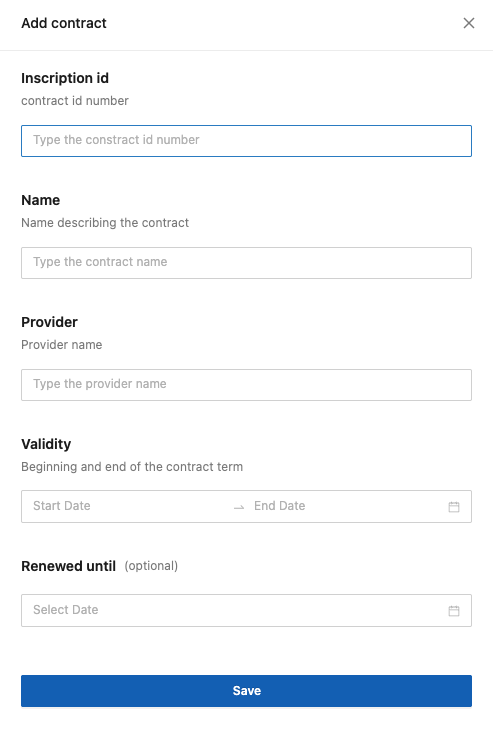
2. The system will display the screen to add new contracts, where you must provide the following information:

* **Registration ID**: Enter the contract’s identification number.
* **Name**: Enter the name that describes the contract.
* **Supplier**: Enter the supplier’s name.
* **Validity period:** Enter the start and end dates of the contract’s validity.
* **Renewed until**: Enter the end date, including the renewal period.

<figure><img src="https://1687673077-files.gitbook.io/~/files/v0/b/gitbook-x-prod.appspot.com/o/spaces%2FZ9sinLUl52lDK1vg6b8g%2Fuploads%2FwKqyaTRCJ1urCbA3B0Cb%2Fimage.png?alt=media&#x26;token=4a4b54fd-70df-4c3f-8338-10a48ec05999" alt=""><figcaption></figcaption></figure>

3. Finally, by clicking the “**Save**” button, the system will store the new contract and return to the main screen in the Contract tab.
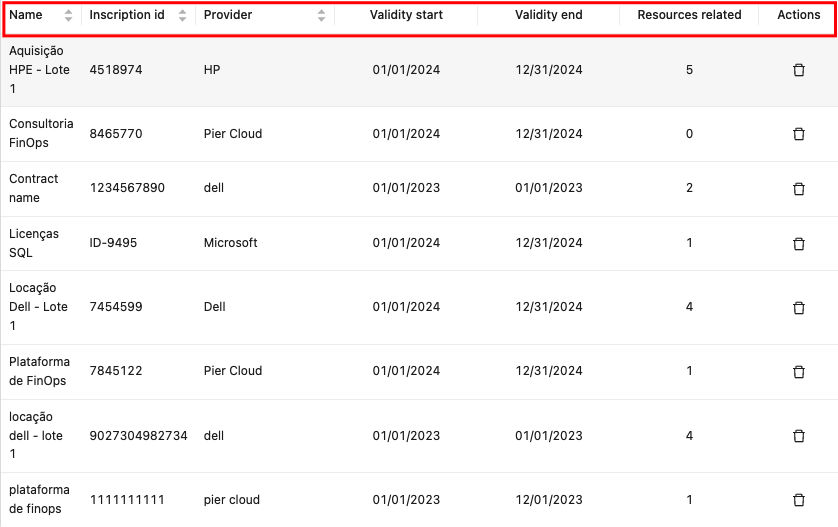
4. On the main screen, the following information is displayed:

* **Name**: Shows the name that describes the contract.
* **Registration** **ID**: Shows the contract’s identification number.
* **Supplier**: Shows the supplier’s name.
* **Start** **date**: Shows the contract’s start date.
* **End** **date**: Shows the contract’s end date.
* **Related** **resources**: Shows the number of related resources.

<figure><img src="https://1687673077-files.gitbook.io/~/files/v0/b/gitbook-x-prod.appspot.com/o/spaces%2FZ9sinLUl52lDK1vg6b8g%2Fuploads%2FWil4qRR2VkFD24MGwRu8%2Fimage.png?alt=media&#x26;token=8e3145aa-a7f5-473a-ab2b-7a1f375095de" alt=""><figcaption></figcaption></figure>

* **Actions**: The system provides the following action option:

<figure><img src="https://1687673077-files.gitbook.io/~/files/v0/b/gitbook-x-prod.appspot.com/o/spaces%2FZ9sinLUl52lDK1vg6b8g%2Fuploads%2F41Os6zzuvpKEUtart0P7%2Fimage.png?alt=media&#x26;token=f099ee71-bc70-408a-b9e1-44e607aaaccf" alt=""><figcaption></figcaption></figure>

* **Delete** **Contract**: By clicking the “![](https://1687673077-files.gitbook.io/~/files/v0/b/gitbook-x-prod.appspot.com/o/spaces%2FZ9sinLUl52lDK1vg6b8g%2Fuploads%2F986R6Xqsexy4EjOkrUHA%2Fimage.png?alt=media\&token=279fa661-6ee8-4625-b02f-bb6967705bfd)” icon, the system will display a confirmation screen for the action.

<figure><img src="https://1687673077-files.gitbook.io/~/files/v0/b/gitbook-x-prod.appspot.com/o/spaces%2FZ9sinLUl52lDK1vg6b8g%2Fuploads%2FhaGJyubhgGjWUsx91TzS%2Fimage.png?alt=media&#x26;token=776a6e83-836c-4836-94de-ba67c86814f4" alt=""><figcaption></figcaption></figure>

By clicking the “**Yes, I’m sure**” button, the system will complete the deletion and return to the main screen in the Contract tab.