# Periods

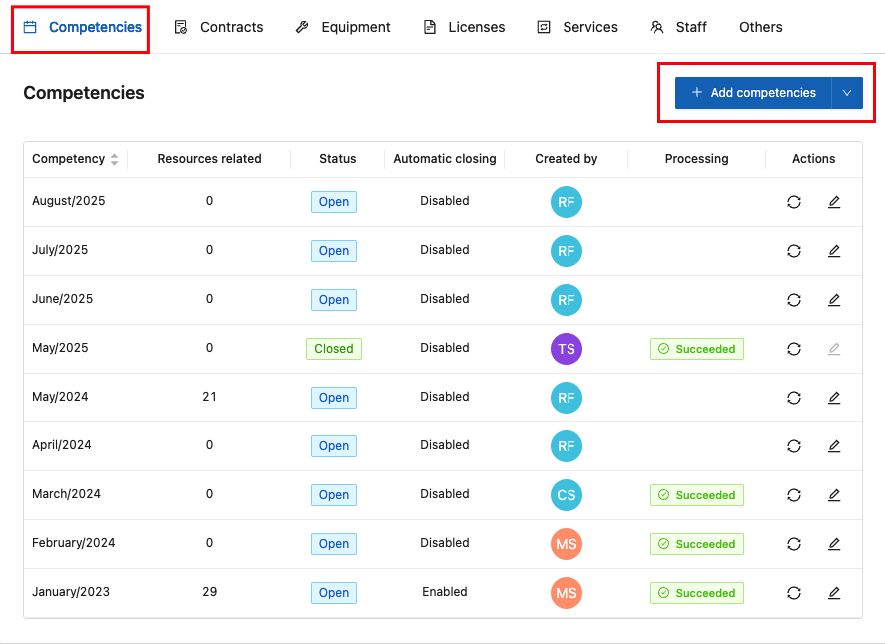
1. In the **Periods** tab, the system allows you to add new periods by clicking the “**Add periods**” button, as shown below:

<figure><img src="https://1687673077-files.gitbook.io/~/files/v0/b/gitbook-x-prod.appspot.com/o/spaces%2FZ9sinLUl52lDK1vg6b8g%2Fuploads%2FstNAmPAwp7J3cvRGxYlw%2Fimage.png?alt=media&#x26;token=0ab2542b-398a-4c77-8e1e-b536d7d22825" alt=""><figcaption></figcaption></figure>

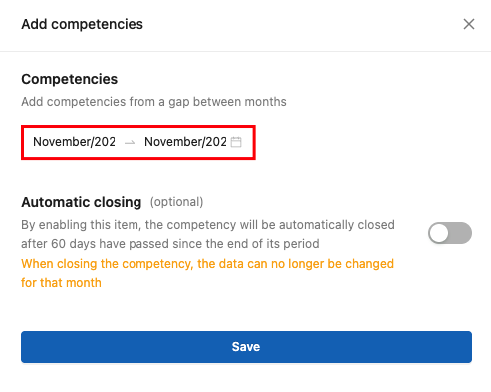
2. The system will display the screen for registering new periods, allowing you to select a range of months:

<figure><img src="https://1687673077-files.gitbook.io/~/files/v0/b/gitbook-x-prod.appspot.com/o/spaces%2FZ9sinLUl52lDK1vg6b8g%2Fuploads%2FKyBmMativvRCZD5j5y0n%2Fimage.png?alt=media&#x26;token=72b78ac5-3769-483e-9197-9f9233952e21" alt=""><figcaption></figcaption></figure>

You can also enable automatic closing, if you want the period to be closed automatically 60 days after the end of its range.

<figure><img src="https://1687673077-files.gitbook.io/~/files/v0/b/gitbook-x-prod.appspot.com/o/spaces%2FZ9sinLUl52lDK1vg6b8g%2Fuploads%2FroJWbzSDsaoOiKxi13yj%2Fimage.png?alt=media&#x26;token=28b19c59-d59d-43bf-9091-094f34a319bb" alt=""><figcaption></figcaption></figure>

3. By clicking the “**Save**” button, the system will store the new period and return to the main screen in the Periods tab.
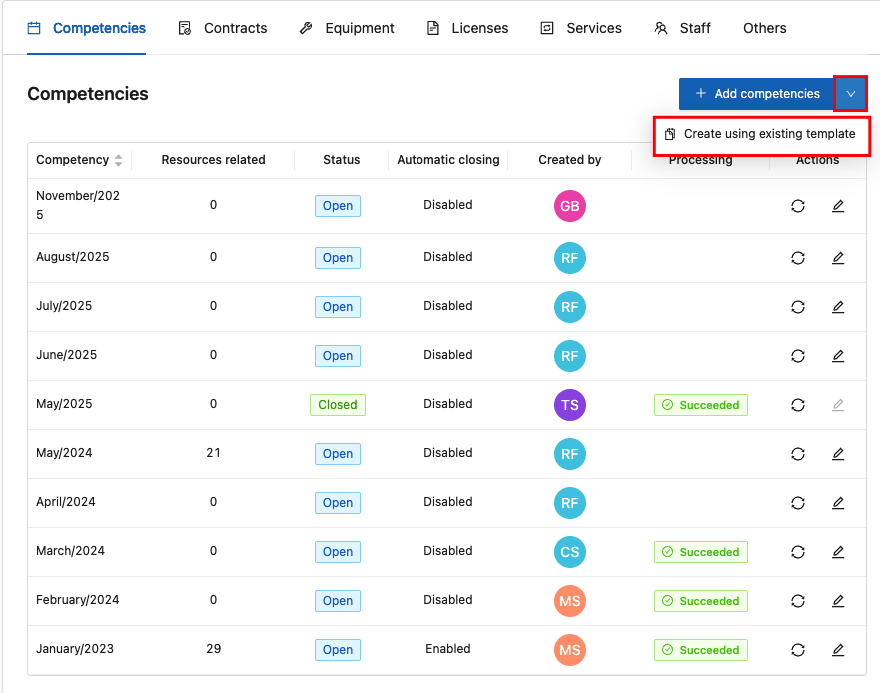
4. By clicking the down arrow next to “**Add periods**”, the system will display the option to create a period using an existing template:

<figure><img src="https://1687673077-files.gitbook.io/~/files/v0/b/gitbook-x-prod.appspot.com/o/spaces%2FZ9sinLUl52lDK1vg6b8g%2Fuploads%2FhxtvWeWDvZxRwZLivfOC%2Fimage.png?alt=media&#x26;token=4def6a55-aec2-46d1-b594-74575118ceb0" alt=""><figcaption></figcaption></figure>

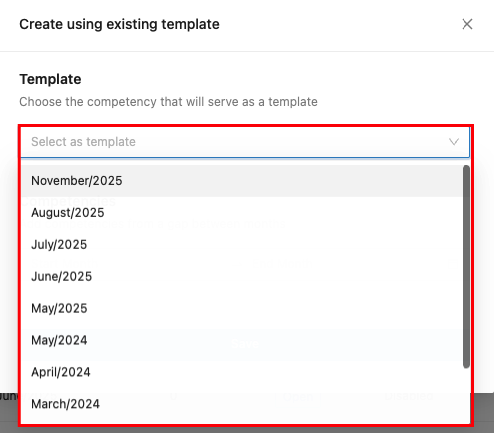
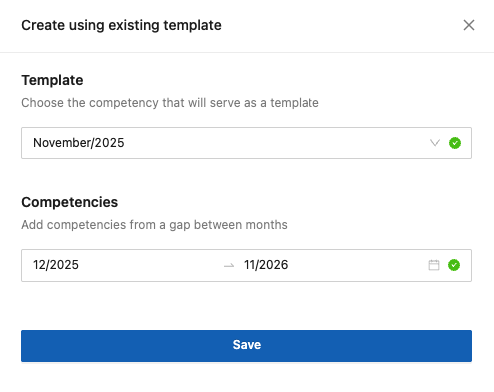
5. The system will then display the screen to create a new period based on an existing template:

<figure><img src="https://1687673077-files.gitbook.io/~/files/v0/b/gitbook-x-prod.appspot.com/o/spaces%2FZ9sinLUl52lDK1vg6b8g%2Fuploads%2FZeUHOKS3sudQWKQ9Ds9q%2Fimage.png?alt=media&#x26;token=fbf80c8f-367d-41a6-8a50-a8d2efedb760" alt=""><figcaption></figcaption></figure>

* In the “**Template**” field, you can select one of the existing periods to use as a template.

<figure><img src="https://1687673077-files.gitbook.io/~/files/v0/b/gitbook-x-prod.appspot.com/o/spaces%2FZ9sinLUl52lDK1vg6b8g%2Fuploads%2F0UCvZNE0KC120w6uaSpT%2Fimage.png?alt=media&#x26;token=c8d18768-d978-4fb9-8589-6244f3565881" alt=""><figcaption></figcaption></figure>

* In the “**Periods**” field, you can select an initial and final month range.

<figure><img src="https://1687673077-files.gitbook.io/~/files/v0/b/gitbook-x-prod.appspot.com/o/spaces%2FZ9sinLUl52lDK1vg6b8g%2Fuploads%2FLHAmT7q66uuS6yc8X6nF%2Fimage.png?alt=media&#x26;token=e834e807-cfef-4ca4-bd90-7dfe95a6f25b" alt=""><figcaption></figcaption></figure>

6. Finally, by clicking “**Save**”, the system will store the new period and return to the main screen in the Periods tab.

<figure><img src="https://1687673077-files.gitbook.io/~/files/v0/b/gitbook-x-prod.appspot.com/o/spaces%2FZ9sinLUl52lDK1vg6b8g%2Fuploads%2FNXoNIHd3F9A1heYbFKNT%2Fimage.png?alt=media&#x26;token=9571c1ff-9ae3-4726-a1a7-c66fd0c62204" alt=""><figcaption></figcaption></figure>

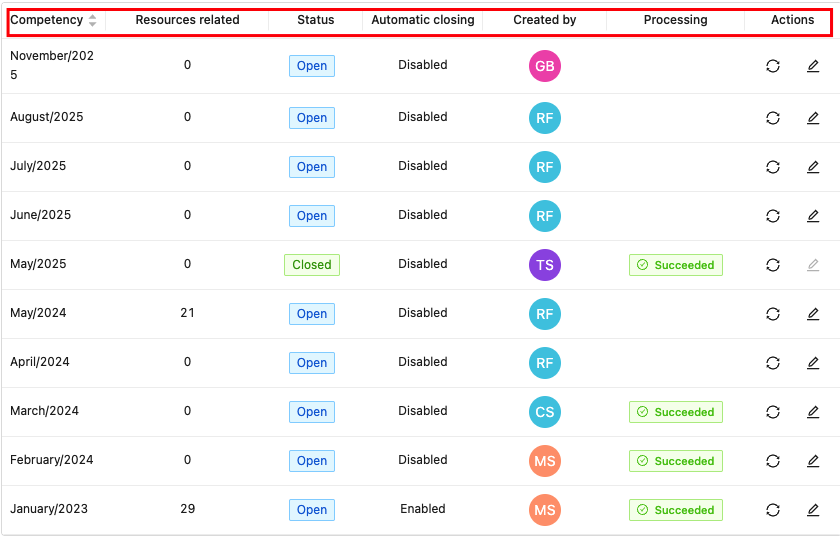
7. On the main screen, the following information is displayed:

* **Period**: Shows the reference month.
* **Related resources**: Shows the number of related resources.
* **Status**: Indicates whether the period is open or closed.
* **Automatic closing**: Indicates whether automatic closing is enabled or disabled.
* **Created** **by**: Displays the initials of the user who created the period.
* **Processing**: Shows information related to processing status.

<figure><img src="https://1687673077-files.gitbook.io/~/files/v0/b/gitbook-x-prod.appspot.com/o/spaces%2FZ9sinLUl52lDK1vg6b8g%2Fuploads%2FJ1DxAZ7zxdW3gtPleDby%2Fimage.png?alt=media&#x26;token=50abaa17-9dfb-4bb0-8359-e2ce3cbcc539" alt=""><figcaption></figcaption></figure>

* **Actions**: The system provides the following action options:

<figure><img src="https://1687673077-files.gitbook.io/~/files/v0/b/gitbook-x-prod.appspot.com/o/spaces%2FZ9sinLUl52lDK1vg6b8g%2Fuploads%2FOvqNS50UZAvG507e3DkH%2Fimage.png?alt=media&#x26;token=dc69746c-83fe-4650-a635-59343f058c78" alt=""><figcaption></figcaption></figure>

1. **Start processing**: By clicking the “![](https://1687673077-files.gitbook.io/~/files/v0/b/gitbook-x-prod.appspot.com/o/spaces%2FZ9sinLUl52lDK1vg6b8g%2Fuploads%2FyyqQuFxq1EsV9qHxBeHp%2Fimage.png?alt=media\&token=5e1d2221-c544-4455-ab41-c38cc587e452)” button, the system will start the processing for the selected period.
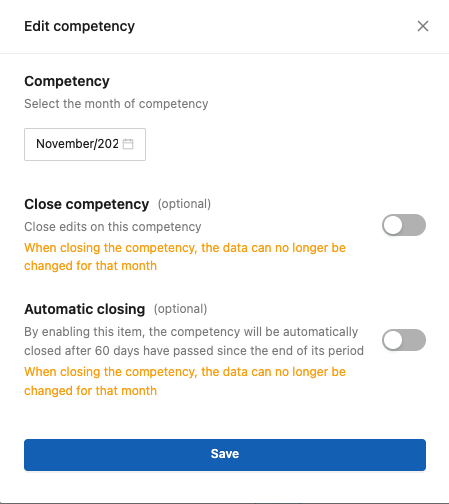
2. **Edit**: By clicking the “![](https://1687673077-files.gitbook.io/~/files/v0/b/gitbook-x-prod.appspot.com/o/spaces%2FZ9sinLUl52lDK1vg6b8g%2Fuploads%2Fd0gUayLTIfhJuycL30Fh%2Fimage.png?alt=media\&token=7dc263b3-5bd6-494c-9abd-5c5c75479613)” button, the system will display the screen that allows you to edit the period’s information.

<figure><img src="https://1687673077-files.gitbook.io/~/files/v0/b/gitbook-x-prod.appspot.com/o/spaces%2FZ9sinLUl52lDK1vg6b8g%2Fuploads%2FHNEdu9jL8K6QV9Rqgo31%2Fimage.png?alt=media&#x26;token=105d3000-119d-4ee8-b79b-4c8c877d0de1" alt=""><figcaption></figcaption></figure>

* **Period**: The system allows you to change the reference month.<br>

  <figure><img src="https://1687673077-files.gitbook.io/~/files/v0/b/gitbook-x-prod.appspot.com/o/spaces%2FZ9sinLUl52lDK1vg6b8g%2Fuploads%2FSSqQ49D9oWvFG7WCXEua%2Fimage.png?alt=media&#x26;token=96bb1d37-555c-409c-9548-67dac3311ae8" alt=""><figcaption></figcaption></figure>
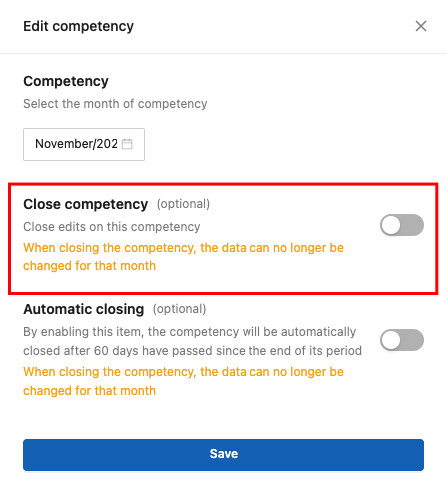
* **Close** **period**: By clicking the toggle, the system allows you to close the period.

<figure><img src="https://1687673077-files.gitbook.io/~/files/v0/b/gitbook-x-prod.appspot.com/o/spaces%2FZ9sinLUl52lDK1vg6b8g%2Fuploads%2Fr0FkkvJLfMp7UbA0HReB%2Fimage.png?alt=media&#x26;token=b065739b-5563-4214-8fe1-94712a3e8d7f" alt=""><figcaption></figcaption></figure>

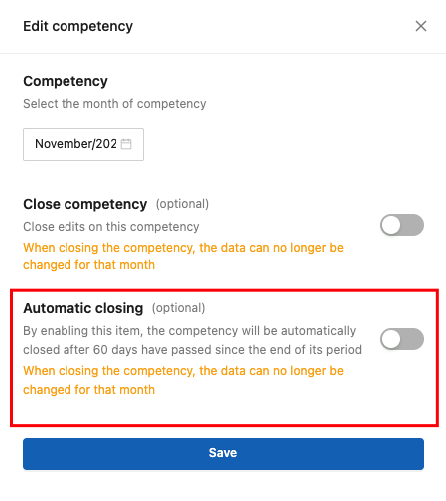
* **Automatic** **closing**: By clicking the toggle, the system allows you to enable automatic closing for the period.

<figure><img src="https://1687673077-files.gitbook.io/~/files/v0/b/gitbook-x-prod.appspot.com/o/spaces%2FZ9sinLUl52lDK1vg6b8g%2Fuploads%2FOB4neIOa0Vnqx2mDTvxE%2Fimage.png?alt=media&#x26;token=a368e48e-c89a-4068-a6c4-7ed339785613" alt=""><figcaption></figcaption></figure>

8. Finally, by clicking the “**Save**” button, the system will store the changes and return to the main screen in the Periods tab.