# Services

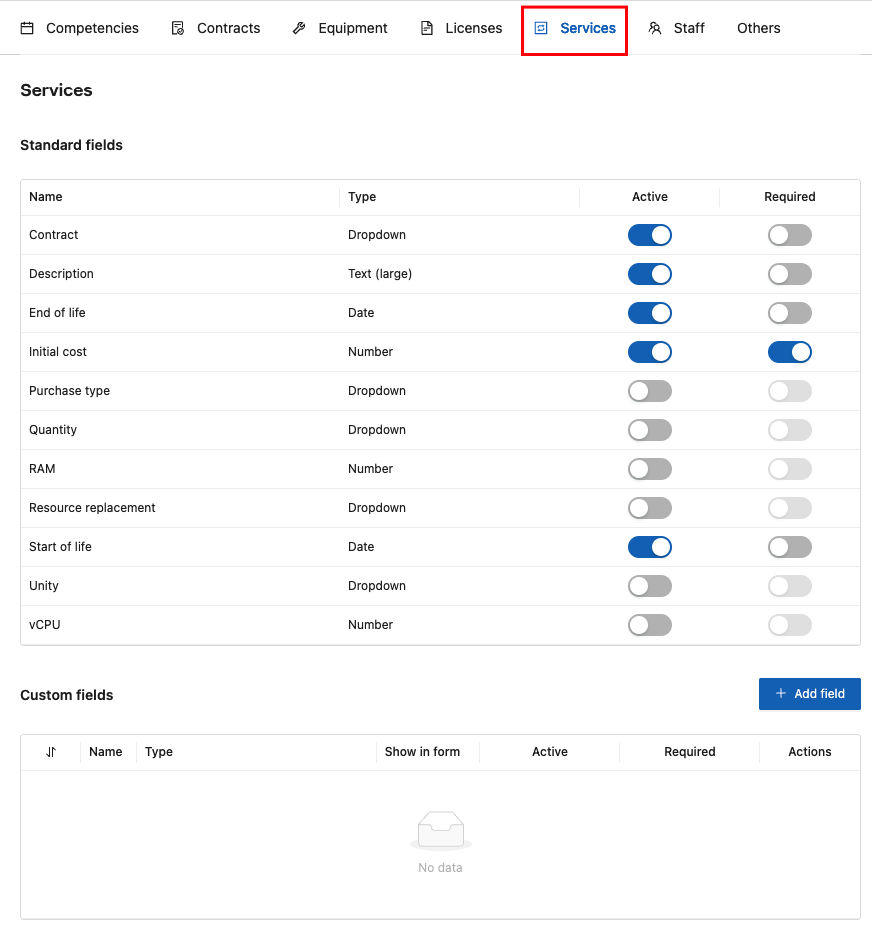
1. In the **Services** **tab**, the system allows you to view the registered services, including both standard fields and custom fields:

<figure><img src="https://1687673077-files.gitbook.io/~/files/v0/b/gitbook-x-prod.appspot.com/o/spaces%2FZ9sinLUl52lDK1vg6b8g%2Fuploads%2FsJ9CzgY3I9ec7BiHUHsK%2Fimage.png?alt=media&#x26;token=c9b5e3af-0817-4ce2-b79a-67d200984c2e" alt=""><figcaption></figcaption></figure>

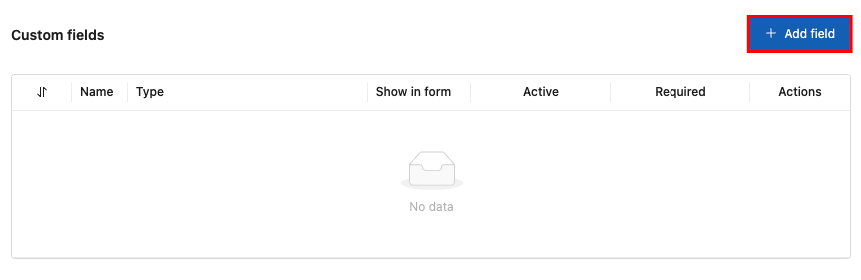
2. In addition, the system allows you to add new custom service fields by clicking the “**Add field**” button:

<figure><img src="https://1687673077-files.gitbook.io/~/files/v0/b/gitbook-x-prod.appspot.com/o/spaces%2FZ9sinLUl52lDK1vg6b8g%2Fuploads%2F7M9wM1f4R4fGm7215ieu%2Fimage.png?alt=media&#x26;token=ea870597-c838-430a-9c37-80c1545fb376" alt=""><figcaption></figcaption></figure>

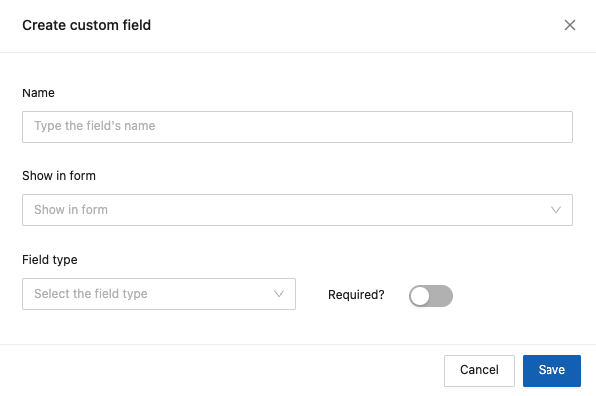
2. The system will display the screen to add new custom fields, where you must provide the following information:

<figure><img src="https://1687673077-files.gitbook.io/~/files/v0/b/gitbook-x-prod.appspot.com/o/spaces%2FZ9sinLUl52lDK1vg6b8g%2Fuploads%2F7DZ7HtSlRut6S0SngGgw%2Fimage.png?alt=media&#x26;token=8282a531-51fc-407c-a664-5715a65d3ef6" alt=""><figcaption></figcaption></figure>

* **Name**: Enter the name that represents the field.
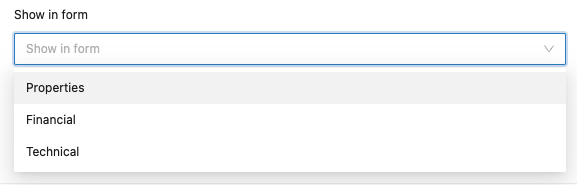
* **Show in form**: Specify where this field should be displayed in the form. Select one of the available options: Properties, Financial, or Technical.

<figure><img src="https://1687673077-files.gitbook.io/~/files/v0/b/gitbook-x-prod.appspot.com/o/spaces%2FZ9sinLUl52lDK1vg6b8g%2Fuploads%2FGMXeGgWJGGeeWMvaKMNa%2Fimage.png?alt=media&#x26;token=bba10ef1-761a-40e9-b5c9-475f3fb3230d" alt=""><figcaption></figcaption></figure>

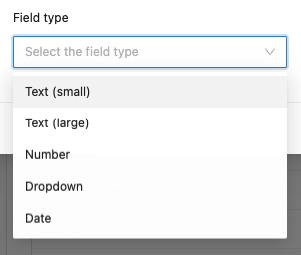
* **Field type**: Specify the input type for the field. Select one of the available options: Text (Small), Text (Large), Number, Dropdown, or Date.

<figure><img src="https://1687673077-files.gitbook.io/~/files/v0/b/gitbook-x-prod.appspot.com/o/spaces%2FZ9sinLUl52lDK1vg6b8g%2Fuploads%2FwB0F7LPDdNlq31KRRYLM%2Fimage.png?alt=media&#x26;token=93073c00-fed6-42d0-89e7-11eb29c6f762" alt=""><figcaption></figcaption></figure>

* **Required**: Indicate whether the field must be filled out or not.

3. Finally, by clicking the “**Save**” button, the system will store the new field and return to the main screen in the Services tab.
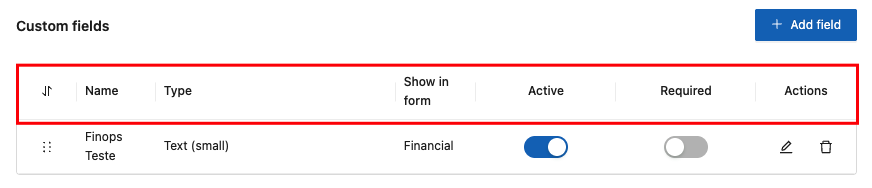
4. On the main screen, the following information is displayed:

#### Standard fields:

* **Name**: Shows the name that describes the field.
* **Type**: Shows the type of information for the field.
* **Active**: Indicates whether the field is active and allows you to change its status.
* **Required**: Indicates whether the field is mandatory and allows changing the requirement.

<figure><img src="https://1687673077-files.gitbook.io/~/files/v0/b/gitbook-x-prod.appspot.com/o/spaces%2FZ9sinLUl52lDK1vg6b8g%2Fuploads%2FH9d9RH6797J2IZbAFWv3%2Fimage.png?alt=media&#x26;token=e34d6dc5-582e-40cf-a38c-a64e0a8a3654" alt=""><figcaption></figcaption></figure>

#### Custom fields:

* **Name**: Shows the name that describes the field.
* **Type**: Shows the type of information for the field.
* **Show in form**: Indicates where this field is displayed in the form.
* **Active**: Indicates whether the field is active and allows you to change its status.
* **Required**: Indicates whether the field is mandatory and allows changing the requirement.

<figure><img src="https://1687673077-files.gitbook.io/~/files/v0/b/gitbook-x-prod.appspot.com/o/spaces%2FZ9sinLUl52lDK1vg6b8g%2Fuploads%2Fh4Z6nz0JlXQHOtOiPzMB%2Fimage.png?alt=media&#x26;token=fda8d221-247a-47ab-965a-13ef824ad8a9" alt=""><figcaption></figcaption></figure>

* **Actions**: The system provides the following action options:

<figure><img src="https://1687673077-files.gitbook.io/~/files/v0/b/gitbook-x-prod.appspot.com/o/spaces%2FZ9sinLUl52lDK1vg6b8g%2Fuploads%2FDMBA6kXzKln8eIkalUtz%2Fimage.png?alt=media&#x26;token=d7005537-76e5-4bbe-bd23-25ca100a8041" alt=""><figcaption></figcaption></figure>

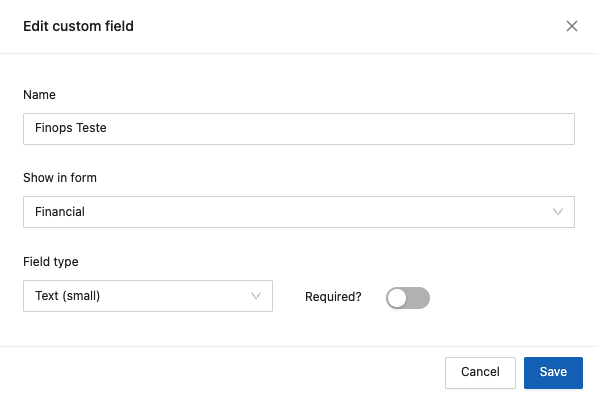
1. **Edit field**: By clicking the “![](https://1687673077-files.gitbook.io/~/files/v0/b/gitbook-x-prod.appspot.com/o/spaces%2FZ9sinLUl52lDK1vg6b8g%2Fuploads%2F0PgVplGMbVe6OS77vrTQ%2Fimage.png?alt=media\&token=439b0727-f432-4502-a5ad-4fb9e041965d) ” icon, the system will display an editing screen for the custom field, where you can modify the following information:

* Name;
* Show in form;
* Field type;
* Required;

<figure><img src="https://1687673077-files.gitbook.io/~/files/v0/b/gitbook-x-prod.appspot.com/o/spaces%2FZ9sinLUl52lDK1vg6b8g%2Fuploads%2Fq8YpJSyHVII2el2guhG4%2Fimage.png?alt=media&#x26;token=e15b25e6-1dee-4957-887d-3feecd78c37c" alt=""><figcaption></figcaption></figure>

2. **Delete field**: By clicking the “![](https://1687673077-files.gitbook.io/~/files/v0/b/gitbook-x-prod.appspot.com/o/spaces%2FZ9sinLUl52lDK1vg6b8g%2Fuploads%2FhpWbIgXylfRdRAW0QsiJ%2Fimage.png?alt=media\&token=15caf55f-c55d-4677-a680-9bad0c5844cc)” icon, the system will complete the deletion and remain on the main screen in the Services tab.