# Staff

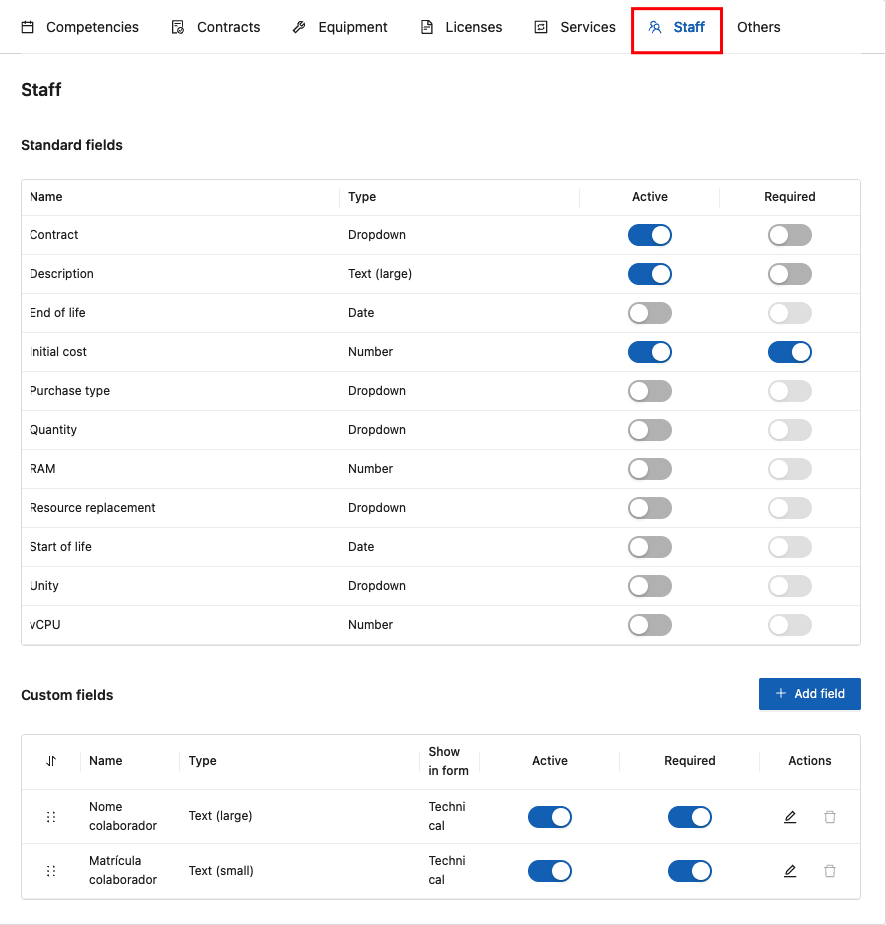
1. In the **Staff tab**, the system allows you to view the registered teams, including both standard fields and custom fields:

<figure><img src="https://1687673077-files.gitbook.io/~/files/v0/b/gitbook-x-prod.appspot.com/o/spaces%2FZ9sinLUl52lDK1vg6b8g%2Fuploads%2F4UTvmqJxSjzHPTxdGYxR%2Fimage.png?alt=media&#x26;token=6fe1d467-6887-4c9d-8cf7-48e7f3dc4305" alt=""><figcaption></figcaption></figure>

2. In addition, the system allows you to add new custom team fields by clicking the “**Add field**” button:

<figure><img src="https://1687673077-files.gitbook.io/~/files/v0/b/gitbook-x-prod.appspot.com/o/spaces%2FZ9sinLUl52lDK1vg6b8g%2Fuploads%2FOzYOi5WSWJMUJmN6Gj4H%2Fimage.png?alt=media&#x26;token=13a4b172-a6e9-4b82-84eb-e30024c753fb" alt=""><figcaption></figcaption></figure>

2. The system will display the screen to add new custom fields, where you must provide the following information:

<figure><img src="https://1687673077-files.gitbook.io/~/files/v0/b/gitbook-x-prod.appspot.com/o/spaces%2FZ9sinLUl52lDK1vg6b8g%2Fuploads%2FBAekzX8nFiGaBZKBTqMz%2Fimage.png?alt=media&#x26;token=49ed6b09-4f46-4588-abbd-e96eef33d360" alt=""><figcaption></figcaption></figure>

* **Name**: Enter the name that represents the field.
* **Show in form**: Specify where this field should be displayed in the form. Select one of the available options: Properties, Financial, or Technical.

<figure><img src="https://1687673077-files.gitbook.io/~/files/v0/b/gitbook-x-prod.appspot.com/o/spaces%2FZ9sinLUl52lDK1vg6b8g%2Fuploads%2FgEzXK6RkkN8fwvpiSr6U%2Fimage.png?alt=media&#x26;token=48aed6ce-2269-409c-88bf-d232cf75a4f4" alt=""><figcaption></figcaption></figure>

* **Field type**: Specify the input type for the field. Select one of the available options: Text (Small), Text (Large), Number, Dropdown, or Date.

<figure><img src="https://1687673077-files.gitbook.io/~/files/v0/b/gitbook-x-prod.appspot.com/o/spaces%2FZ9sinLUl52lDK1vg6b8g%2Fuploads%2FSAAelLcgiREOHGtn41mp%2Fimage.png?alt=media&#x26;token=78d2f0e1-a7e0-4a57-a626-6ba1e659ac98" alt=""><figcaption></figcaption></figure>

* **Required**: Indicate whether the field must be filled out or not.

3. Finally, by clicking the “**Save**” button, the system will store the new field and return to the main screen in the Team tab.
4. On the main screen, the following information is displayed:

#### Standard fields:

* **Name**: Shows the name that describes the field.
* **Type**: Shows the type of information for the field.
* **Active**: Indicates whether the field is active and allows you to change its status.
* **Required**: Indicates whether the field is mandatory and allows changing the requirement.

<figure><img src="https://1687673077-files.gitbook.io/~/files/v0/b/gitbook-x-prod.appspot.com/o/spaces%2FZ9sinLUl52lDK1vg6b8g%2Fuploads%2FRq1r6Tglyscg7zbdMPKo%2Fimage.png?alt=media&#x26;token=d1a7f66a-c2f0-456d-9d85-9d50c4cf3878" alt=""><figcaption></figcaption></figure>

#### Custom fields:

* **Name**: Shows the name that describes the field.
* **Type**: Shows the type of information for the field.
* **Show in form**: Indicates where this field is displayed in the form.
* **Active**: Indicates whether the field is active and allows you to change its status.
* **Required**: Indicates whether the field is mandatory and allows changing the requirement.

<figure><img src="https://1687673077-files.gitbook.io/~/files/v0/b/gitbook-x-prod.appspot.com/o/spaces%2FZ9sinLUl52lDK1vg6b8g%2Fuploads%2FYmUzw4LHe3pr0oZ6anaC%2Fimage.png?alt=media&#x26;token=c8212c40-b8a7-4164-aa77-707d471111a6" alt=""><figcaption></figcaption></figure>

* **Actions**: The system provides the following action options:

<figure><img src="https://1687673077-files.gitbook.io/~/files/v0/b/gitbook-x-prod.appspot.com/o/spaces%2FZ9sinLUl52lDK1vg6b8g%2Fuploads%2FhXzuPvKx3J2cBYKAXeDO%2Fimage.png?alt=media&#x26;token=3b696a18-cb00-4a3e-8436-7627b372ab32" alt=""><figcaption></figcaption></figure>

1. **Edit field**: By clicking the “![](https://1687673077-files.gitbook.io/~/files/v0/b/gitbook-x-prod.appspot.com/o/spaces%2FZ9sinLUl52lDK1vg6b8g%2Fuploads%2F7j1ox57KNJuDkpG7soTs%2Fimage.png?alt=media\&token=e26c9c4e-58d5-479d-9b42-5a8cf5d39a3f) ” icon, the system will display an editing screen for the custom field, where you can modify the following information:

* Name;
* Show in form;
* Field type;
* Required;

<figure><img src="https://1687673077-files.gitbook.io/~/files/v0/b/gitbook-x-prod.appspot.com/o/spaces%2FZ9sinLUl52lDK1vg6b8g%2Fuploads%2FQ4weqXh4S8g3l94huHEJ%2Fimage.png?alt=media&#x26;token=86f34d3b-7bec-4472-a7ba-e53a083b7c4e" alt=""><figcaption></figcaption></figure>

2. **Delete field**: By clicking the “![](https://1687673077-files.gitbook.io/~/files/v0/b/gitbook-x-prod.appspot.com/o/spaces%2FZ9sinLUl52lDK1vg6b8g%2Fuploads%2F8thuIlEpNYLPFnnuCpn1%2Fimage.png?alt=media\&token=84523e4c-b693-4aaf-ab50-666c24df2fdb)” icon, the system will complete the deletion and remain on the main screen in the Team tab.