# Overview
1. **Accessing the Overview.**
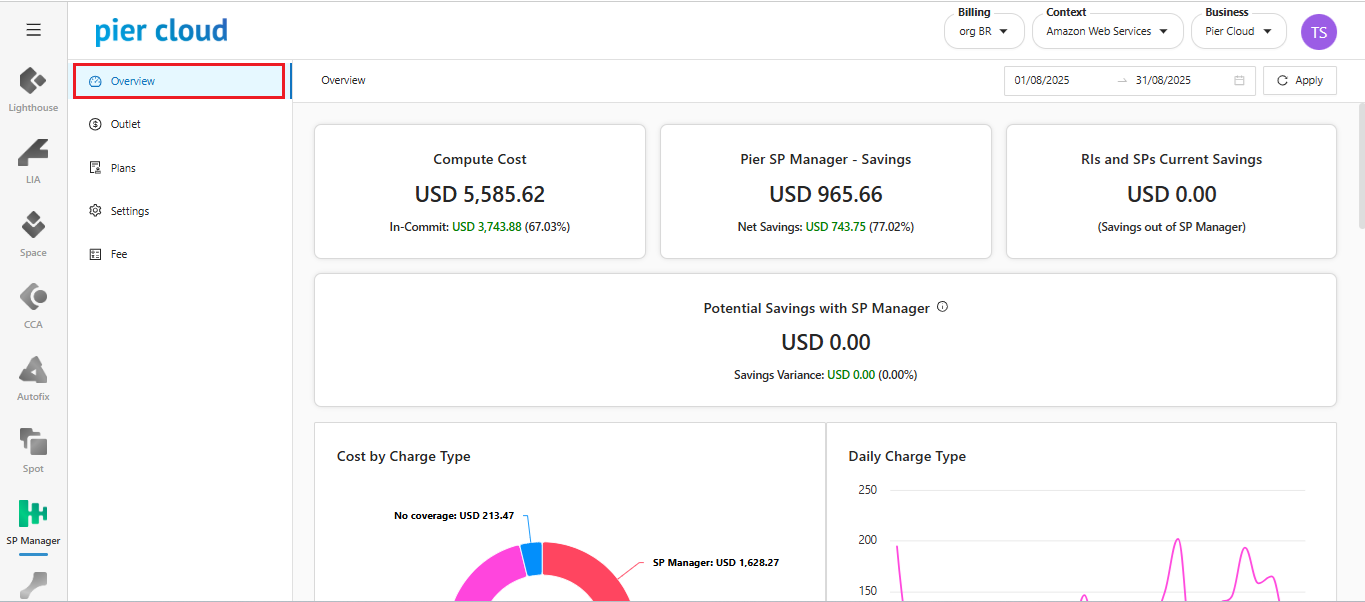
In the SP Manager side feature menu, select **Overview**.
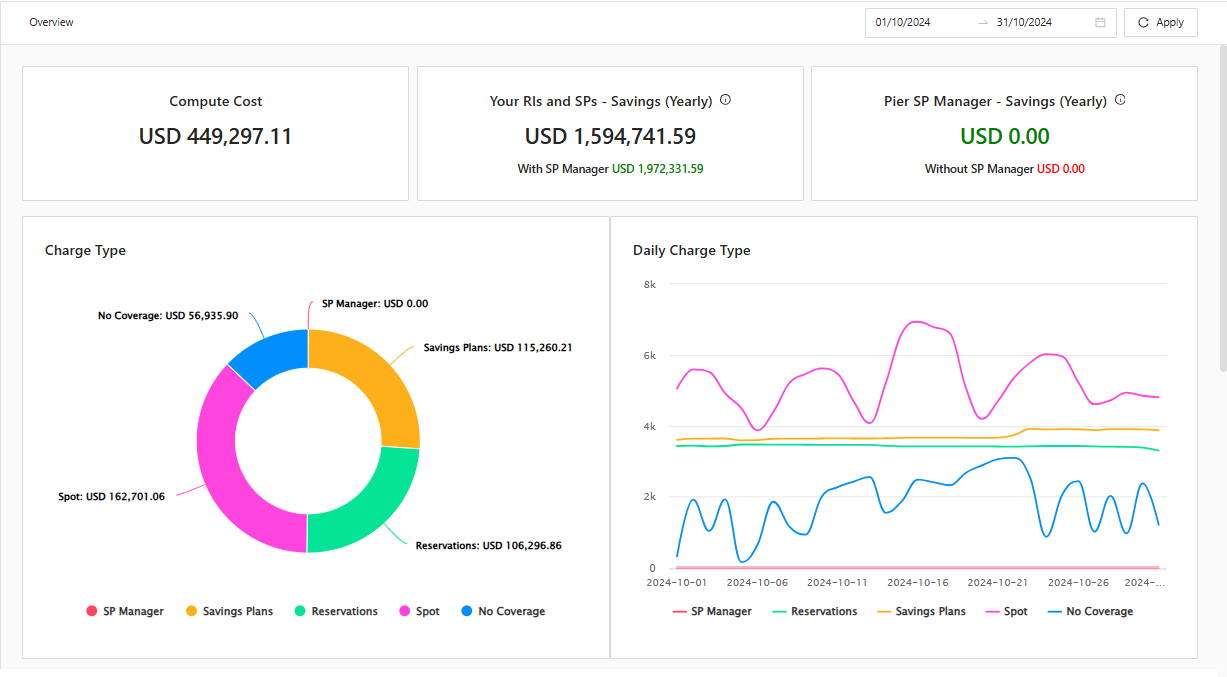
2. In Overview it is possible to see how the coverage is.
* **Compute Cost (We only consider services that are eligible for SavingsPlan, EC2, Fargate, Lambda in this number)**: How much is the cost within the selected period
* **Your RIs and SPs - Savings (Yearly) - Without SP Manager:** How much Savings was generated in the period with the commitments.
* **Your RIs and SPs - Savings (Yearly) - With SP Manager:** How much Savings would have been generated in the period with the commitments.
* **Pier SP Manager - Savings (Yearly) - With SP Manager:** Informs how much savings were generated with the plans contracted with Pier Cloud.
* **Pier SP Manager - Savings (Yearly) - Without SP Manager:** Informs how much savings would have been generated by contracting the plan with AWS.
* **Charge Type:** Here it shows the environment's pricing models, how much is allocated to each cost category.
* **Daily Charge Type:** How is the daily consumption and coverage? Here it is possible to view and understand the environment's daily consumption.
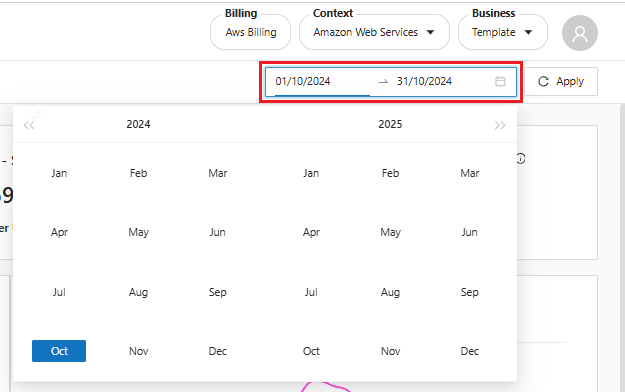
3. **Period:**
It is possible to choose a specific date or specific period, and all information will be filtered to the selected Period.
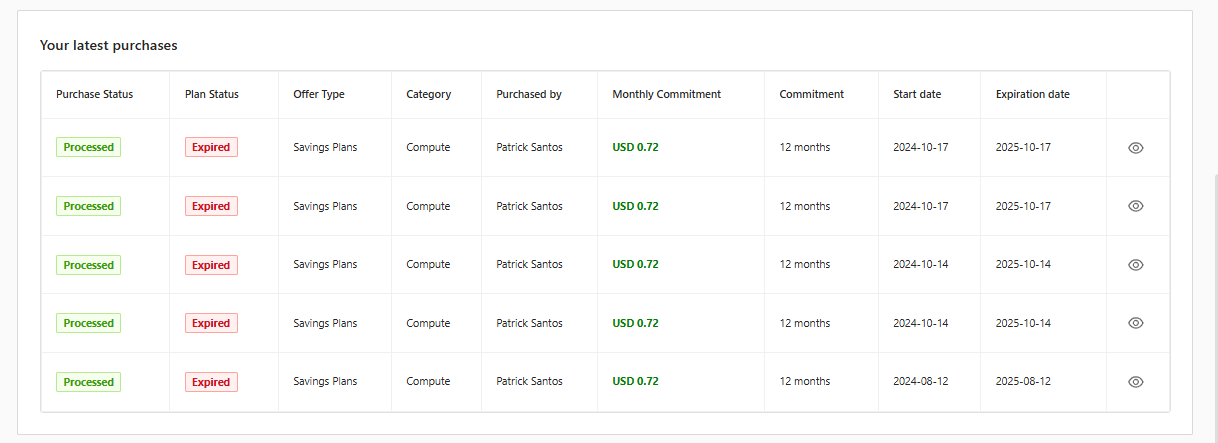
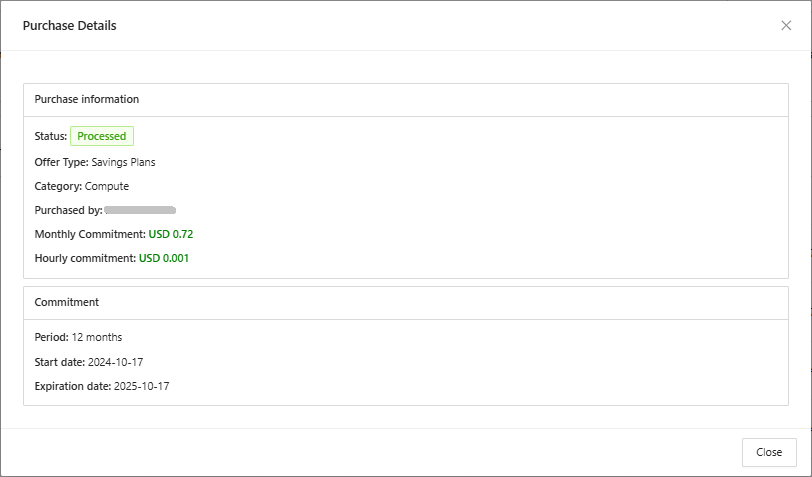
4. **Your latest purchases**:
A history of your purchases with all the information.
* **Purchase Status:** If your purchase has already been processed or is pending
* **Plan Status:** If it is active or expired
* **Offer Type:** Which product was purchased (in this case it is Savings Plans)
* **Category:** The type of service that is considered in Billing
* **Purchased by:** Who was the person responsible for purchasing
* **Monthly Commitment:** Monthly value that is paid
* **Commitment:** Time committed to SP Manager
* **Start date:** Commitment start date
* **Expiration date:** Commitment end date
5. **View Details**:
By clicking on the "" button, it is possible to view purchase details.