# Settings

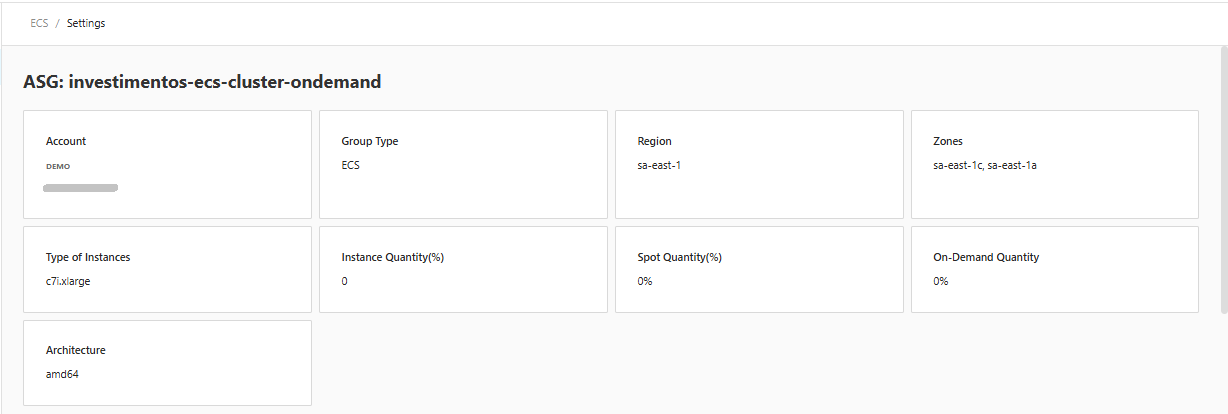
By clicking the **settings** button on the desired account, the "**ECS**" settings screen will be displayed.

1. Being possible to view information about the selected account

<figure><img src="https://1687673077-files.gitbook.io/~/files/v0/b/gitbook-x-prod.appspot.com/o/spaces%2FZ9sinLUl52lDK1vg6b8g%2Fuploads%2FPzJ9X0qX0KO4vbcQcWdp%2Fimage.png?alt=media&#x26;token=25b6dbb6-067c-4c4c-a3dc-dec8c5daa932" alt=""><figcaption></figcaption></figure>

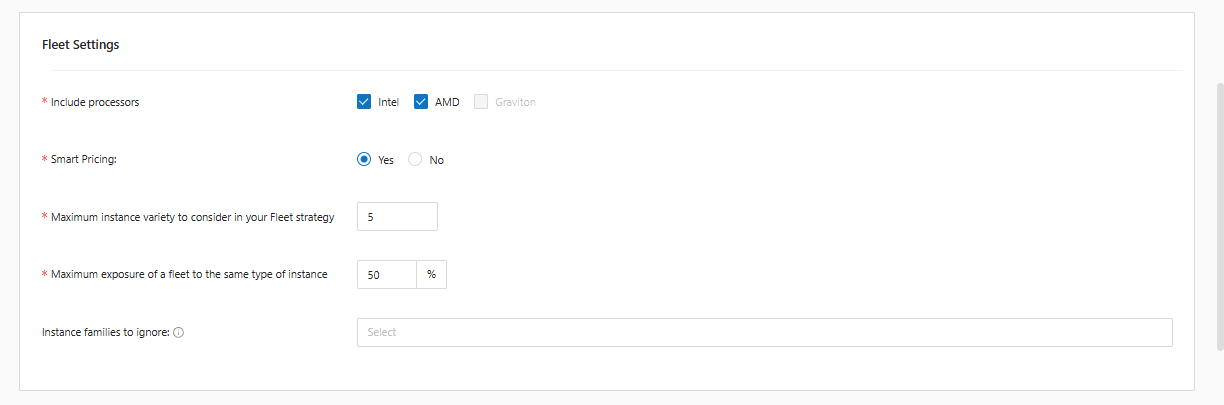
2. Edit Fleet settings:&#x20;

* Enable or disable available processors
* Use Smart Pricing or not&#x20;
* Limit the maximum variety of machines to be considered in the Fleet strategy&#x20;
* Limit the maximum percentage of exposure of a fleet to the same type of machine&#x20;
* Select the family of instances that can be ignored.

<figure><img src="https://1687673077-files.gitbook.io/~/files/v0/b/gitbook-x-prod.appspot.com/o/spaces%2FZ9sinLUl52lDK1vg6b8g%2Fuploads%2F028ZKGT0ZCOBb8FaKpLZ%2Fimage.png?alt=media&#x26;token=98672656-d6aa-4500-b0d1-b5a32e7ab58d" alt=""><figcaption></figcaption></figure>

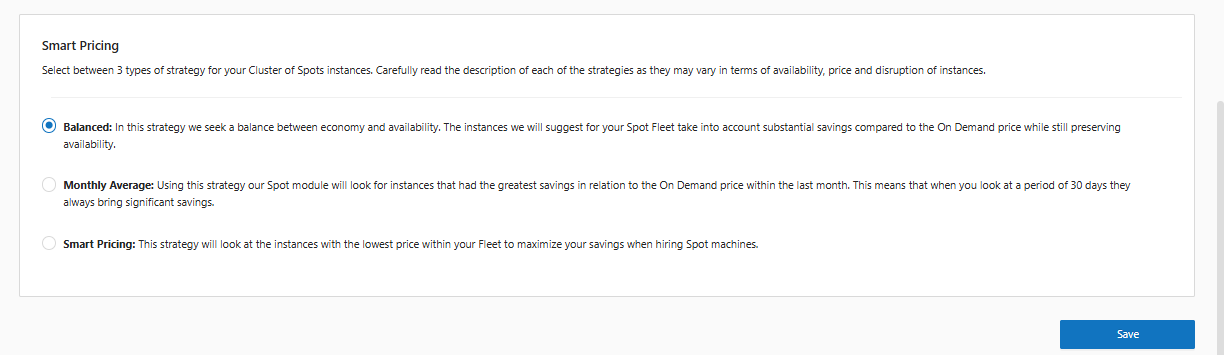
3. And define the smart pricing strategy that will be applied, if you have chosen to use it.

<figure><img src="https://1687673077-files.gitbook.io/~/files/v0/b/gitbook-x-prod.appspot.com/o/spaces%2FZ9sinLUl52lDK1vg6b8g%2Fuploads%2FlP9EWXBkNnd3JRJvkZF0%2Fimage.png?alt=media&#x26;token=356b5839-6e94-47d7-95a6-bae2f7acbeca" alt=""><figcaption></figcaption></figure>

After adjusting all the desired configuration, click the "Save" button so that the system records the information.